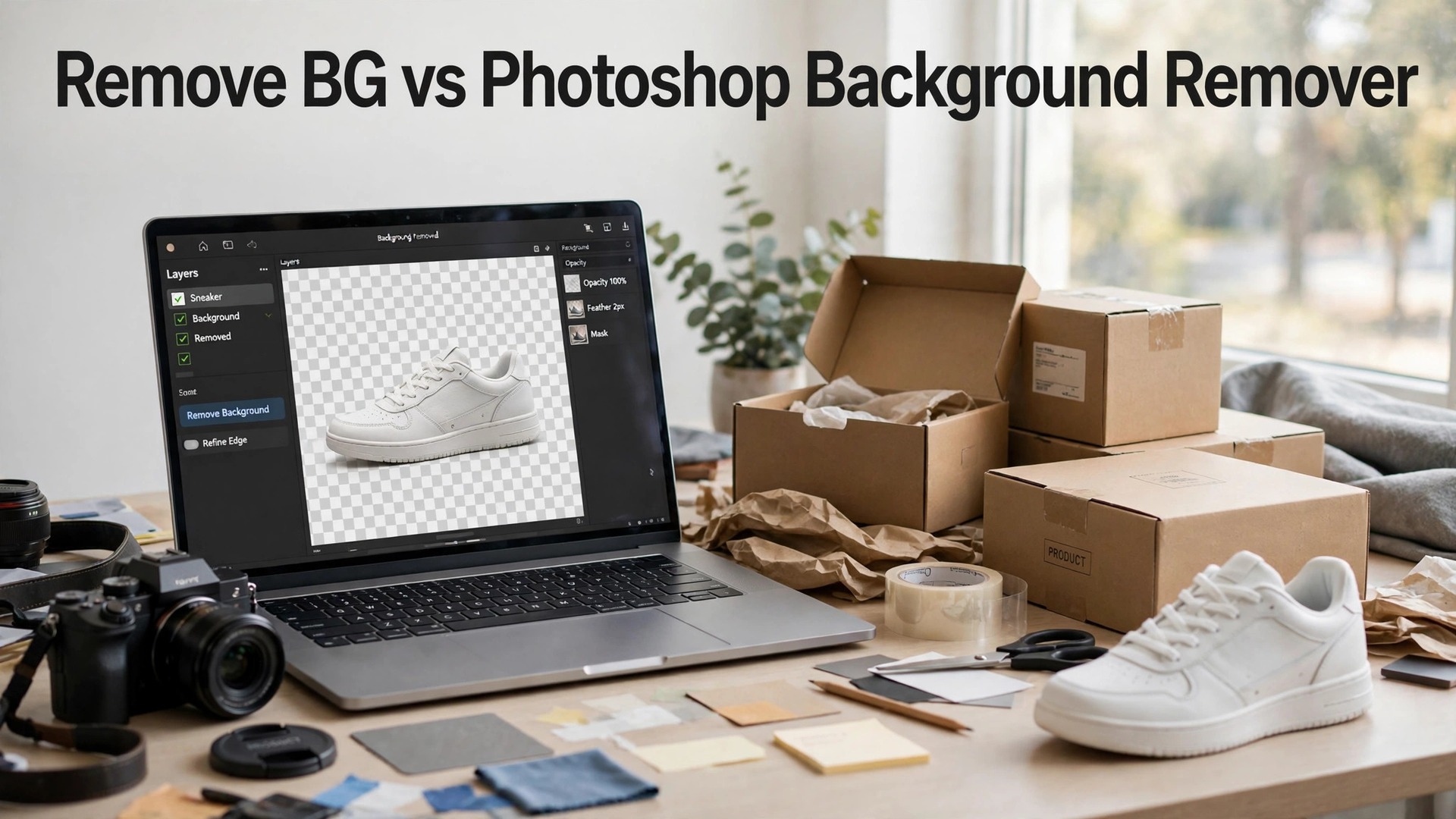
Remove bg vs photoshop background remover comes down to one question, and it is not which tool cuts a better edge. It is how many photos you process. Remove.bg wins when you need a clean cutout in seconds, with no editor to learn and no subscription to manage. Photoshop wins when the photo needs more than a cutout, such as retouching, compositing, a new background and a print-ready file. A small business that processes ten photos a month will use Remove.bg. A business that retouches a hundred photos a month will use Photoshop.
A product photo with a clean background sells better than the same photo on a kitchen table, and the reason is trust. A buyer who sees a sharp product on a white background believes the seller is professional. A buyer who sees a cluttered background wonders what else is sloppy. Marketplaces know this too. Amazon, eBay and Etsy all show white-background images first in search, and a listing with a messy photo gets fewer clicks than the same listing with a clean one.
The trap is the free cutout that looks good at phone size and falls apart at full size. A background remover that leaves a halo around the product, cuts off a handle, or blurs the edge will cost you sales, because the buyer zooms in before they buy. Both tools in this guide were judged on the edge quality at full size, not on the thumbnail, and the best choice depends on the product, not the brand.
The two tools look similar on a pricing page, and they are not similar in use. Remove.bg is a single-purpose tool that does one job in seconds, with no editor to learn and no setting to adjust. Photoshop is a full editor that does a hundred jobs, with a background remover as one tool among many. A business that understands that difference will pick the right tool in a day, and a business that does not will pay for Photoshop and use it only to remove backgrounds.
One change matters more than any feature in this guide. Remove.bg, the tool that defined this category, closes its standalone website on December 1, 2026, and its background removal moves into Canva. The service still works until then, and existing credits run until that date, but nobody should build a new long-term workflow on it. This guide still covers Remove.bg, because it works today, and it names the replacement for every job it did.
In this article
- Quick Answer. Remove BG vs Photoshop in 30 Seconds
- Cutout Quality. Remove.bg Wins Automatic, Photoshop Wins Manual
- Speed. Remove.bg Wins by a Wide Margin
- Pricing. Remove.bg Is Cheaper per Photo, Photoshop Is Cheaper per Month
- Ease of Use. Remove.bg Is Effortless, Photoshop Is Deep
- Export Quality. A Tie at Full Size, Remove.bg Wins on Megapixels
- The Free Plan Test. Remove BG vs Photoshop Without Paying
- Which Photos Each Tool Handles Best
- Remove BG vs Photoshop Background Remover. The Verdict by Job
- Related Guides
- Frequently Asked Questions
- The Bottom Line
Quick Answer. Remove BG vs Photoshop in 30 Seconds
If you want the short version, here it is. Remove.bg is the best pick for a fast single cutout, at $9 a month for 40 credits, with the sharpest automatic edge in this comparison. Photoshop is the best pick for a photo that needs retouching as well as a cutout, with the Photography plan at $19.99 a month including Lightroom and 1TB of storage. A business that removes backgrounds and nothing else should use Remove.bg while it lasts. A business that edits photos every day should use Photoshop.
The remove bg vs photoshop background remover decision is really a decision about volume and depth. The table below compares the two on the facts that change a decision, and the sections after it test each one on cutout quality, speed, pricing, ease of use and export quality.
| Feature | Remove.bg | Photoshop |
|---|---|---|
| Best for | Fast single cutouts | Retouching plus cutout |
| Free tier | Free previews, 1 credit | 7-day trial |
| Paid from | $9/mo for 40 credits | $19.99/mo Photography plan |
| Cutout quality | Best automatic edge | Best manual control |
| Speed | Seconds, no editor | Minutes, full editor |
| Batch processing | Paid plans and API | Actions and batch |
| Export size | Up to 50 megapixels | Full size, any format |
| Learning curve | None | Steepest here |
| Status | Closes Dec 1, 2026 | Ongoing |
Cutout Quality. Remove.bg Wins Automatic, Photoshop Wins Manual
The first test is cutout quality, and the remove bg vs photoshop background remover test starts with the edge. The result is a split. Remove.bg wins the automatic test, with the sharpest single-click cutout in this comparison, and the cleanest edge on a first attempt, with no halo and no missing handles. The tool was built for one job, and it does that job better than any automatic tool in Photoshop, including the Remove Background button and Select Subject. A product photo uploaded to Remove.bg comes back with a clean edge in seconds, and the edge holds up at full size on most products, from shoes to bags to bottles.
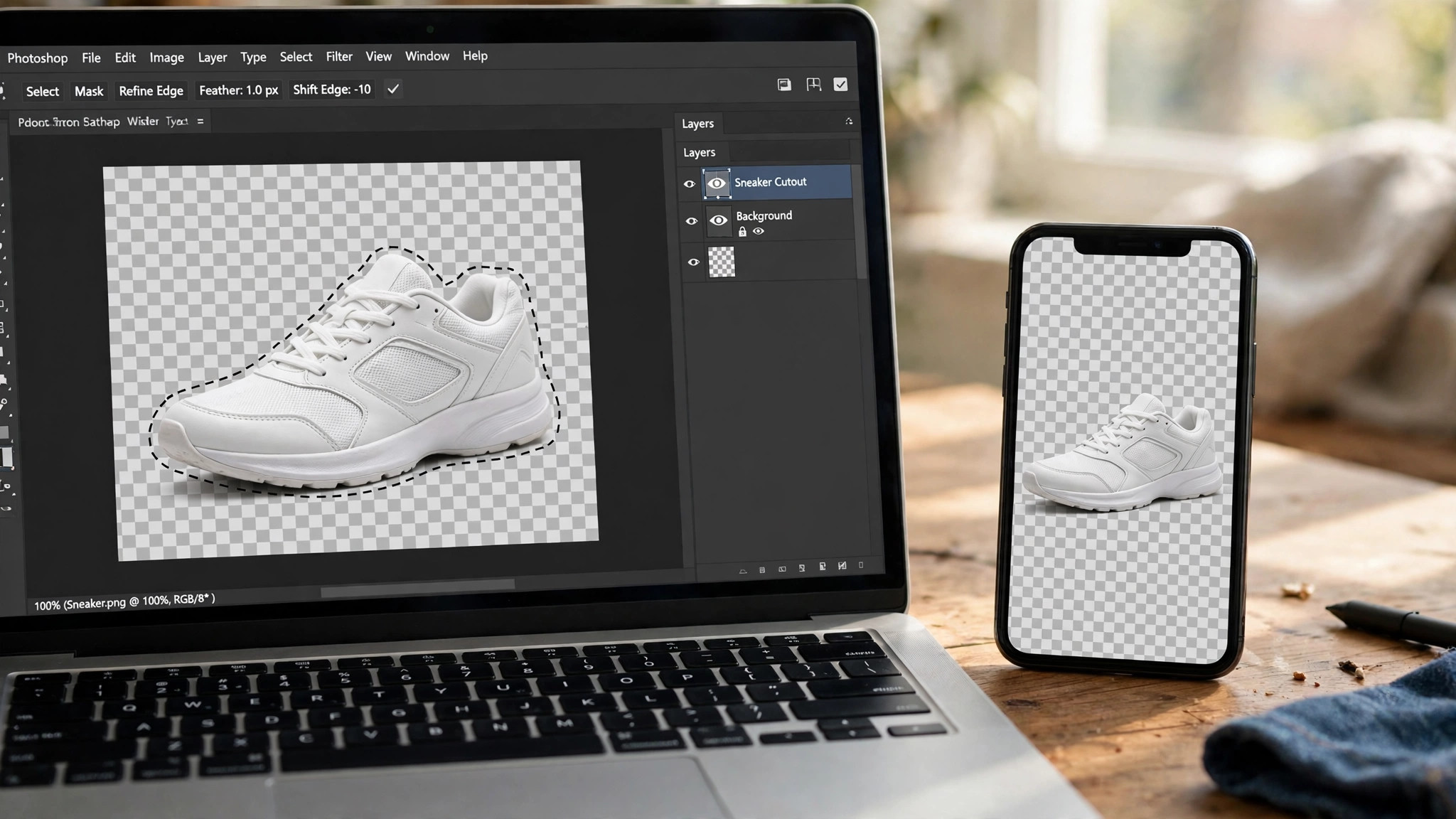
Photoshop wins the manual test, because its tools let you fix a cutout by hand when the automatic result fails. The Select and Mask workspace, the Refine Edge brush and the manual pen tool give you a precision no automatic tool can match, and a skilled user can cut out a white product on a white background, a glass bottle or a piece of jewellery with an edge that looks perfect. The catch is the time. A manual cutout takes minutes, and a difficult product can take half an hour, while Remove.bg takes seconds.
The quality gap shows up on the hardest products. A white sneaker on a white background defeats most automatic tools, because the edge between the product and the background is invisible to the algorithm. Remove.bg handles it better than Photoshop’s automatic tools, but Photoshop’s manual tools handle it best of all, because a human can see the edge that the algorithm cannot. A business that photographs white products should learn Photoshop’s manual tools, or pay a retoucher, because no automatic tool will get it right every time.
Speed. Remove.bg Wins by a Wide Margin
The second test is speed, and Remove.bg wins it by a wide margin. You upload a photo, the background disappears in seconds, and you download a PNG with a transparent background. There is no editor to open, no tool to select, and no setting to adjust. A shop with ten photos can process them in ten minutes, and a shop with a hundred photos can process them through the API without touching an editor at all. The credit model fits that workflow, because one credit removes the background from one full-resolution image up to 50 megapixels.
Photoshop is slower, because it is an editor first and a remover second. You open the photo, select the background, refine the edge, and export, and each step takes a minute or more. The Actions feature can automate a batch, but the setup takes an hour, and the result still needs checking. A business that processes a hundred photos a week will find Remove.bg faster by an order of magnitude, and a business that processes ten photos a month will not feel the difference.
The speed gap is the reason many businesses use both tools. They cut the background in Remove.bg, then open the result in Photoshop for retouching, compositing and export. That workflow works, and it is the fastest route to a professional listing image, but it costs two tools, and it stops working when Remove.bg closes its standalone site on December 1, 2026.
Pricing. Remove.bg Is Cheaper per Photo, Photoshop Is Cheaper per Month
The third test is pricing, and the answer depends on volume. Remove.bg is credit-based. A subscription costs $9 a month for 40 credits, $39 a month for 200 credits, or $89 a month for 500 credits, with lower monthly rates on annual billing. Pay-as-you-go packs start at $3 for 3 credits, with larger packs at $49 for 75 and $99 for 200. A free account gets low-resolution previews and one full-resolution credit. At $9 a month for 40 credits, the cost is about $0.23 per image, which is the cheapest per-image price in this comparison for a small volume.
Photoshop is subscription only, with a 7-day free trial and no free plan. Photoshop alone costs $22.99 a month on an annual plan billed monthly, or $34.49 a month billed monthly with no commitment. The Photography plan costs $19.99 a month and adds Lightroom, Lightroom Classic and 1TB of storage, which makes it the cheaper route to Photoshop for most small businesses. At $19.99 a month, the cost is fixed no matter how many photos you process, which makes it cheaper than Remove.bg for a business that processes more than 85 photos a month.
The price gap is simple. A business that processes fewer than 40 photos a month should use Remove.bg at $9 a month. A business that processes more than 85 photos a month should use Photoshop at $19.99 a month. A business in between should compare the two on the other tests, because the price alone will not decide it. Check the price at checkout, because both tools change their prices often, and remember that Remove.bg credits expire on December 1, 2026, when the standalone site closes.
Ease of Use. Remove.bg Is Effortless, Photoshop Is Deep
The fourth test is ease of use, and Remove.bg wins it easily. There is nothing to learn. You upload a photo, the background disappears, and you download the result. There is no editor, no menu, and no setting, which means a first-time user can process a photo in under a minute. The API is simple too, with a single call that returns a cutout, and the integrations cover Shopify, WordPress and most marketplaces.
Photoshop is the hardest tool to learn in this comparison, with the steepest learning curve and the densest interface. A first-time user should expect to spend a weekend learning the basics, and a month learning the retouching tools well enough for commercial work. The payoff is depth. A user who learns Photoshop can retouch, composite, color correct and export a photo to any standard, and no other tool in this comparison can match that range. The ease gap matters less than the workflow gap. A business that needs one job done fast should use Remove.bg. A business that needs many jobs done well should learn Photoshop.
Export Quality. A Tie at Full Size, Remove.bg Wins on Megapixels
The fifth test is export quality, and it is a tie at full size, with Remove.bg winning on megapixels. Remove.bg exports up to 50 megapixels on paid plans, which is the highest in this comparison, and the PNG output is clean, with a transparent background and no quality loss. Photoshop exports at full size in any format, with RAW support for the highest quality, and with color profiles that match print standards. A business that prints product photos will find Photoshop more direct, because it controls the color space, the resolution and the file format.
The export settings differ too. Remove.bg exports a PNG with a transparent background or a JPG on white, with a simple quality setting and no control over color space. Photoshop exports as a PNG, JPG, TIFF or PSD, with full control over resolution, color space and compression, and with a Save for Web tool that shows the file size before you download. A business that needs a print-ready file will find Photoshop more direct. A business that needs a web listing image will find Remove.bg faster.
The Free Plan Test. Remove BG vs Photoshop Without Paying
The free plans are where the remove bg vs photoshop background remover decision often gets made, because the gap between them is large. Remove.bg gives free preview downloads at low resolution, plus one full-resolution credit when you sign up, so its free tier is for testing, not for listings. A preview download is capped at 0.25 megapixels, which looks fine on a phone and blurry on a desktop, and a single full-resolution credit covers one photo. A business that tests Remove.bg will know in a day whether the edge quality fits its products.
Photoshop offers a 7-day free trial and no free plan, which means the cheapest test is a week of full access. The trial covers the whole app, including the Remove Background tool, Select Subject, Generative Fill and the full export, so a business can test the complete workflow in a week. The trial is long enough to process a batch of photos and check the result at full size, but it is not long enough to learn the app, so a first-time user should expect to spend the trial on the basics.
The third test is what the paid plan adds. Remove.bg at $9 a month adds 40 full-resolution credits, batch processing and API access. Photoshop at $19.99 a month on the Photography plan adds Lightroom, Lightroom Classic and 1TB of storage, plus the full editor. Both paid plans are fair for what they cover, and the choice depends on the job, not the price. Remember that Remove.bg credits expire on December 1, 2026, so do not buy credits you cannot use before then.
1. Remove.bg. Best for Fastest Single Cutout
Remove.bg defined this category, and it still makes the sharpest single-image cutout in this comparison. You upload a photo, the background disappears in seconds, and the edge is cleaner than any rival on a first attempt, with no halo and no missing handles. The tool is simple by design, with no editor to learn, and its API is the standard for shops that process images in bulk. One credit removes the background from one full-resolution image up to 50 megapixels, and the batch processing covers a folder of photos at once.
Pricing is credit-based. A subscription costs $9 a month for 40 credits, $39 a month for 200 credits, or $89 a month for 500 credits, with lower monthly rates on annual billing. Pay-as-you-go packs start at $3 for 3 credits, with larger packs at $49 for 75 and $99 for 200. A free account gets low-resolution previews and one full-resolution credit. Check the current price at checkout, because Remove.bg changes its credit pricing often.
The closure matters more than the price. Remove.bg announced that its standalone website closes on December 1, 2026, and its background removal moves into Canva. Web users are directed toward Canva, and API users toward Leonardo.AI. The service works until then, and existing credits run until that date, but nobody should build a new long-term workflow on it. If you use Remove.bg today, plan the move to Canva or Photoroom before December, and test the replacement on your hardest products now.
What works. The single-image cutout is the best here, and the credit model suits a shop that processes images in bursts. The API is the most widely integrated in this comparison, and the 50-megapixel export is the highest here.
What to watch. The standalone site closes on December 1, 2026, so do not buy credits you cannot use before then. The free tier is preview quality only, so it cannot make a live listing image, and there is no editor for retouching after the cutout.
2. Photoshop. Best for Retouching Plus Cutout
Adobe Photoshop is the strongest choice in this comparison when the photo needs more than a cutout. Its retouching tools are the deepest here, from Generative Fill to content-aware removal to frequency separation, and its background removal tools include the Remove Background button, Select Subject and the Select and Mask workspace, which lets you fix a cutout by hand when the automatic result fails. Photoshop runs on desktop, web and mobile, with 100GB of cloud storage on the single-app plan.
Pricing is subscription only, with a 7-day free trial and no free plan. Photoshop alone costs $22.99 a month on an annual plan billed monthly, or $34.49 a month billed monthly with no commitment. The Photography plan costs $19.99 a month and adds Lightroom, Lightroom Classic and 1TB of storage, which makes it the cheaper route to Photoshop for most small businesses. Check the current price at checkout, because Adobe changes its plan prices often.
Photoshop’s background removal is good, not great, on a first attempt, and that is the honest verdict. The Remove Background button handles easy products well, and Select Subject is fast, but both leave a halo on tricky edges such as hair, glass and jewellery. The manual tools fix those edges, but they take time, and a difficult product can take half an hour. A business that needs a clean cutout in seconds should use Remove.bg while it lasts. A business that needs a perfect cutout and a retouched photo should use Photoshop.
What works. The editing depth is the best here, and the Photography plan is good value for a business that needs Photoshop and Lightroom together. The manual tools can fix any cutout, and the export controls cover print and web.
What to watch. There is no free plan and no one-time price, so the cheapest test is the 7-day trial. The automatic cutout trails Remove.bg, and the learning curve is the steepest in this comparison.
Which Photos Each Tool Handles Best
The remove bg vs photoshop background remover choice becomes clear when you sort photos by type, and the pattern holds for almost every product a small business photographs. A shoe on a white background belongs in Remove.bg, because the cutout is clean in seconds and the edge holds up at full size. A bag on a busy background belongs in Remove.bg too, because the automatic cutout handles clutter better than Photoshop’s automatic tools. A bottle on a white background belongs in Remove.bg, because the glass edge is clean on a first attempt.
A white product on a white background belongs in Photoshop, because the manual tools can see the edge that the algorithm cannot. A piece of jewellery belongs in Photoshop, because the chain, the clasp and the reflection need a hand to cut cleanly. A photo that needs retouching as well as a cutout belongs in Photoshop, because the editor covers the whole job in one place. A photo that needs a new background, a shadow and a composite belongs in Photoshop too, because Remove.bg has no editor.
The pattern is simple. A photo that needs a fast cutout belongs in Remove.bg. A photo that needs a perfect cutout and a retouch belongs in Photoshop. A business that photographs easy products should use Remove.bg while it lasts. A business that photographs hard products should learn Photoshop, because no automatic tool will get it right every time.
Remove BG vs Photoshop Background Remover. The Verdict by Job
Start with the volume and the product, not the tool. A business that processes ten photos a month should use Remove.bg at $9 a month, while it lasts. A business that processes a hundred photos a month should use Photoshop at $19.99 a month on the Photography plan. A business that photographs white products, glass or jewellery should learn Photoshop’s manual tools, because no automatic tool will get those right every time.
Step 1. Test the edge. Upload your hardest product to both tools, a white item on a white background, a glass bottle, or a piece of jewellery, and check the cutout at full size. A remover that handles your hardest product will handle the easy ones.
Step 2. Count the monthly cost. A subscription at $9 a month for 40 credits costs $0.23 per image. A subscription at $19.99 a month costs $19.99 no matter how many photos you process. Pick the model that fits your volume, and check the price at checkout before you commit.
Step 3. Plan the Remove.bg move. If you use Remove.bg today, plan the move to Canva or Photoroom before December 1, 2026, when its standalone site closes. Test the replacement on your hardest products now, while Remove.bg still works as a comparison.
Step 4. Check the listing. Upload the finished image to your marketplace and view it on a phone. A clean background, a sharp edge and a readable product are what the buyer sees, and a listing that looks professional earns the click.
Step 5. Pay for one. Pick the tool that fits the photo you process most often, and pay for that one only. A second subscription should wait until the volume justifies it, because two tools that overlap cost more than one tool that fits.

Related Guides
Frequently Asked Questions

Is Remove.bg or Photoshop better for background removal?
It depends on the photo. In the remove bg vs photoshop background remover test, Remove.bg is better for a fast automatic cutout, because its edge is the sharpest in this comparison on a first attempt. Photoshop is better for a perfect cutout, because its manual tools can fix any edge by hand. Most small businesses should test both, upload the hardest product to each, and pick the tool whose result holds up at full size.
What happens to Remove.bg in December 2026?
Remove.bg closes its standalone website on December 1, 2026, and its background removal moves into Canva. Web users are directed toward Canva, and API users toward Leonardo.AI. The service works until then, and existing credits run until that date, but nobody should build a new long-term workflow on it. Plan the move to Canva or Photoroom before December, and test the replacement on your hardest products now.
Can Photoshop remove a background automatically?
Yes. Photoshop includes a Remove Background button and a Select Subject tool, both of which cut a background in seconds. The automatic result is good, not great, on tricky edges such as hair, glass and jewellery, so check the result at full size and fix the edge by hand in the Select and Mask workspace when the automatic result fails. A difficult product can take half an hour by hand, while Remove.bg takes seconds.
How much does background removal cost per photo?
Remove.bg costs about $0.23 per image on its $9 a month plan for 40 credits, with lower per-image prices on larger plans. Photoshop costs $19.99 a month on the Photography plan, no matter how many photos you process, which makes it cheaper than Remove.bg for a business that processes more than 85 photos a month. A business that processes fewer than 40 photos a month should use Remove.bg while it lasts.
Should I use Canva instead of Remove.bg?
Canva is the replacement Remove.bg itself points to, because its background removal is built on the same technology. Canva Pro at $18 a month or $144 a year includes the remover, plus the full design suite, which makes it a good replacement for a business that designs listings as well as removing backgrounds. Photoroom is the better replacement for a seller with a large catalogue, because its batch processing and AI backgrounds cover the whole workflow.
Which tool is better for a beginner?
Remove.bg is the better start for a beginner, because there is nothing to learn. You upload a photo, the background disappears, and you download the result in under a minute, with no editor, no menu and no setting. Photoshop is the better second tool, because its retouching and compositing tools are worth learning once the photo habit is working, and its Photography plan at $19.99 a month is the right upgrade when a cutout alone is no longer enough. Start with Remove.bg while it lasts, learn Photoshop when the photos need retouching, and plan the move to Canva or Photoroom before December 1, 2026.
The Bottom Line
Remove bg vs photoshop background remover comes down to volume and depth. Remove.bg is the best choice for a fast single cutout, at $9 a month for 40 credits, with the sharpest automatic edge in this comparison. Photoshop is the best choice for a photo that needs retouching as well as a cutout, with the Photography plan at $19.99 a month including Lightroom and 1TB of storage.
Remove.bg closes its standalone site on December 1, 2026, so plan the move to Canva or Photoroom now, and test the replacement on your hardest products while Remove.bg still works as a comparison. Start with the free trial in both tools, test the edge on your hardest product, and pay only for the one that fits the photo you process most often.
1 thought on “Remove BG vs Photoshop Background Remover”