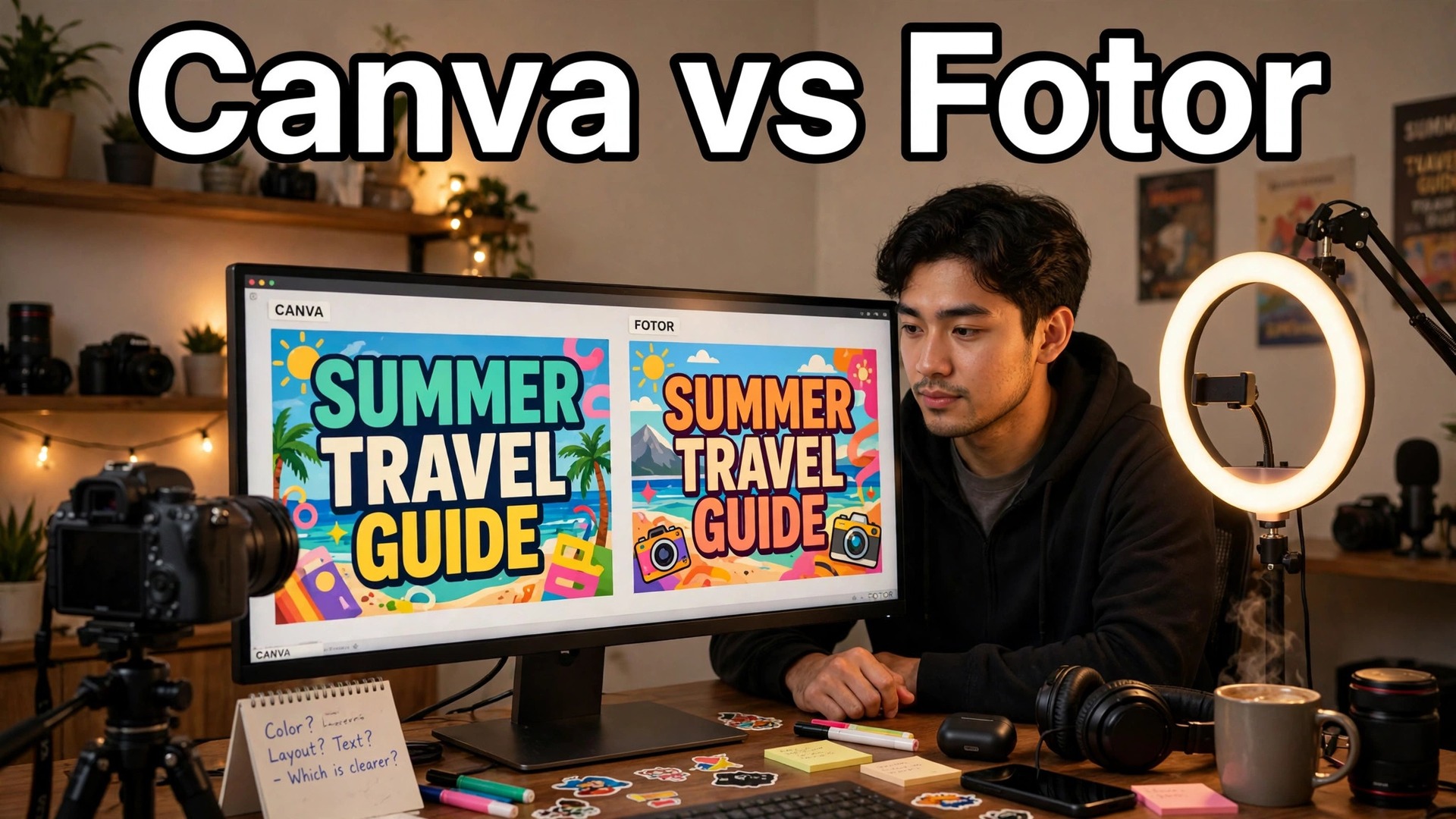
Canva wins this comparison for most YouTubers. It has more thumbnail templates, a faster workflow, and a free plan that covers the whole job. Fotor wins for one specific kind of creator, the one whose thumbnail starts from a photograph that needs serious editing before any text goes on it. That is the honest answer to the canva vs fotor for youtube thumbnails question, and the rest of this guide is the evidence behind it. Both tools are free to start, both export a 1280 by 720 thumbnail that YouTube accepts, and both will get you a finished thumbnail in under fifteen minutes. The difference is what happens between opening the tool and exporting the file.
A thumbnail decides whether a video gets watched. YouTube shows it at a tiny size next to a dozen others, and a viewer picks one in about a second. The thumbnail that wins is rarely the prettiest. It is the one with one clear subject, three or four words at most, and colours that punch through a crowded feed. Both Canva and Fotor can produce that. What separates them is how much of the work the tool does for you, how much it charges when you want the good features, and how your thumbnail looks after YouTube compresses it.
In this article
- Quick Answer. Canva vs Fotor for YouTube Thumbnails in One Paragraph
- Why the Thumbnail Matters More Than the Title
- Templates. Where Canva Pulls Away
- Photo Editing. Where Fotor Fights Back
- AI Tools. What Each One Actually Does for Thumbnails
- Pricing. What a Year of Thumbnails Actually Costs
- Free Plan Limits. What You Actually Get for Nothing
- Ease of Use. The First Thumbnail Test
- Export Quality and YouTube’s Own Rules
- Best Pick by Job. Which Tool for Your Channel
- The Workflow That Makes Thumbnails Fast
- Mistakes That Kill a Thumbnail
- How to Choose in Five Minutes
- Related Guides
- Frequently Asked Questions
- The Bottom Line
Quick Answer. Canva vs Fotor for YouTube Thumbnails in One Paragraph
If you make videos every week and want thumbnails fast, pick Canva. Its template library is the largest of any design tool, the free plan covers thumbnails completely, and the drag-and-drop editor is the easiest to learn. If your thumbnails start from your own photographs and need retouching, background removal, or AI enhancement before the text goes on, pick Fotor. Its photo editor is stronger, and its Pro plan costs about a third of Canva Pro on annual billing. For a new channel on a zero budget, Canva is the better first choice. For a photography or travel channel where the photo carries the thumbnail, Fotor earns its place.
| The question | Canva | Fotor |
|---|---|---|
| Free plan covers thumbnails | Yes, fully | Yes, basic features |
| Paid plan price | Pro about $18 a month or $144 a year | Pro $8.99 a month or $39.99 a year |
| Thumbnail templates | Thousands | Hundreds |
| Photo editing | Basic, built in | Strong, the core of the tool |
| AI thumbnail tools | Magic Studio, text to image, background remover on Pro | AI image generator, AI enhancer, background remover on free |
| Best for | Weekly creators who want speed | Photo-led thumbnails |
| Export | JPG, PNG, up to high resolution | JPG, PNG |
| Learning time | About 20 minutes to first thumbnail | About 30 minutes to first thumbnail |
Why the Thumbnail Matters More Than the Title
YouTube’s own data has shown for years that the thumbnail is the first thing a viewer judges, and a weak thumbnail can cut a video’s click-through rate in half even when the title is strong. A channel with a 2 percent click-through rate needs twice as many impressions as a channel with 4 percent to get the same views, and impressions are the one thing a small channel cannot buy. The thumbnail is the cheapest growth tool a creator owns.
The rules of a good thumbnail are simple and unforgiving. One subject, big enough to read at phone size. Three or four words, no more. Colours with strong contrast, because YouTube’s interface is white and grey and a pale thumbnail disappears into it. A face with a clear expression beats a face with a neutral one, and a face looking at the camera beats a face looking away. None of this needs design training. It needs a tool that lets you place a big photo, add two lines of bold text, and export in a minute.
Both Canva and Fotor clear that bar. The question is which one clears it faster, cheaper, and with less friction when you are making your twentieth thumbnail of the month and the novelty has worn off.
Templates. Where Canva Pulls Away
Canva’s template library is the reason most creators start here and never leave. Search for YouTube thumbnail and you get thousands of starting points, organised by niche, from gaming and cooking to finance and fitness. The templates are built by professional designers, they follow the rules above without you having to know them, and most of them need only a photo swap and a headline change to be ready. A first thumbnail takes about twenty minutes. The tenth takes about five.
Fotor’s template library is smaller, in the hundreds rather than the thousands, and it leans towards photo-led layouts rather than graphic-led ones. That is not a flaw if your thumbnails are built around a photograph. A travel creator who wants a big wide scenic photo with a short headline will find good starting points. A gaming creator who wants bold shapes, stickers, and layered graphics will find the library thin, and will spend more time building from scratch.
The gap matters most when you publish often. A creator posting three videos a week burns through templates fast, and Canva’s depth means the channel does not start to look repetitive after a month. Fotor’s library is fine for one video a week, and it is fine when each thumbnail is built around a different photo. It is not fine when you need a fresh graphic layout every two days.
Templates also carry a risk worth naming. A template used exactly as it ships looks like every other channel using the same template. Change the background photo, change the font pairing, and change the colour scheme, and the template becomes yours. Three changes are enough. Skip them, and your thumbnails will look like a dozen other channels in your niche.
Photo Editing. Where Fotor Fights Back
Fotor started as a photo editor, and it still is one first and a design tool second. Its one-click enhance sharpens a dull photo, its AI tools clean up noise and fix lighting, and its background remover works on the free plan, where Canva charges for it. For a thumbnail built around a photograph, that matters. A photo taken in bad light can be rescued in Fotor in thirty seconds, then dropped into a thumbnail layout without leaving the app.
Canva’s photo editing is basic by comparison. You can crop, filter, and adjust brightness and contrast, and the Pro plan adds a background remover and Magic Edit for retouching. For most thumbnails that is enough, because the photo is a background and the text does the talking. When the photo is the star, and it needs real work, Canva asks you to open a different app, fix the photo there, and bring it back.
The practical test is simple. Take your last three thumbnails and ask how much of the work was photo editing and how much was layout. If the answer is mostly layout, Canva is the better tool. If the answer is mostly photo work, Fotor is the better tool. Most creators land on the layout side, which is why Canva wins the overall comparison, but photography channels are the honest exception.
AI Tools. What Each One Actually Does for Thumbnails
Both companies advertise AI heavily, and most of the AI features matter less than the marketing suggests. What matters for thumbnails is narrow. Can you generate a background image when you have no photo? Can you remove a background cleanly? Can you expand an image to fit the 16 by 9 frame? Those three jobs decide whether AI is useful or decoration.
Canva’s Magic Studio covers all three on the Pro plan. Text to image generates a background, the background remover cuts out a subject with one click, and Magic Expand stretches an image to fill the frame. The free plan includes a limited allowance of AI uses, which is enough to test the tools but not enough to rely on them weekly. The Pro plan raises the allowance substantially.
Fotor’s AI tools are photo-first. Its AI image generator produces backgrounds and illustrations, its AI enhancer sharpens and brightens photos, and its background remover is available without paying. Pro adds 100 AI credits a month, and the higher Pro Plus tier adds 300. For a creator whose thumbnails depend on AI-generated backgrounds, Fotor’s free background removal is a genuine saving, because it is the one AI feature Canva locks behind Pro.
Neither tool’s AI text generation is reliable for words inside an image. AI image generators still misspell words, and a thumbnail with a garbled headline is worse than no thumbnail at all. Generate the background with AI, add the text yourself in the editor, and spell-check it before you export. The canva vs fotor for youtube thumbnails AI comparison comes down to one question. Do you need AI for layout or AI for photos? Canva’s AI helps with layout, backgrounds, and resizing. Fotor’s AI helps with the photo itself. Most thumbnail work is layout work, which is why Canva’s AI feels more useful day to day. When the photo needs rescue work, Fotor’s AI earns its keep.
Pricing. What a Year of Thumbnails Actually Costs
Canva Pro is listed at about $18 a month or $144 a year for an individual in the United States in late 2026. The free plan covers thumbnails completely, including templates, text, stock photos, and JPG or PNG export. Pro adds the background remover, the brand kit that stores your colours and fonts, Magic Studio AI tools, and one-click resize. For a creator making thumbnails weekly, the brand kit alone is worth the price, because it keeps every thumbnail on the same colours and fonts without thinking about it.
Fotor Pro costs $8.99 a month or $39.99 a year, which is about a third of Canva Pro on annual billing. Pro Plus costs $19.99 a month or $89.99 a year and adds more AI credits. The free plan covers basic thumbnail design, including templates, text, and photo editing, with background removal included. The gap between the two free plans is smaller than the gap between the two paid plans, and that is the number that matters for a new channel.
Worked out over a year, Canva Pro costs $144 and Fotor Pro costs $39.99. That $104 difference buys the larger template library, the brand kit, and the faster workflow. Whether that is worth it depends on how many thumbnails you make. At three videos a week, Canva Pro costs about 92 cents per thumbnail. At one video a month, it costs $12 per thumbnail, and the free plan is the smarter choice. Fotor Pro at one video a month costs about $3.33 per thumbnail, which is easier to justify on a small channel.
The canva vs fotor for youtube thumbnails pricing question has a simple answer. Start free on either tool. Pay for Canva Pro when you publish weekly and want the brand kit. Pay for Fotor Pro when you publish weekly and your thumbnails are photo-led. Pay for neither until the free plan slows you down, because both free plans are genuinely usable.
Free Plan Limits. What You Actually Get for Nothing
The free plans are where the canva vs fotor for youtube thumbnails comparison starts for most creators, because a new channel should not pay for software before it earns its first dollar. Canva’s free plan is the stronger of the two for thumbnails. It includes thousands of templates, the full text toolset, stock photos, shapes, and export in JPG or PNG at full resolution. There is no watermark on exports, and there is no cap on how many thumbnails you can make. The limits are the Pro features. No background remover, no brand kit, no Magic Studio beyond a small trial allowance, and no one-click resize.
Fotor’s free plan is also usable, with a different shape. It includes the photo editor, the background remover, templates, text, and export, all without a watermark. The limits are the template count, which is smaller, and the AI credits, which run out faster. A creator making one thumbnail a week will rarely hit the free limits on either tool. A creator making three a week will hit Fotor’s AI credit limit before Canva’s template limit, but will hit Canva’s background remover wall on the first thumbnail that needs a cutout.
The honest way to use both free plans is to start with Canva free, and keep Fotor free open in a second tab for the jobs Canva cannot do without paying. Remove a background in Fotor, save the cutout as a PNG, and drop it into your Canva thumbnail. The two free plans together cover nearly everything the paid plans offer, and the only cost is an extra minute per thumbnail. When that minute starts to hurt, pay for the tool you use most.
Ease of Use. The First Thumbnail Test
Canva is the easier tool to learn. The interface is clean, the template search works well, and a first-time user can finish a thumbnail in about twenty minutes without a tutorial. The editor behaves the way a non-designer expects it to behave. Drag a photo in, click the text, type, export. The learning curve is flat, and that is why so many creators recommend it to beginners.
Fotor takes a little longer, about thirty minutes for a first thumbnail, because the interface carries the weight of a full photo editor. There are more panels, more sliders, and more options, and a first-time user can spend ten minutes finding the text tool. Once you know where everything is, the workflow is fast, and the photo tools reward the learning time. It is not a hard tool. It is a tool with more to learn.
The difference shows up again at thumbnail twenty. Canva’s workflow stays fast because the brand kit and the saved templates do the repetitive work. Fotor’s workflow stays fast when the job is photo editing, and slower when the job is layout, because there are fewer templates to start from. Pick the tool whose learning curve matches the work you actually do.
Export Quality and YouTube’s Own Rules
YouTube wants thumbnails at 1280 by 720 pixels, in JPG, GIF, or PNG format, under 2 MB. Both tools export at that size without trouble. Canva’s export dialog lets you pick the file type and, on Pro, the quality. Fotor’s export is simpler, with fewer options and no quality slider on the free plan. For a thumbnail, that simplicity is fine, because YouTube compresses the file again on upload, and a 2 MB PNG and a 400 KB JPG look identical after YouTube is done with them.
One technical point matters. Export as JPG for photographic thumbnails and PNG for thumbnails with flat colours and sharp text. A JPG at 80 to 85 percent quality lands well under the 2 MB limit and looks identical to a larger file on every screen. If your export comes out over the limit, lower the JPG quality rather than shrinking the dimensions. A 1280 by 720 thumbnail at lower quality beats a 640 by 360 thumbnail at high quality, because YouTube displays the thumbnail at 1280 wide on desktop.
Check the thumbnail at small size before you upload it. Shrink the browser window or view the file on your phone. If you can still read the words and recognise the subject, the thumbnail works. If you cannot, enlarge the subject, shorten the text, and try again. This thirty-second check catches more bad thumbnails than any design rule.
File size deserves a word too, because the canva vs fotor for youtube thumbnails export question comes up every time a creator hits the 2 MB limit. A photographic thumbnail exported as a JPG at 80 percent quality usually lands between 200 and 500 KB, well under the limit. A PNG of the same thumbnail can be 2 MB or more, because PNG does not compress photographs well. If your PNG export is over the limit, switch to JPG and the problem goes away. Save PNG for thumbnails built from flat colours and sharp text, where JPG compression would blur the edges.
Best Pick by Job. Which Tool for Your Channel
Find your channel type below and take the pick.
A new channel, one video a week, no budget. Canva free. The templates do the design work, the export is free, and you can upgrade later without rebuilding anything. Your thumbnails will look professional from the first video.
A channel publishing three times a week. Canva Pro. The brand kit keeps every thumbnail consistent, the template library keeps them fresh, and the per-thumbnail cost drops under a dollar. Time saved is the real saving here, not money.
A photography or travel channel. Fotor Pro. Your thumbnails start from photographs, and Fotor’s photo editing and free background removal do work Canva charges for. The $39.99 annual price is easy to justify.
A gaming channel. Canva. The graphic-led templates, stickers, and layered layouts suit gaming thumbnails better than Fotor’s photo-led library. Bold shapes and big text win in gaming feeds.
A cooking or food channel. Either, with a lean towards Fotor. Food thumbnails live or die on the photograph, and Fotor’s one-click enhance makes a home-cooked dish look appetising. If you already use Canva for everything else, stay there and skip the switch.
A finance or education channel. Canva. Clean layouts, consistent fonts, and the brand kit matter more than photo editing when the thumbnail is mostly text and a face. The template library has strong options for this niche.
A channel with a team making thumbnails. Canva Pro or Business. Shared brand kits and folders keep a team consistent, and Fotor’s collaboration tools are thinner. If two or more people touch thumbnails, Canva is the safer pick.
The Workflow That Makes Thumbnails Fast
The tool matters less than the system around it. A creator with a template and a brand kit makes a thumbnail in five minutes on either tool. A creator starting from scratch every time takes thirty minutes on either tool. Build the system once and the tool choice becomes a detail.
Start by saving a template with your layout locked in. Same photo position, same text position, same colours, same fonts. Each new thumbnail is a photo swap and a headline change. Save the template in the tool, not as a file on your desktop, so you can open it from any device. Canva’s brand kit stores the colours and fonts. Fotor’s saved projects do the same job with a little more manual work.
Next, keep a folder of background photos ready. Ten good photos, shot in the same style, cover a month of thumbnails. When the video is recorded, pick the photo, drop it in the template, and write the headline. The headline should be three or four words that add information the title does not. If the title says the recipe, the thumbnail should say the time it takes. If the title says the destination, the thumbnail should say the cost. The thumbnail and the title work together, and repeating the same words on both wastes the space.
Finally, test thumbnails against each other. YouTube’s test and compare feature lets you try up to three thumbnails on the same video and shows which one earns more watch time. Use it on your most important videos. A thumbnail that wins a test is worth more than a thumbnail you guessed right, and the data teaches you what your audience actually clicks.
Mistakes That Kill a Thumbnail
The most common mistake is too many words. A thumbnail is not a paragraph. Six words at phone size are unreadable, and a viewer’s eye skips straight past. Three or four words, big and bold, is the limit. If the headline needs five words, cut one.
The second mistake is a busy background. A photo with a lot of detail fights the text for attention, and at small size the whole thumbnail turns to noise. Use a simple background, darken it slightly behind the text, or blur it. Contrast is what makes a thumbnail readable, not a busier photo.
The third mistake is tiny text. Text that looks fine on a laptop disappears on a phone, and most YouTube viewing happens on phones. Make the text take up at least a third of the thumbnail height. If it looks too big on your monitor, it is probably right.
The fourth mistake is a thumbnail that does not match the video. A thumbnail that promises something the video does not deliver earns a click and loses a viewer, and YouTube notices when viewers leave early. The algorithm rewards watch time, not clicks. A thumbnail that overpromises hurts the video it was meant to help.
The fifth mistake is using the same template unchanged for every video. A channel page where every thumbnail looks identical is a channel page where no single video stands out. Change the photo, change the colour accent, change the headline position. Keep the system, vary the surface.
How to Choose in Five Minutes
Run through five questions. Do you publish more than once a week? If yes, Canva Pro is worth the money. Do your thumbnails start from photographs that need editing? If yes, Fotor Pro is worth the money. Are you on a zero budget? If yes, Canva free is the better start. Do you work with a team? If yes, Canva. Do you make gaming or graphic-led thumbnails? If yes, Canva. Most creators will answer Canva three times out of five, and that is why it wins the overall comparison. Fotor wins when the photograph is the work, and that is a real and respectable niche.
The canva vs fotor for youtube thumbnails decision is not permanent. Both tools are free to start, and switching costs an afternoon of rebuilding templates. Start with Canva, and if you find yourself opening a photo editor before every thumbnail, try Fotor for a week. The tool that saves you time on your twentieth thumbnail is the right one, and you will know it by how fast the work feels.

Related Guides
- How to Make a YouTube Banner
- Piktochart vs Venngage Infographics
- Best Infographic Makers for Small Business: Complete 2026 Guide
Frequently Asked Questions
Which is better for YouTube thumbnails, Canva or Fotor?
Canva is better for most creators, because its template library is far larger, its workflow is faster, and its free plan covers thumbnails completely. Fotor is better when thumbnails start from photographs that need retouching, background removal, or AI enhancement, because its photo editor is stronger and its Pro plan costs about a third of Canva Pro. For a new channel, start with Canva free.
Is Canva free enough for YouTube thumbnails?
Yes. Canva’s free plan includes thousands of thumbnail templates, text tools, stock photos, and JPG or PNG export, which covers the whole job. Pro adds background removal, a brand kit, and AI tools, and it is worth paying for when you publish weekly. A new channel loses nothing by starting free and upgrading later.
Is Fotor really free for thumbnails?
Fotor’s free plan covers basic thumbnail design, including templates, text, photo editing, and background removal. The limits are a smaller template library and fewer AI credits than the paid plans. Pro costs $8.99 a month or $39.99 a year and adds more AI credits and premium assets. The free plan is genuinely usable for a small channel.
What size should a YouTube thumbnail be?
YouTube wants 1280 by 720 pixels, in JPG, GIF, or PNG format, under 2 MB. Both Canva and Fotor export at that size. Use JPG for photographic thumbnails and PNG for thumbnails with flat colours and sharp text. Check the thumbnail at phone size before you upload it, because that is how most viewers will see it.
Does Fotor have YouTube thumbnail templates?
Yes, Fotor has a library of YouTube thumbnail templates, though it is smaller than Canva’s, in the hundreds rather than the thousands. The templates lean towards photo-led layouts. If you build thumbnails around your own photographs, the library is enough. If you need a fresh graphic layout every two days, Canva’s depth is the better fit.
Can I use AI to make YouTube thumbnails in Canva or Fotor?
Both tools offer AI image generation for backgrounds, and both offer background removal. Canva’s Magic Studio handles text to image, background removal, and image expansion on the Pro plan. Fotor’s AI tools focus on photo enhancement and generation, with background removal on the free plan. Neither tool reliably renders text inside AI-generated images, so generate the background with AI and add the headline yourself in the editor.
The Bottom Line
The canva vs fotor for youtube thumbnails answer is Canva for most creators and Fotor for photo-led channels. Canva wins on templates, speed, and workflow, and its free plan is the best starting point in this category. Fotor wins on photo editing and price, and its Pro plan at $39.99 a year is the best value for a creator whose thumbnails live or die on the photograph. Start free, build a template, test your thumbnails against each other, and pay only when the free plan slows you down. The thumbnail that earns the click is the one with one subject, three words, and colours that punch through the feed, whichever tool made it.