
The best twitter header makers online in 2026 are Canva, Adobe Express and Snappa, and the gap between them is smaller than the marketing suggests. All three give you a 1500 by 500 pixel canvas, a library of templates and a free export. The real difference is how fast you can go from a blank canvas to a header that still reads clearly on a phone screen.
A header is the first thing anyone sees on an X profile, and it works harder than most people think. Recruiters, clients and followers form a view of you in about two seconds, and the banner behind your photo carries most of that first impression. A sharp header says you take your work seriously. A stretched logo, a blurry photo or a default blue gradient says you set the profile up in a hurry and never came back.
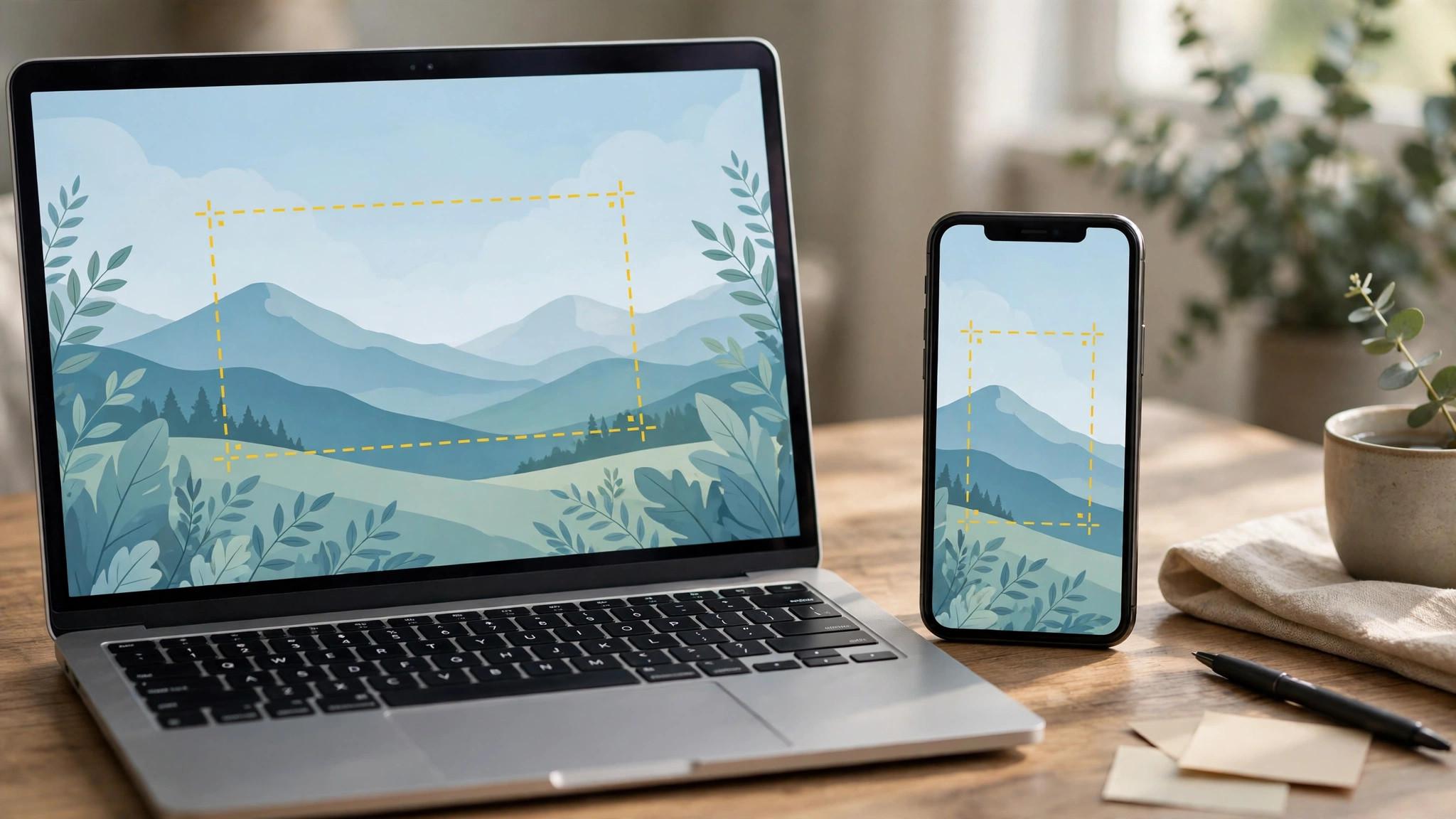
The trap is the crop. X shows the full 1500 by 500 header on desktop, but on a phone the sides are cut and the bottom is hidden behind your profile photo. Text placed near the edges simply disappears for most visitors. Every tool in this guide handles the 1500 by 500 size, but only the good ones warn you about the safe area in the middle, and only the best ones give you templates built around it.
In this article
- Quick Answer. The Best Twitter Header Makers in 30 Seconds
- What the Best Twitter Header Makers Online Get Right
- The Size Rules That Decide Whether a Header Works
- The Free Plan Test. What You Get Without Paying
- How to Choose the Best Twitter Header Makers Online for Your Profile
- Related Guides
- Frequently Asked Questions
- The Bottom Line
Quick Answer. The Best Twitter Header Makers in 30 Seconds
If you want the short version, here it is. Canva is the best all-round pick, with the largest template library, a free plan that exports a full-size header, and Pro at $18 a month or $144 a year. Adobe Express is the best pick if you want Adobe fonts and stock photos without paying for Photoshop, with Premium at $9.99 a month. Snappa is the best pick for speed, because its editor is the simplest here and its templates are built for social sizes from the start.
The best twitter header makers online are not the ones with the most features. They are the ones that give you the right size, a template that fits the safe area, and an export that stays sharp on every screen. The table below compares all eight on the facts that change a decision.
| Tool | Best for | Free tier | Paid from | Key strength |
|---|---|---|---|---|
| Canva | Biggest template library | Free plan | $18/mo or $144/yr | 600,000+ templates |
| Adobe Express | Adobe fonts and stock | Free plan | $9.99/mo | Premium Adobe Stock included |
| Snappa | Fastest simple edits | Free plan | $15/mo or $120/yr | Built for social sizes |
| VistaCreate | Animated headers | Free plan | $13/mo or $120/yr | Motion templates |
| Fotor | Photo-based headers | Free plan | $39.99/yr | Strong photo tools |
| Pixlr | Quick browser edits | Free plan | $1.99/mo | No install needed |
| BeFunky | Fun, bold designs | Free plan | $4.99/mo annual | Easy photo effects |
| PicMonkey | Polished business look | 7-day trial | $7.99/mo | Strong text tools |
What the Best Twitter Header Makers Online Get Right
The first thing a good header tool gets right is the size. X recommends 1500 by 500 pixels, and every tool here opens a canvas at exactly that size. The difference shows up in the export. A free plan that exports at full resolution is worth more than a paid plan that caps downloads at half size, because a 750 pixel wide header looks soft on a desktop monitor. Canva, Adobe Express, Snappa and VistaCreate all export full-size headers on their free plans, which is why they lead this list.
The second thing is the safe area. On a phone, X crops roughly the left and right edges of your header and hides the lower left corner behind your profile photo. The safe zone is the middle band, about 1500 by 300 pixels in the centre of the canvas, and the best templates keep the headline, the logo and the call to action inside it. Canva marks the safe area on several of its header templates. Snappa builds its templates around it by default. If a tool gives you no guide at all, test the header on your own phone before you publish it.
The third thing is file quality. X compresses every upload, so a header built from a low-resolution photo will look worse after upload than it did in the editor. Start with a photo of at least 1500 pixels wide, export as PNG for graphics with text and as JPG for photos, and keep the file under 2 MB so the upload does not fail on a slow connection. Pixlr and Fotor both include a one-click resize and a quality slider, which helps when a photo needs to be trimmed to fit.
The fourth thing is the template count where it matters. A library of a million templates means little if only a dozen fit a 1500 by 500 header. Canva lists thousands of header templates, including ones for coaches, podcasters, writers, developers and small shops. Adobe Express has fewer, but its stock photos are stronger. VistaCreate has the best animated options, which matter because X supports short video headers for some accounts. Pick the library that matches the look you want, not the biggest number on the pricing page.
The Size Rules That Decide Whether a Header Works
A header fails for one of three reasons, and all three are avoidable. The first is text that is too small. A headline set at 24 points looks fine on a laptop and unreadable on a phone, so keep header text large, short and high contrast. Six words beat a full sentence. The second is a logo placed in the corner, where the phone crop cuts it in half. Keep your logo and your name in the centre band. The third is a busy photo behind thin white text, which disappears against a light sky or a pale wall. Add a dark overlay or a solid panel behind the text, and the same photo suddenly works.
Color choice matters more than most people expect. A header with two colors and one accent looks intentional. A header with five colors looks like a collage. Pick the two colors from your brand or your profile photo, use one accent for the call to action, and leave the rest of the space empty. Empty space is not wasted space on a header. It is what makes the words readable.
The Free Plan Test. What You Get Without Paying
Seven of the eight best twitter header makers online offer a free plan, and the free plans are not equal. The test that matters is simple. Can you make a header, export it at full size, and use it on a real profile without a watermark? Canva, Adobe Express, Snappa, VistaCreate, Fotor, Pixlr and BeFunky all pass that test. PicMonkey does not, because it has no free plan, only a 7-day trial that covers a single project well enough.
The second test is what the free plan holds back. Canva holds back premium stock photos and the background remover. Adobe Express holds back most brand kits and Firefly output. Snappa limits you to three downloads a month. VistaCreate holds back premium stock and the full brand kit. Fotor shows ads and holds back its AI tools. Pixlr holds back the full AI suite and adds ads. BeFunky holds back its best effects. None of these limits stops you from making a good header, but they decide which tool you will still be using in six months.
The third test is the watermark. None of the free plans in this list adds a watermark to a header export, which is why all seven are worth recommending. A watermarked header is worse than no header at all, because it tells every visitor you would not pay for the tool that made it. If a tool ever adds a watermark on its free plan, treat that as a reason to switch, not a reason to pay.
1. Canva. Best for the Biggest Template Library
Canva is the obvious first stop among the best twitter header makers online, and the reason is the size of its library. Its header templates number in the thousands, covering coaches, authors, podcasters, developers, designers, real estate agents and small shops, and most of them are free. The editor is drag and drop, the text tools are the strongest here, and the background remover, Magic Resize and brand kit all sit in the same login.
Pricing starts free and stays useful. The free plan covers the header maker, thousands of templates and full-size PNG and JPG exports. Canva Pro costs $18 a month or $144 a year for one person, and it adds premium templates and stock, 5 brand kits, Magic Resize, the background remover and 100GB of storage. Pro is a one-person licence, so a second editor means moving to Business at $25 a month or $250 a year per person.
What works. No other tool gives you this many header templates with this little effort, and the free export is full size, which is the detail that matters most. Brand kits keep every new header on brand without thinking.
What to watch. The free plan holds back the best stock photos and the background remover, and the template search can bury good designs under dozens of near-identical ones. Check the price at checkout, because Canva has changed it more than once.
2. Adobe Express. Best for Adobe Fonts and Stock
Adobe Express is Adobe’s browser and mobile design app, and it brings two things no rival here matches. The first is Adobe Fonts, more than 30,000 typefaces that make a header look designed rather than typed. The second is premium Adobe Stock, which means the photos behind your header are sharper and less familiar than the free stock every other tool shares. The header templates are fewer than Canva, but the average quality is higher.
Pricing is simple. The free plan costs nothing and includes 25 generative credits a month, templates and basic exports. Adobe Express Premium costs $9.99 a month, billed monthly with no annual commitment, and it adds 250 generative credits a month, 100GB of storage, premium templates and stock, brand kits and a content scheduler. Premium is included with most Creative Cloud single-app plans, so check your existing Adobe subscription before you buy a second seat.
What works. Premium undercuts Canva Pro by a wide margin and includes real Adobe Stock and fonts. Monthly billing means you can pay for one month, make the header, and stop.
What to watch. The free plan holds back most brand kits and Firefly output, and the template count for headers is smaller than Canva. The logo maker is a small part of a big app, so the workflow is less focused.
3. Snappa. Best for Speed
Snappa was built for people who make social graphics every day and want the job done in five minutes. Its editor is the simplest in this list, with a short learning curve and no buried menus. You pick a header template, swap the text and the photo, and export. The templates are built for social sizes from the start, so the safe area is already respected and the text sits where a phone will show it.
Pricing starts free. The free plan covers 3 downloads a month, which is enough to test the tool and make one header. Snappa Pro costs $15 a month, or $10 a month billed annually at $120 a year, and it adds unlimited downloads, the full template library, background removal, team sharing and 10GB of storage. There is a Team plan above Pro for small groups that share assets.
What works. The speed is real. A first header takes minutes, not an afternoon, and the templates are practical rather than decorative. The price is fair for a tool you will use weekly.
What to watch. Three free downloads a month is tight if you like to test several versions, and the photo library is smaller than Canva or Adobe Express. The editor is simple by design, so advanced effects are not here.
4. VistaCreate. Best for Animated Headers
VistaCreate, formerly Crello, is the pick if your header should move. It offers animated header templates with subtle motion, sliding text and looping video backgrounds, which stand out in a feed of static banners. The editor is close to Canva in feel, with drag and drop, a brand kit, and a library of photos, videos and music. Static headers are covered too, with a solid template range for business and personal profiles.
Pricing starts free. The free plan covers thousands of templates, 10GB of storage and basic exports. VistaCreate Pro costs $13 a month, or $10 a month billed annually at $120 a year, and it adds the full template library, premium stock, background removal, a brand kit with unlimited brand assets, and team features. The annual price is the one to compare against Canva Pro, because it is the cheaper of the two.
What works. Animated headers are a genuine point of difference, and the Pro price undercuts Canva. The brand kit is generous for a single user.
What to watch. Animation does not show on every X client, so design the static frame first and treat motion as a bonus. The template count is smaller than Canva, and the editor can feel slower on older machines.
5. Fotor. Best for Photo-Based Headers
Fotor is a photo editor first and a design tool second, which makes it the right pick when your header starts with a photograph. Its editing tools cover exposure, color, sharpening and cropping, and its AI tools can clean up a noisy photo, remove an object, or turn a plain shot into a stylised background. The header templates are fewer than Canva, but the photo handling is stronger.
Pricing starts free. The free plan covers basic editing, templates and exports with ads. Fotor Pro costs $39.99 a year on annual billing, or $8.99 a month billed monthly, and it adds the full template library, AI tools, background removal, batch processing and an ad-free editor. There is a Pro Plus tier above it for teams that need more storage and collaboration.
What works. The photo tools are the best value here for a header built around a real photo, and the annual price is low. Batch processing helps if you manage several profiles.
What to watch. The design templates are thinner than Canva or VistaCreate, and the free plan shows ads that slow the workflow. The AI tools are good, not great, so check the result before you export.
6. Pixlr. Best for Quick Browser Edits
Pixlr runs entirely in the browser, with no install and no account needed to start. It comes in two forms, Pixlr X for quick edits and Pixlr E for layered work, and both open a 1500 by 500 canvas in seconds. It is the pick when you already have a design and only need to resize it, clean it up, or add text. The AI tools cover background removal, object removal and image generation, and the editor supports layers, masks and blend modes for users who know their way around.
Pricing starts free. The free plan covers the editors, basic AI tools and exports. Pixlr Plus costs $1.99 a month and adds more AI credits and an ad-free editor. Pixlr Premium costs $7.99 a month and adds the full AI suite, more storage and priority processing. Pixlr Team costs $12.99 a month for groups. Prices vary by region, so check the figure at checkout.
What works. Nothing here opens faster, and the free plan is genuinely usable for a one-off header. The layered editor is the most powerful free option in this list.
What to watch. There are no header templates in the way Canva or Snappa offer them, so you start from a blank canvas or your own file. The interface can feel crowded for a first-time user.
7. BeFunky. Best for Fun, Bold Designs
BeFunky is the most playful tool in this list, and that is its strength. Its photo effects, textures and graphic elements suit headers with personality, for creators, musicians, streamers and small brands that want to stand out rather than blend in. The editor is simple, the templates are bright, and the collage maker is useful when a header should show several photos at once.
Pricing starts free. The free plan covers the editor, templates and basic effects. BeFunky Plus costs about $4.99 a month on annual billing, or $9.99 a month billed monthly, and it adds the full effect library, premium templates, background removal, batch processing and an ad-free editor. Check the current price at checkout, because BeFunky runs frequent promotions.
What works. The effects library is fun and fast, and the annual price is low. A bold header that looks handmade is easy here.
What to watch. The look skews casual, so a law firm or a finance consultant will find better fits elsewhere. The template count for headers is modest, and the free plan shows ads.
8. PicMonkey. Best for a Polished Business Look
PicMonkey sits between a photo editor and a design tool, and its strength is polish. The text tools are the best in this list for a business header, with curved text, layered type and a font library that includes professional pairings. The templates lean business, with clean layouts for consultants, coaches, agencies and shops, and the brand kit keeps colors and fonts consistent across every graphic you make.
Pricing has no permanent free plan, but there is a 7-day free trial. PicMonkey Basic costs $7.99 a month, or $72 a year, and it adds unlimited downloads, the template library and 1GB of storage. PicMonkey Pro costs $12.99 a month, or $120 a year, and it adds the background remover, 100GB of storage and advanced tools. PicMonkey Business costs $23 a month and adds team features and more storage.
What works. The text handling is the best here for a header that leads with words, and the business templates look professional without effort. The trial is long enough to finish a header properly.
What to watch. There is no free plan, so the trial is the only way to test it without paying. The photo library is smaller than Canva or Adobe Express, and the price is higher than Snappa for similar output.
How to Choose the Best Twitter Header Makers Online for Your Profile
Start with the job, not the tool. A personal brand header needs your name, your role and one proof point, such as a book, a show or a result. A business header needs the offer, the audience and one way to contact you. A creator header needs the schedule or the next thing to watch. Write those three facts down before you open any editor, because the tool cannot decide them for you.
Step 1. Pick the size first. Open a 1500 by 500 canvas and check that the export is full size. If the free plan caps the export, the header will look soft on desktop, and no template can fix that.
Step 2. Choose one template style. Browse the header templates for your field and pick one layout, not five. A template with a photo on the right and text on the left suits most profiles, because the photo draws the eye and the text sits in the safe area.
Step 3. Write six words or fewer. A header is not a bio. Six words that say what you do and who it helps will be read. A full sentence will be skipped. Put your name in the text only if your handle does not already say it.
Step 4. Test it on a phone. Export the header, upload it, and open your profile on a phone. Check that the text is readable, the logo is whole, and nothing important sits under your profile photo. Fix the crop before you publish, not after.
Step 5. Match the rest of the profile. Use the same colors and fonts in your header, your pinned post and your profile photo background. A profile that matches looks intentional, and an intentional profile gets more follows than a louder one.

Related Guides
- Canva vs Kapwing for Video Editing
- CapCut vs Descript for Video Editing
- How to Build a Content Calendar for a Small Business
Frequently Asked Questions
What size should a Twitter header be?
X recommends 1500 by 500 pixels, and that is the size every tool in this guide uses. Upload a file at least that large, keep it under 2 MB, and use PNG for graphics with text or JPG for photos. The header displays at 1500 by 500 on desktop, but phones crop the sides, so keep text and logos in the centre band.
Which of the best twitter header makers online is actually free?
Canva, Adobe Express, Snappa, VistaCreate, Fotor, Pixlr and BeFunky all have free plans that export a full-size header. Canva and Adobe Express have the strongest free tiers, because they include thousands of templates and full-size exports without paying. PicMonkey is the only tool here with no free plan, though its 7-day trial covers a header project.
Can I use a video as my Twitter header?
X supports short video headers for some accounts, and VistaCreate is the best tool here for making one, with animated templates and looping backgrounds. Keep the video short, design the first frame as if it were a static header, and test it on a phone, because not every X client plays the animation.
Why does my header look blurry after upload?
The usual cause is a low-resolution source. X compresses every upload, so a header built from a small photo or exported at half size will look soft. Start with a photo at least 1500 pixels wide, export at full size, and use PNG for text-heavy designs. A second cause is a file over 2 MB, which X may compress harder.
How often should I change my header?
Change it when something real changes, such as a new book, a new service, a new show or a new offer. A header that changes every week looks unsettled. A header that never changes looks abandoned. Most profiles do well with a new header every three to six months, or whenever the pinned post changes.
Do the best twitter header makers online add a watermark on free plans?
No. None of the free plans in this guide adds a watermark to a header export, which is one reason all seven free tools are worth recommending. Canva, Adobe Express, Snappa, VistaCreate, Fotor, Pixlr and BeFunky all export clean headers without paying. PicMonkey has no free plan, so its 7-day trial is the only free route there. A watermarked header tells every visitor the tool was unpaid, so avoid any tool that stamps one on your design.
The Bottom Line
The best twitter header makers online in 2026 come down to three picks by job. Canva is the best all-round choice, because its template library is the largest and its free plan exports a full-size header. Adobe Express is the best choice if you want Adobe fonts and stock photos at $9.99 a month. Snappa is the best choice if you want the fastest route from a blank canvas to a finished header.
VistaCreate is the pick for animated headers, Fotor is the pick for photo-led designs, and Pixlr is the pick when you already have a file and only need to finish it. Start with the free plan in two tools, test the header on your phone, and pay only when the free tier holds back a feature you actually need.
1 thought on “Best Twitter Header Makers Online”