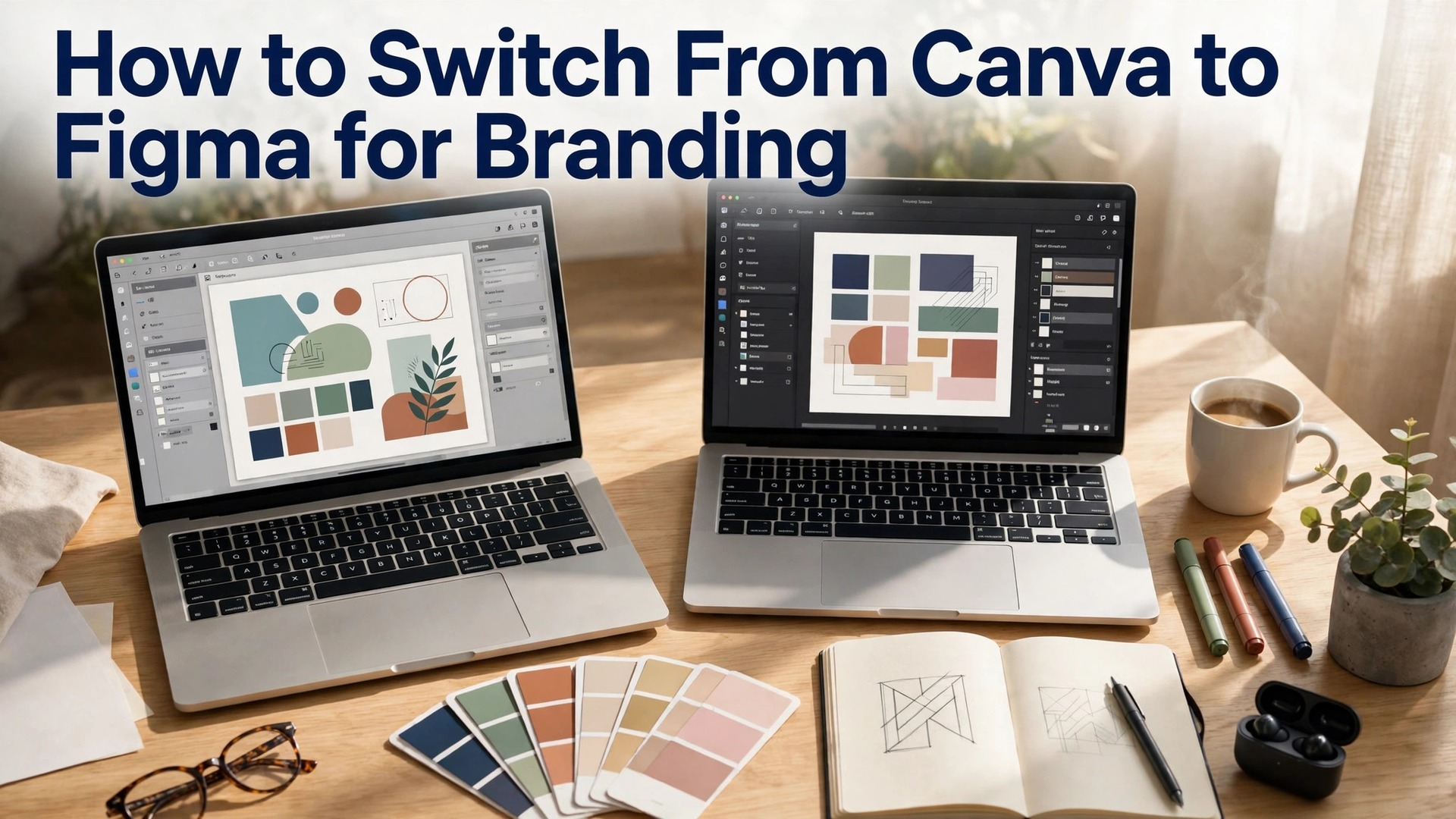
Learning how to switch from Canva to Figma for branding is a move many small teams make when their brand outgrows templates. Canva is fast, friendly, and brilliant for social posts and flyers. Figma is precise, systematic, and built for design systems, where every colour, font, and component lives in one library and updates everywhere at once.
The switch is not about which tool is better. It is about which tool fits the work the team does now. A team that makes a hundred social posts a month should stay in Canva. A team that builds a brand system, with a website, an app, and a design team that needs shared components, will find Figma worth the move. This guide covers the full switch, from the decision to the file migration, the brand library, and the team habits that make Figma work.
The move takes a week of planning and a month of practice, and it is worth doing properly. A rushed switch leaves brand files scattered across two tools, with nobody sure which version is current. A planned switch ends with one source of truth in Figma, a team that knows how to use it, and a brand that looks sharper than it did in Canva.
Quick jump
- Quick Answer. The Canva to Figma Switch in 30 Seconds
- How to Switch from Canva to Figma for Branding in 6 Steps
- What Moves Well, What Does Not, and What to Rebuild
- Building the Figma Brand Library
- Team Workflow, Files and the New Habits
- Costs, Seats and the Budget for the Switch
- Mistakes That Make the Switch Fail
- When to Stay in Canva and When the Switch Pays Off
- A Week-by-Week Plan for the Switch
- Related Guides
- Frequently Asked Questions
- The Bottom Line
Quick Answer. The Canva to Figma Switch in 30 Seconds
Knowing how to switch from Canva to Figma for branding means moving the brand system, not only the files. Export the logo, colours, and fonts from Canva, rebuild them as a Figma library with styles and components, move the key templates one by one, and train the team on the new workflow. Figma Professional costs $16 per editor a month billed annually, or $20 monthly, with a free Starter plan for small teams. Canva Pro costs $18 a month or $144 a year, so the switch costs about the same for a small team.
The switch needs four things. A brand audit in Canva, a Figma library with styles and components, a migration plan for the templates that matter, and a month where both tools run side by side. The rest of this guide proves that short answer, with the decision, the migration, and the team steps in order.
| Switch element | Canva | Figma |
|---|---|---|
| Brand kit | Locked colours, fonts, logos | Styles and variables in a library |
| Templates | Thousands of ready templates | Components you build and reuse |
| Collaboration | Comments and sharing | Real-time editing, dev mode |
| Pricing | Pro $18/mo or $144/yr | Professional $16/editor/mo annual |
| Best for | Fast marketing graphics | Brand systems and product design |
How to Switch from Canva to Figma for Branding in 6 Steps
Step one is the decision. Ask whether the team needs Figma, or whether Canva still fits. Figma fits when the brand needs a design system, when developers need specs and assets, when the team needs shared components, and when the brand appears in a product as well as in marketing. Canva fits when the work is mostly social posts, flyers, and presentations, and speed matters more than precision. A team that moves for fashion, not for need, will move back within months.
Step two is the audit. Open Canva and list every brand asset. The logo files, the colours, the fonts, the templates, and the folders. Note which templates are used weekly, which are used monthly, and which have not been used in a year. The templates used weekly are the ones to migrate. The templates unused for a year can be left behind, because a migration is a chance to clean house, not to move clutter.
Step three is the Figma library. Create a Figma file called Brand Library, and build the foundations. Colour styles for every brand colour, with names a team member can understand. Text styles for every heading and body size. Effect styles for shadows. And the logo as a component, in colour, white, and black versions. A library built carefully once will serve every file the team ever makes in Figma.
Step four is the migration. Move the templates that matter, one by one, rebuilding them as Figma components rather than copying them as images. A social post template becomes a Figma component with the logo, the colours, and the text styles applied. A flyer template becomes a component with the layout rebuilt on a grid. Rebuilding takes longer than copying, but it produces a template the team can actually edit, which is the point of the move.
Step five is the team training. Give the team a week to learn Figma, with a short guide that covers the library, the components, and the file structure. Run a practice project, such as rebuilding a real social post in Figma, so the team learns by doing. A team that is told to use Figma without training will keep working in Canva in secret, and the switch will fail quietly.
Step six is the parallel month. Run both tools for a month, with new work in Figma and old work in Canva, and a clear date when Canva stops being the source of truth. At the end of the month, archive the Canva brand kit, export a backup of every Canva file, and make Figma the single source of truth. A switch with no end date is a switch that never finishes, and a team with two sources of truth has none.
What Moves Well, What Does Not, and What to Rebuild
Logos move well, and they are the easiest part of how to switch from Canva to Figma for branding. Export the logo from Canva as an SVG or a high-resolution PNG, and import it into Figma as a component. An SVG keeps the logo sharp at any size, and a component keeps it consistent across every file. A logo exported as a low-resolution JPG will look soft in Figma, so export the largest, cleanest file Canva offers, and check the logo at large size before you build the library around it.
Colours move well, with care. Canva stores colours as hex codes, and Figma accepts hex codes directly, so the palette transfers exactly. The work is in naming the colours properly, such as Brand Blue, not Blue 3, and in setting up colour variables so a future change updates everywhere. A colour copied without a name will be a colour nobody can find later, so name every colour as you move it.
Fonts are the hardest part. Canva and Figma both use Google Fonts and system fonts, but the font lists do not match exactly. A font available in Canva may not be available in Figma, and a font that looks the same in both may render differently. Check every brand font in Figma before you commit to it, and be ready to replace a Canva-only font with a close match. A font change is a brand change, so tell the team when it happens, and update the brand guide at the same time.
Templates do not move. There is no reliable way to export a Canva template into Figma as an editable file, because the two tools store designs differently. A Canva file exported as a PDF or an image can be placed in Figma as a reference, but it cannot be edited. The honest approach is to rebuild the templates that matter, and to accept that rebuilding is the work of the switch. A team that expects a one-click migration will be disappointed. A team that plans to rebuild will be ready.
Photos and illustrations move easily. Export them at full size from Canva, and store them in a Figma file or a shared folder. A photo library that lives outside both tools, in a shared drive, is the best long-term home, because it survives the next tool change as well as this one. A photo that lives only inside Canva will be lost when Canva is left behind, so export the library before the switch ends.
Building the Figma Brand Library
The Figma library is the heart of the switch, and it deserves a full day of careful work. Start with a file called Brand Library, and build it in sections. The first section is colour, with a style for every brand colour, named clearly, and variables for the shades that change, such as hover and disabled states. The second section is typography, with a text style for every size and weight the brand uses, from the largest headline to the smallest caption.
The third section is the logo, as components in every version the brand needs. Colour on light, white on dark, black for single-colour print, and the icon on its own. Each version should be a component, so a change to the logo updates every file that uses it. A logo pasted as an image into each file is a logo that will drift, because one file will be updated and another will not.
The fourth section is components, which are the reusable pieces of the brand. Buttons in every style, cards, badges, headers, footers, and social post frames. Each component should use the colour and text styles, so a change to the palette updates every component automatically. A component library built this way is the reason Figma is worth the move, because it turns the brand into a system that updates itself.
The fifth section is documentation, written inside the Figma file. A page that explains the library, with examples of each component, the rules for using them, and the names of the people who maintain them. A library without documentation will be misused, because a new team member will guess, and a guess will be wrong. A library with a clear guide will be used properly, and the brand will stay consistent.
Publish the library, and share it with the team. Publishing makes the styles and components available in every Figma file, and updates to the library can be pushed to all files at once. A library that is not published is a file that only its creator can use, which defeats the purpose. Publish it, announce it, and train the team on how to use it.
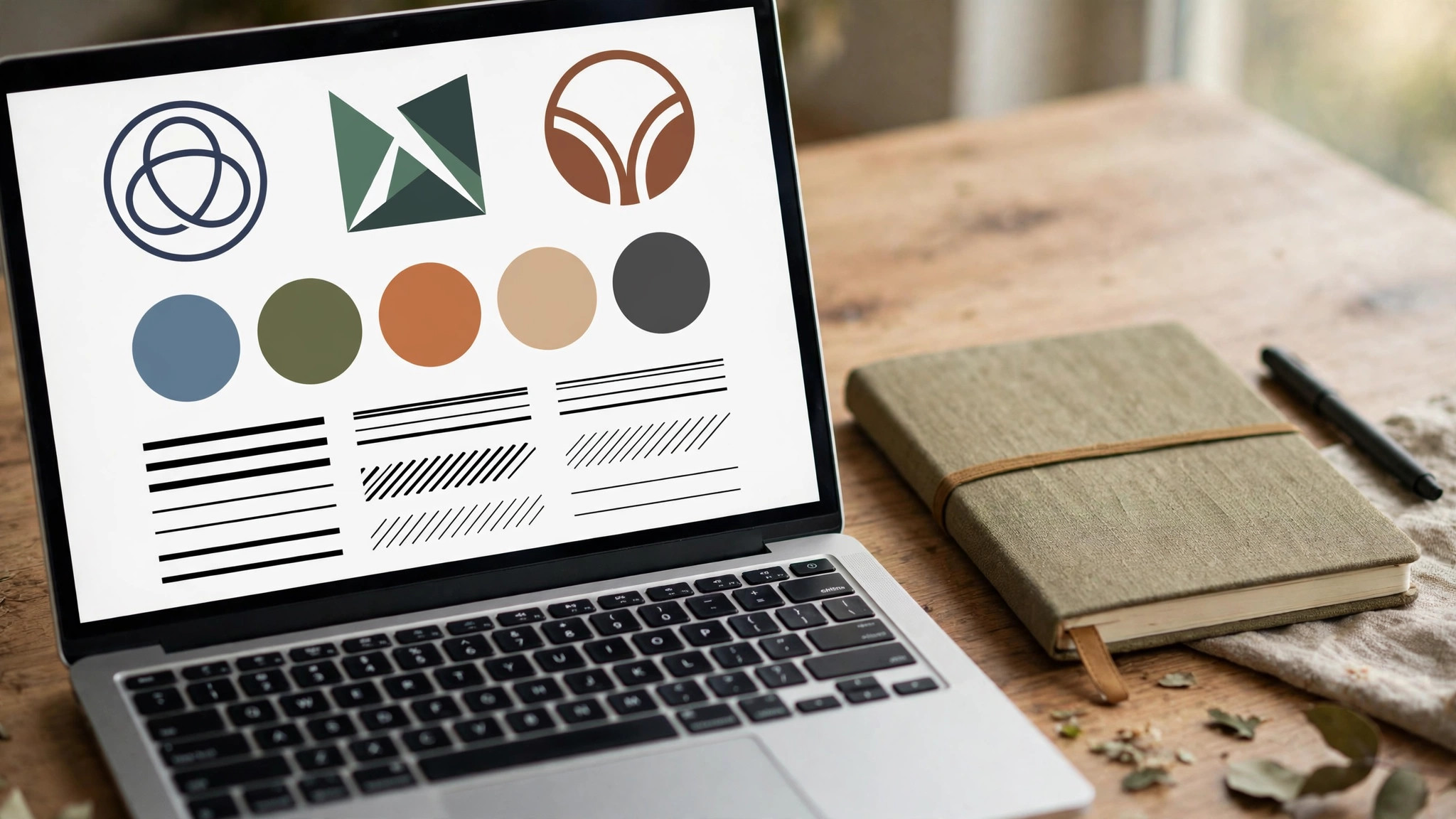
Team Workflow, Files and the New Habits
Figma changes how a team works, and the habits matter as much as the library. Those habits are the human half of how to switch from Canva to Figma for branding, and they decide whether the switch sticks. The first habit is file structure. Create a team in Figma, with projects for Brand, Marketing, and Product, and files inside each project with clear names and dates. A file called Social Posts Final v2 is a file nobody can find. A file called 2026-11 Social Posts, in the Marketing project, is a file anyone can find.
The second habit is components over copies. When a team member needs a button, they should use the component from the library, not copy a button from an old file. A copied button will drift, because it is no longer linked to the library. A component will update when the library updates, which is the whole point of the system. Train the team to reach for the library first, and to ask when a component does not exist, rather than building a one-off.
The third habit is naming. Every layer, every frame, and every file should have a clear name, because a Figma file with layers named Rectangle 47 and Group 12 is a file nobody can edit. A file with layers named Hero Title, Primary Button, and Logo Colour is a file a new team member can understand in minutes. Naming takes seconds, and it saves hours.
The fourth habit is review in Figma. Use comments on the canvas, not screenshots in a chat app, so feedback lives where the work lives. A comment pinned to the exact button that needs changing is clearer than a message that says the button looks wrong. A review process that lives in Figma will be faster and clearer than one that lives in email, and the team will adopt it once they see the difference.
The fifth habit is version discipline. Figma saves versions automatically, and the team should name a version before a big change, such as Before homepage redesign, so the old version can be restored if needed. A team that names versions can experiment safely. A team that does not will fear change, and a team that fears change will stop improving the brand.
Costs, Seats and the Budget for the Switch
Figma Professional costs $16 per editor a month billed annually, or $20 a month billed monthly, with a free Starter plan for up to three files and unlimited collaborators. Canva Pro costs $18 a month or $144 a year for one person, and Canva Business costs $25 a month per person. For a small team, the switch costs about the same, because Figma charges per editor and Canva charges per person, and the numbers are close.
The hidden cost is time, not money, and budgeting for it honestly is part of how to switch from Canva to Figma for branding without resentment. A team of three will spend a week on the audit and the library, and a month learning the new workflow. That time is the real cost of the switch, and it should be budgeted honestly. A team that expects the switch to be free will resent the time it takes. A team that budgets a week for the library and a month for learning will find the switch smooth.
Seats need a decision. In Figma, only the people who edit designs need a paid seat. People who only view, comment, and approve can use a free collaborator seat, which costs nothing. A team that buys a paid seat for everyone will waste money. A team that buys seats only for editors, and uses free seats for reviewers, will keep the cost low. Check the seat types before you buy, because the difference between an editor and a viewer is the difference between $16 a month and $0.
Keep Canva for a month, and budget for both tools during the parallel period. A month of overlap costs a few dozen dollars, and it buys safety, because the team can fall back to Canva if Figma fails on a deadline. A switch that cancels Canva on day one will panic the team the first time a Figma file breaks. A switch with a month of overlap will feel calm, and the team will trust the new tool.
Mistakes That Make the Switch Fail
The first mistake is moving for the wrong reason. A team that moves to Figma because it is fashionable, while their work is mostly social posts and flyers, will find Figma slower and harder, and will move back within months. The fix is the decision step, with an honest list of what the team needs. Figma is the right tool for a design system. Canva is the right tool for fast marketing. Choose the tool that fits the work, not the tool that fits the trend.
The second mistake is copying files instead of rebuilding them. A Canva template copied as an image into Figma is not a Figma template, because it cannot be edited. The fix is to rebuild the templates that matter, as components, with the library styles applied. Rebuilding takes time, and it is the work of the switch, not a shortcut to be skipped.
The third mistake is a library with no owner. A Figma library that nobody maintains will drift, with new colours added by anyone and old components left to rot. The fix is to name one person as the library owner, with the job of approving changes, cleaning old components, and training new team members. A library with an owner stays clean. A library without one becomes a junk drawer.
The fourth mistake is no training. A team told to use Figma without training will keep working in Canva, and the switch will fail quietly, with two tools in use and no source of truth. The fix is a week of training, with a practice project and a clear guide. A team that learns by doing will adopt the tool. A team that is told to adopt it will resist it.
The fifth mistake is no end date. A switch with no date when Canva stops being the source of truth will run forever, with work split across two tools and nobody sure which version is current. The fix is a date, announced to the team, after which Figma is the source of truth and Canva is an archive. A switch with an end date finishes. A switch without one does not.

When to Stay in Canva and When the Switch Pays Off
Stay in Canva when the work is fast marketing, because the honest answer to how to switch from Canva to Figma for branding sometimes starts with not switching yet. A team that makes social posts, flyers, presentations, and email graphics, with no product design and no developers, will be faster in Canva, because Canva is built for that work. The templates, the stock library, and the simple editor are the right tools for the job, and Figma will slow the team down without adding value.
Move to Figma when the brand becomes a system. A team that builds a website, an app, and a marketing set from the same brand, with developers who need specs and assets, will find Figma worth the move. The components, the variables, and the dev mode are built for that work, and Canva cannot match them. The switch pays off when the brand appears in a product, not only in marketing.
Move to Figma when the team grows. A team of two can share a Canva brand kit easily. A team of ten, with designers, marketers, and developers, needs the structure Figma provides, with projects, permissions, and a published library. A growing team that stays in Canva will find the brand drifting, because ten people with a simple tool will make ten different choices. A growing team in Figma will stay consistent, because the library makes the choices for them.
Move to Figma when the brand needs precision. A brand with exact spacing, exact colours, and exact components, used across a website and an app, needs the precision Figma offers. Canva is precise enough for a flyer, and not precise enough for a product interface. The precision gap is the reason product teams use Figma, and it is the reason marketing teams often do not need to.
The honest answer is that many teams need both. A team can build the brand system in Figma, and make the daily social posts in Canva, using the same colours and fonts. A team that uses both tools well, with Figma as the source of truth and Canva as the fast lane, will be faster than a team that forces every job into one tool. The switch does not have to be a divorce. It can be a division of labour, with each tool doing the work it does best.

A Week-by-Week Plan for the Switch
Week one is the audit and the decision. List every Canva asset, note which templates are used weekly, and decide whether the team genuinely needs Figma. If the answer is yes, create the Figma team, set up the projects, and buy the editor seats. If the answer is no, stop here, because a switch made without a need will fail. A week spent deciding properly saves a month spent undoing a bad switch.
Week two is the library. Build the Brand Library file, with colour styles, text styles, logo components, and the first set of components. Publish the library, share it with the team, and write the one-page guide that explains how to use it. A library built in a focused week will be cleaner than a library built in spare hours over a month, because the decisions stay fresh and consistent.
Week three is the migration. Rebuild the weekly templates as Figma components, move the photos and illustrations to a shared folder, and test the new templates on real work. A social post, a flyer, and a presentation, all rebuilt in Figma, will show the team what the new workflow feels like. Fix the problems that appear, and update the library where the templates expose a gap.
Week four is training and parallel running. Train the team with a practice project, run new work in Figma, and keep Canva open for the work that still needs it. At the end of the week, review what worked and what did not, and set the date when Figma becomes the single source of truth. A month that ends with a clear date is a month that finishes the switch. A month that ends with no date is a month that starts the drift back to Canva.
Related Guides
- Midjourney vs DALL-E for Small Business
- Remove BG vs Photoshop Background Remover
- AI Headshot Generator Pricing
Frequently Asked Questions
Is Figma better than Canva for branding?
Figma is better for a brand system, with shared components, variables, and developer tools, while Canva is better for fast marketing graphics, with templates and a simple editor. A team that builds a website and an app needs Figma. A team that makes social posts and flyers will be faster in Canva. Many teams use both, with Figma as the source of truth and Canva as the fast lane.
How much does it cost to switch from Canva to Figma?
Figma Professional costs $16 per editor a month billed annually, or $20 monthly, with a free Starter plan. Canva Pro costs $18 a month or $144 a year. For a small team, the switch costs about the same in money, and the real cost is a week of time for the library and a month of learning. Budget for a month of overlap, with both tools paid, for a calm switch.
Can I import Canva designs into Figma?
There is no reliable way to import a Canva design into Figma as an editable file. You can export a Canva design as a PDF or an image and place it in Figma as a reference, but it cannot be edited. The honest approach is to rebuild the templates that matter as Figma components, using the brand library, and to leave the unused templates behind.
Will my fonts work in Figma?
Most Google Fonts work in both Canva and Figma, but the font lists do not match exactly. Check every brand font in Figma before you commit, and be ready to replace a Canva-only font with a close match. A font change is a brand change, so tell the team when it happens and update the brand guide at the same time.
How long does the switch take?
A small team can complete the switch in a week of planning and a month of practice. The audit and the library take a week, the template migration takes a few days, and the team needs a month of parallel running before Figma becomes the single source of truth. A switch with a clear end date finishes on time. A switch without one runs forever.
Should a small business switch to Figma?
A small business should switch when its brand becomes a system, with a website, an app, or a growing team that needs shared components. A small business that makes mostly social posts and flyers should stay in Canva, because it is faster for that work. The decision should follow the work, not the trend, and many small businesses use both tools well.
The Bottom Line
Knowing how to switch from Canva to Figma for branding is a planned move, not a rushed one. Audit the Canva brand kit, build the Figma library with styles and components, rebuild the templates that matter, train the team, and run both tools for a month before Figma becomes the single source of truth. Figma Professional at $16 per editor a month costs about the same as Canva Pro, and the real cost is a week of careful work.
Start with the decision, and be honest about whether the team needs Figma or whether Canva still fits. That honesty is how to switch from Canva to Figma for branding well, or how to decide, with a clear head, to stay where you are. The switch that pays off is the one made for the work, not for the fashion, and it ends with a brand system that updates itself, a team that knows how to use it, and a brand that looks sharper than it did before.
2 thoughts on “How to Switch from Canva to Figma for Branding”