
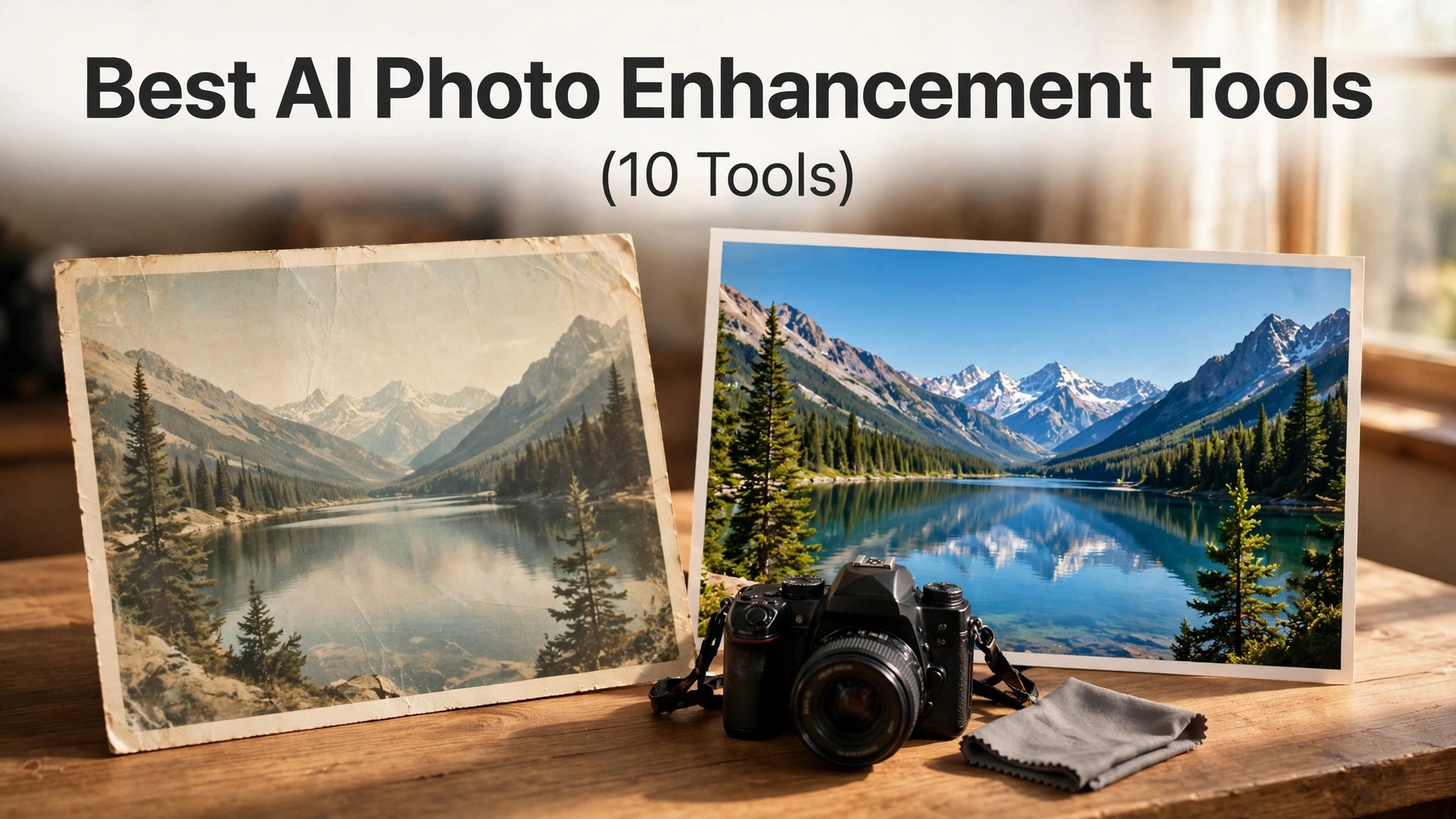
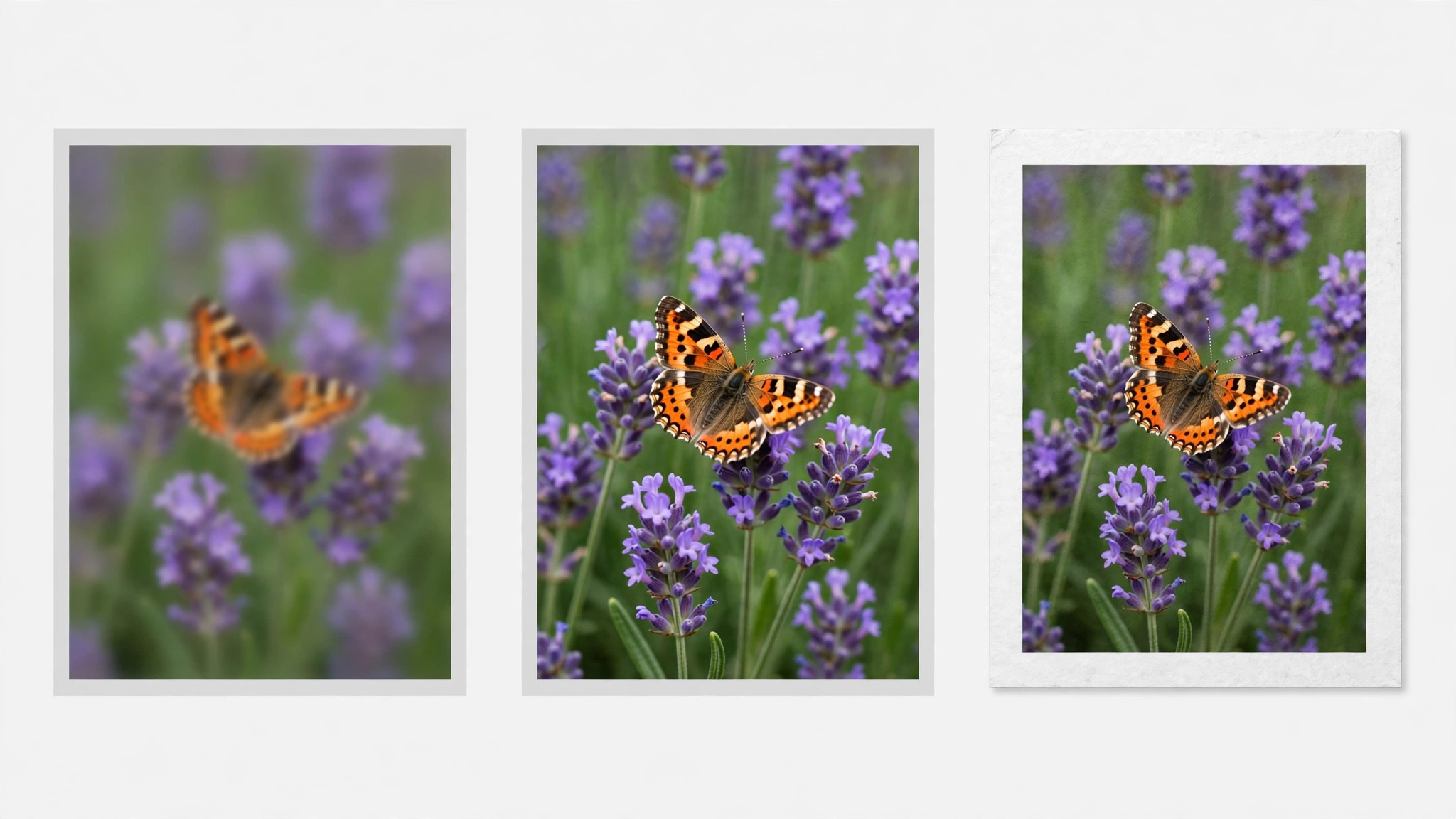
A blurry photo is not always a lost photo. Modern enhancers can sharpen a soft portrait, remove noise from a night shot, upscale a small file for print, and repair a damaged family photo that has sat in a drawer for forty years. The best ai photo enhancement tools do that without turning skin into plastic or inventing details that were never in the frame, and the difference between a good enhancer and a bad one shows up in the texture, because a good result keeps the grain of the original while a bad one smooths it away.
This guide compares 10 enhancers on the jobs that decide a subscription. Denoise, sharpening, upscaling and face restoration, how the tool handles a batch of images, and what the free plan really allows. Prices below are entry paid tiers checked in November 2026, and where a tool offers a free plan the table shows it, because a single photo should not need a subscription.
Quick jump
- The 10 Best AI Photo Enhancement Tools at a Glance
- The 10 Tools, Reviewed in Order
- Denoise, Sharpen and Upscale Are Three Different Jobs
- Best Pick by Job
- Faces, and the Plastic Skin Problem
- Batch Work, and the Photo Library That Needs Hours
- Old Photos, and What Restoration Can and Cannot Do
- What the Best Photo Enhancers Cost in a Year
- Colour, and the Photo That Prints Wrong
- Reader Questions on Choosing Well
- Our Recommendation
The 10 Best AI Photo Enhancement Tools at a Glance
This table compares the best ai photo enhancement tools on the facts that decide a purchase. Prices are entry paid tiers from each vendor site, checked in November 2026. Some tools charge per month, some per year, and some per credit, so read the price column with the billing term in mind.
| Tool | Entry price | Best for |
|---|---|---|
| Topaz Photo AI | From $199 a year | Professional photographers, RAW workflows |
| Remini | Free plan, paid from $6.99 a week | Portraits and old family photos on mobile |
| LetsEnhance | Free trial, paid from $9 a month | Browser batch upscaling and print work |
| VanceAI | Free plan, Starter $15 a month billed annually | Restoration in volume |
| Topaz Gigapixel | From $149 a year | Large print upscaling to 6x |
| HitPaw Photo Enhancer | Paid from $19.99 a month | One-click enhancement for beginners |
| PicWish | Free plan, paid from $59.99 a year | Budget all-rounder |
| Pixbim | See website | Desktop enhancement with a one-time price |
| Upscale.media | See website | Free quick upscales in a browser |
| Upscayl | Free, open source | Free local upscaling with no account |
The 10 Tools, Reviewed in Order
Each tool below was judged on the same four tests. Quality of the enhancement, faithfulness to the original, batch handling, and honest pricing. The best ai photo enhancement tools in this guide clear those tests, and the ranking follows the job each one does best rather than the size of its feature list.
1. Topaz Photo AI
Topaz Photo AI is the strongest all-round pick in this list, combining denoise, sharpen, face recovery and upscaling in one desktop app for Mac and Windows. Its Autopilot analyses each photo and applies the right models, and local rendering is unlimited on the Personal plan, so a photographer can process a wedding shoot without watching a credit meter. The results keep texture better than any browser tool in this guide.
Personal costs $199 a year as a subscription, with no perpetual licence for new buyers, and the app needs a strong computer to run well. The price is the trade-off, because it is the dearest tool in this list, and a casual user who enhances a few photos a month will not use enough of it to justify the cost. For a working photographer, it is the default answer.
The price is the trade-off, because it is the dearest tool in this list, and a casual user who enhances a few photos a month will not use enough of it to justify $199 a year. The app also needs a strong computer to run well, and the subscription model means the tool stops working when the payments stop. For a working photographer, the quality earns the price, but a hobbyist should look at the cheaper options first.
Choose Topaz Photo AI when the photos are RAW files and the work is paid, because the quality earns the price.
2. Remini
Remini is the best-known face fixer on phones, built for portraits and old family photos. Its Unblur and Sharpener tools, Denoiser, Old Photos Restorer, Face Enhancer and Colour Fixer turn a soft or damaged portrait into a sharp one in seconds, and the mobile workflow means the photo never leaves the phone. It is the tool most people reach for when a grandparent’s photo needs saving.
A free tier with daily caps is available, and the Personal web plan costs $6.99 a week for 20 photo enhancements a week, while Business at $9.99 a week adds unlimited enhancements and commercial use. The trade-off is billing, because the weekly price adds up fast and the app has drawn complaints about charges after cancelling, so set a reminder before the trial ends. Remini also over-smooths fabric and texture while it fixes faces.
The trade-off is billing, because the weekly price adds up fast and the app has drawn complaints about charges after cancelling, so set a reminder before the trial ends. Remini also over-smooths fabric and texture while it fixes faces, and the web plan and the mobile plan are billed separately, so a plan bought in one place does not carry over to the other.
Use Remini for faces and old photos on a phone, and cancel the weekly plan as soon as the job is done.
3. LetsEnhance
LetsEnhance is the best browser option in this list, upscaling images up to 16x with no software to install. Starter costs $9 a month billed annually, or $108 a year, for 100 credits a month, with output up to 256 megapixels and unused credits rolling over. It suits print work, because a small file can become a large print file without the soft look of simple resizing, and batch work runs in the browser.
The free trial gives 10 credits on sign-up, and higher plans at $24 and $34 a month add more credits for heavier use. The trade-off is cost at volume, because batch work gets expensive once the credit pack runs out, and the tool is an upscaler first rather than a full editor. For occasional print-quality upscales, it is the most convenient pick here.
The trade-off is cost at volume, because batch work gets expensive once the credit pack runs out, and the tool is an upscaler first rather than a full editor, so a photo that needs denoise and sharpening as well will need a second tool. The free trial gives only 10 credits, which is enough to test but not enough to finish a job, so a real project needs a paid plan from the start.
Pick LetsEnhance when the photo must become a print and no software should be installed.
4. VanceAI
VanceAI is a browser suite of single-purpose tools for upscaling, sharpening, denoising, background removal and old-photo restoration. Starter costs $15 a month billed annually, or $180 a year, for 260 credits a month shared across image and video tools, and the range means one subscription covers many small jobs rather than one big one. It suits a seller or a marketer who enhances product photos every week.
A free plan is available, and credit packs start from about $4.95 for 100 credits for pay-as-you-go use. The trade-off is quality on fine texture, because VanceAI can smooth detail that Topaz Photo AI preserves, and the credit system needs watching, because a busy month burns through the allowance. For volume restoration at a low price, it is a fair pick.
The trade-off is quality on fine texture, because VanceAI can smooth detail that Topaz Photo AI preserves, and the credit system needs watching, because a busy month burns through the allowance. The suite is broad, which is a strength for many small jobs, but a user who needs the best possible result on one important photo should use a specialist instead.
Choose VanceAI when many small enhancements are needed each month and the budget is under $20.
5. Topaz Gigapixel
Topaz Gigapixel does one job, which is enlarging images up to 6x in a single pass, and it does that job better than any general editor in this list. Models for photos, art, text and low-resolution files keep edges sharp and detail intact, and unlimited local rendering on Mac and Windows means a large print job costs the same as a small one. It is the tool for a photographer who needs a small file on a large wall.
Personal costs $149 a year, with no perpetual licence for new buyers, and there is no free plan, only a trial. The trade-off is scope, because Gigapixel upscales and does little else, so a user who also needs denoise and sharpening should buy Topaz Photo AI instead. For print work alone, the single-purpose focus is the strength.
The trade-off is scope, because Gigapixel upscales and does little else, so a user who also needs denoise and sharpening should buy Topaz Photo AI instead. There is no free plan, only a trial, and the $149-a-year price is dear for a single-purpose tool. For print work alone, the single-purpose focus is the strength, and the 6x enlargement is unmatched.
Pick Topaz Gigapixel when the only job is turning a small file into a large print.
6. HitPaw Photo Enhancer
HitPaw Photo Enhancer is built for a beginner who wants one click rather than a dashboard of models. Upload a photo, pick a model for faces, landscapes or general enhancement, and the tool sharpens, denoises and upscales in one pass. It suits a small business owner who enhances product photos without learning a professional editor, and the interface is the simplest of the desktop tools here.
Paid plans start at $19.99 a month, with yearly and lifetime options that lower the cost for a regular user. The trade-off is depth, because the models are fewer and less tunable than Topaz, and batch work is slower. For a user who wants a better photo without learning a new skill, the simplicity is worth the price.
The trade-off is depth, because the models are fewer and less tunable than Topaz, and batch work is slower. The price starts at $19.99 a month, which is dearer than PicWish for a similar job, and the yearly and lifetime options, while cheaper, lock the user in. For a user who wants a better photo without learning a new skill, the simplicity is worth the price.
Use HitPaw when the enhancement must take one click and the user has no time to learn settings.
7. PicWish
PicWish is the budget all-rounder in this list, pairing photo enhancement with background removal, retouching and batch processing in one browser tool. Paid plans start at $59.99 a year, which is the cheapest yearly price among the paid tools here, and the free plan covers a few enhancements a month for testing. It suits a seller who needs product photos cleaned up every week on a small budget.
The free plan is limited, and the enhancement quality trails Topaz on difficult files, with occasional over-smoothing on skin and fabric. The trade-off is fair at the price, because a tool that costs $60 a year cannot match a tool that costs $199, and for product photos on a white background the difference rarely shows. For a tight budget, it is the best value here.
The free plan is limited, and the enhancement quality trails Topaz on difficult files, with occasional over-smoothing on skin and fabric. The trade-off is fair at the price, because a tool that costs $59.99 a year cannot match a tool that costs $199, and for product photos on a white background the difference rarely shows. For a tight budget, it is the best value here.
Choose PicWish when the budget is under $60 a year and the photos are products rather than portraits.
8. Pixbim
Pixbim is a desktop enhancer for Windows and Mac that upscales, sharpens and colourises photos without a subscription. It suits a user who dislikes monthly billing and wants to pay once for a tool that stays on the computer, and the interface is simple enough for a beginner. Old photo colourisation is a bonus that few tools in this list offer.
Pixbim does not publish a single price on its main pages, because the cost depends on the product and the licence, so the pricing page must be checked before buying. The trade-off is model quality, because the enhancement is good rather than best in class, and updates are slower than the subscription tools. For a one-time purchase, it is a reasonable pick.
The trade-off is model quality, because the enhancement is good rather than best in class, and updates are slower than the subscription tools. The pricing is also unclear on the main pages, so the cost must be checked before buying, and the interface is simpler than the leaders. For a one-time purchase, it is a reasonable pick, but a user who wants the latest models should subscribe instead.
Pick Pixbim when a subscription is not wanted and a one-time desktop tool is preferred.
9. Upscale.media
Upscale.media is the quickest free upscale in this list. Drop a photo into the browser, and the tool enlarges it up to 4x with AI sharpening, no account needed for a basic upscale. It suits a user who needs one image bigger right now, without installing software or starting a trial, and the results are clean for web use.
Upscale.media does not publish a single paid price on its main pages, so the pricing page must be checked for the Pro limits. The trade-off is control, because the tool offers few settings, and the free tier caps the size and number of upscales. For a single quick upscale, it is the fastest route in this guide.
The trade-off is control, because the tool offers few settings, and the free tier caps the size and number of upscales. The pricing is also unclear on the main pages, so the Pro limits must be checked before paying. For a single quick upscale, it is the fastest route in this guide, and for a batch of images it is the wrong tool.
Use Upscale.media when one image needs to be bigger in the next five minutes.
10. Upscayl
Upscayl is a free, open-source desktop upscaler that runs locally on the user’s own computer, with no account, no subscription and no upload to a server. It suits a user with a gaming-class graphics card who wants unlimited upscaling at no cost, and the privacy is total, because the photo never leaves the machine. For a technical user, it is the only truly free tool in this list.
The price is free, and the cost is hardware. Upscayl needs a Vulkan-compatible dedicated graphics card, and most integrated graphics and CPU-only machines are unsupported, so many laptops cannot run it. The interface is also rougher than the paid tools, and there is no face restoration. For a user with the right hardware, it costs nothing and does the job.
The cost is hardware, because Upscayl needs a Vulkan-compatible dedicated graphics card, and most integrated graphics and CPU-only machines are unsupported, so many laptops cannot run it. The interface is also rougher than the paid tools, and there is no face restoration. For a user with the right hardware, it costs nothing and does the job well.
Choose Upscayl when the computer has a dedicated graphics card and the budget is zero.
Denoise, Sharpen and Upscale Are Three Different Jobs
A photo can be noisy, soft or small, and each problem needs a different fix. Noise is the grain that appears in a night shot, and denoise removes it without removing the detail underneath. Softness is the blur from a missed focus, and sharpening restores the edge without inventing texture. Smallness is a file that is too few pixels for print, and upscaling adds pixels that look real. best ai photo enhancement tools differ in which of the three they do best, with Topaz Photo AI covering all three and the simpler tools covering one.
The mistake is applying all three at full strength, because a photo that is denoised, sharpened and upscaled at maximum looks waxy and fake. Apply the lightest fix that solves the visible problem, check the result at full size, and stop when the photo looks natural. A good enhancement is invisible, and a bad one announces itself in the first second.
Best Pick by Job
Different situations need different enhancers, so the best pick changes with the job. This table matches the common situations to the tool that handles each one best. The best ai photo enhancement tools in this guide cover all of these jobs between them.
| Your job | Pick this one | Why |
|---|---|---|
| Professional photos, RAW files | Topaz Photo AI | $199 a year, denoise, sharpen and upscale in one app |
| Old family photo on a phone | Remini | From $6.99 a week, strongest face restoration here |
| Print-quality upscale, no install | LetsEnhance | From $9 a month, up to 16x in a browser |
| Large print, upscale only | Topaz Gigapixel | $149 a year, 6x enlargement in one pass |
| Tight budget, product photos | PicWish | From $59.99 a year, cheapest paid plan here |
| Free, no account, local only | Upscayl | Free open source, needs a dedicated graphics card |
Faces, and the Plastic Skin Problem
Face restoration is where enhancers fail most visibly, because human eyes are tuned to faces and notice at once when skin looks wrong. A tool that smooths every pore turns a person into a mannequin, and a tool that invents detail can change the shape of an eye or a smile. best ai photo enhancement tools differ most on faces, and Remini is the strongest face fixer in this list, but even it over-smooths fabric and texture while it fixes faces, so the result must be checked at full size before it is used.
The defence is to enhance the face lightly and leave the rest alone. Use a face model only on the face, keep the original skin texture where possible, and compare the result with the original side by side. If the person in the enhanced photo looks younger, smoother and slightly unfamiliar, the enhancement went too far, and the strength should be turned down.
Batch Work, and the Photo Library That Needs Hours
One photo is a test, and a hundred photos is a workflow. A photographer returning from a wedding with a thousand images needs a tool that processes a batch overnight without a credit meter stopping it, while a seller with ten product photos a week needs a browser tool that handles a small batch in minutes. best ai photo enhancement tools split on this line, with Topaz Photo AI offering unlimited local rendering and the browser tools charging per credit.
Count the photos before choosing. A hundred photos a month at one credit each costs little, while a thousand photos a month at the same rate costs a subscription and more. A desktop tool with unlimited rendering wins for volume, and a browser tool wins for occasional use, because there is nothing to install and the first photos are often free.
Old Photos, and What Restoration Can and Cannot Do
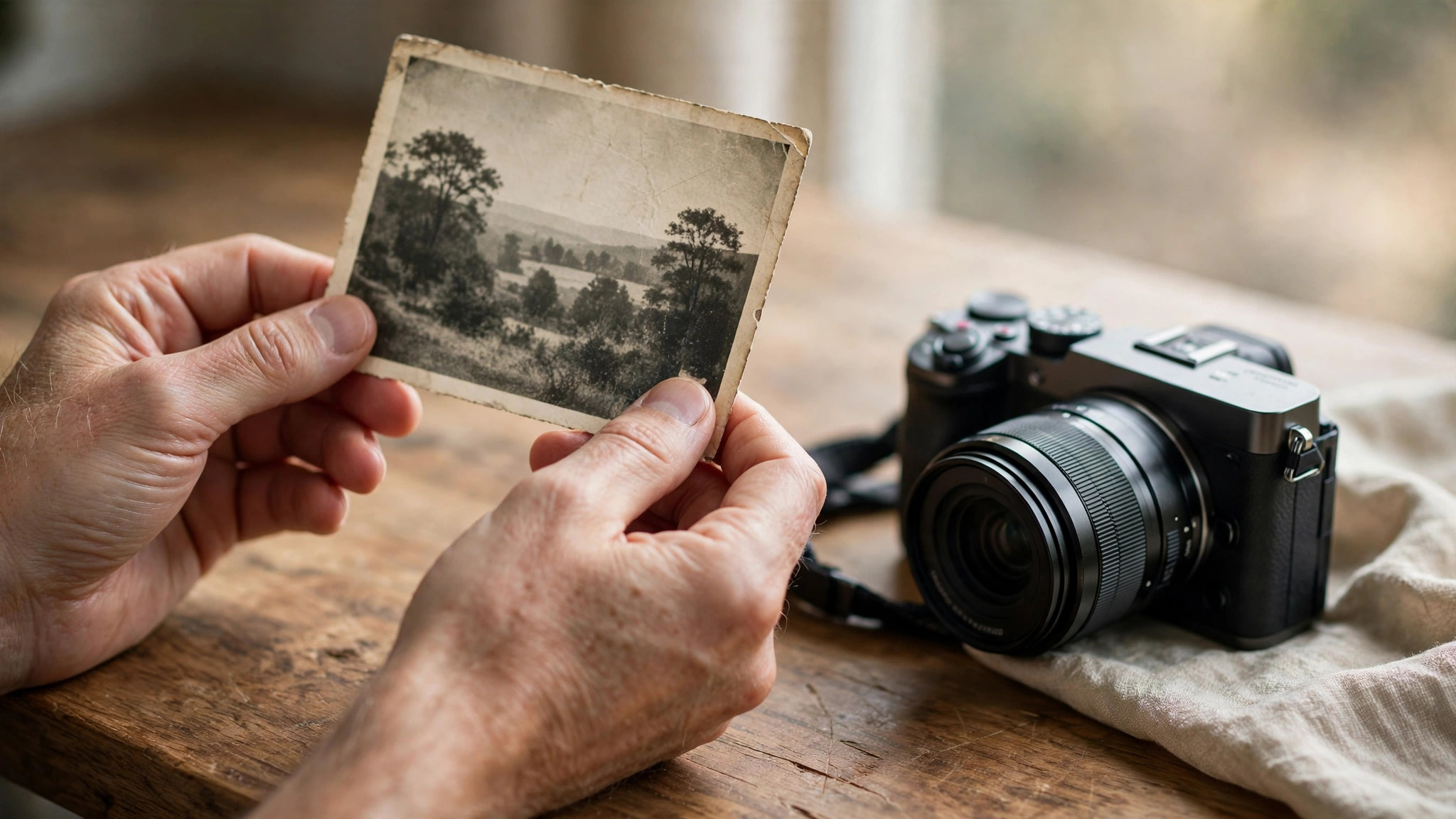
An old photo carries damage that no enhancer can fully undo. Scratches, folds, fading and water marks are physical damage, and AI can soften them but cannot recover detail that is gone. What enhancement does well is sharpening a soft print, restoring colour to a faded image, and enlarging a small print for a frame. Remini and LetsEnhance both handle old photos, and the results are often striking, because the original was better than the faded print suggests.
Scan the photo properly before enhancing it. A scan at 600 dots per inch captures the detail the enhancer needs, while a phone photo of a print adds glare and distortion that the tool cannot remove. Clean the print, scan it flat, and then enhance, because the quality of the input decides the quality of the output more than the choice of tool.
What the Best Photo Enhancers Cost in a Year
A photo enhancer costs little or a lot depending on the model. PicWish costs $59.99 a year, LetsEnhance costs $108 a year, Topaz Gigapixel costs $149 a year, and Topaz Photo AI costs $199 a year, while Remini at $6.99 a week costs far more over a year than any of them if the plan is left running. A free tool such as Upscayl costs nothing but needs the right hardware.
The honest comparison is the cost per photo. A photographer who enhances a thousand photos a year pays 20 cents a photo on Topaz Photo AI, while a user who enhances ten photos a year pays $20 a photo on the same plan. Count the photos first, then choose, because the cheapest plan for a heavy user is the dearest plan for a light one.
Colour, and the Photo That Prints Wrong
A photo that looks right on screen can print wrong, because screens and printers speak different colour languages. A screen shows light, a printer shows ink, and the same file can look warm on a laptop and green on paper. The fix is to check the colour profile before printing, and to order a test print of one copy before the full run, because the test copy shows what the screen cannot.
The enhancer can also shift colour, because denoise and sharpening change the tones alongside the detail. Compare the enhanced photo with the original side by side, and check the skin tones first, because a face that turns orange or grey is the most visible failure. If the colour moved, turn the enhancement down rather than fixing the colour afterwards, because the lightest fix is usually the most natural.
One more habit worth building is the before-and-after habit. Save the original file alongside every enhanced version, with the tool and the settings noted in the filename, so the enhancement can be redone when a better model appears. A photo enhanced in 2026 will look dated when the 2027 models arrive, and the original is the only way to redo it.
Back up the originals before enhancing anything. An enhanced photo can be redone from the original when a better model appears, but an original that was overwritten is gone forever, and the enhancement that looked good in 2026 will look dated when the 2027 models arrive. Keep the originals in a separate folder, and never let an enhancer save over them.
Reader Questions on Choosing Well
Which AI photo enhancement tool is best overall?
Among the best ai photo enhancement tools, Topaz Photo AI leads for serious work, because it combines denoise, sharpen, face recovery and upscaling in one desktop app at $199 a year. LetsEnhance is the best browser option at $9 a month, Remini is the best for faces on a phone, and Upscayl is the best free option for a user with a dedicated graphics card.
Can AI really fix a blurry photo?
It can improve a blurry photo a lot, but it cannot recover detail that was never captured. Sharpening restores edges, denoise removes grain, and upscaling adds pixels that look real, yet a photo that is badly out of focus will stay soft. The best results come from a slightly soft photo, not a hopeless one, so test the tool on the actual photo before paying.
Is it safe to upload personal photos to an enhancer?
It depends on the tool. Browser enhancers upload the photo to a server, so a private or sensitive photo should go to a tool with a clear privacy policy, while desktop tools such as Topaz Photo AI and Upscayl process the photo locally and never upload it. For family photos and client work, a local tool is the safer choice.
How much does photo enhancement cost per month?
Browser tools start at $9 a month for LetsEnhance and $15 a month for VanceAI, while desktop tools cost $149 to $199 a year for Topaz Gigapixel and Topaz Photo AI. Remini at $6.99 a week is the dearest over a year if the plan is left running, so cancel a weekly plan as soon as the job is done.
Can AI enhancement make an old photo look new?
It can make an old photo look much better, by sharpening a soft print, restoring faded colour and enlarging a small print for a frame. Scratches, folds and water damage can be softened but not fully removed, because the detail underneath is gone. Scan the print at 600 dots per inch first, because the scan quality decides the result more than the tool.
Our Recommendation
Start with Topaz Photo AI when the photos are RAW files and the work is paid, because the denoise, sharpen and face recovery in one app earn the $199 a year. Start with LetsEnhance when the photo must become a print and no software should be installed, because the browser upscale to 16x is the most convenient in this list. Start with Remini when the photo is a face on a phone, because the face restoration is the strongest here. The best ai photo enhancement tools all reward the same habit, which is checking the result at full size before trusting it.
The tools in this guide all make a photo better, and the difference between them is the job. A professional needs a desktop tool with unlimited rendering, a seller needs a browser tool with batch credits, and a casual user needs a free tool that costs nothing. Count the photos, test the tool on the hardest photo first, and the enhancement will look natural rather than processed.