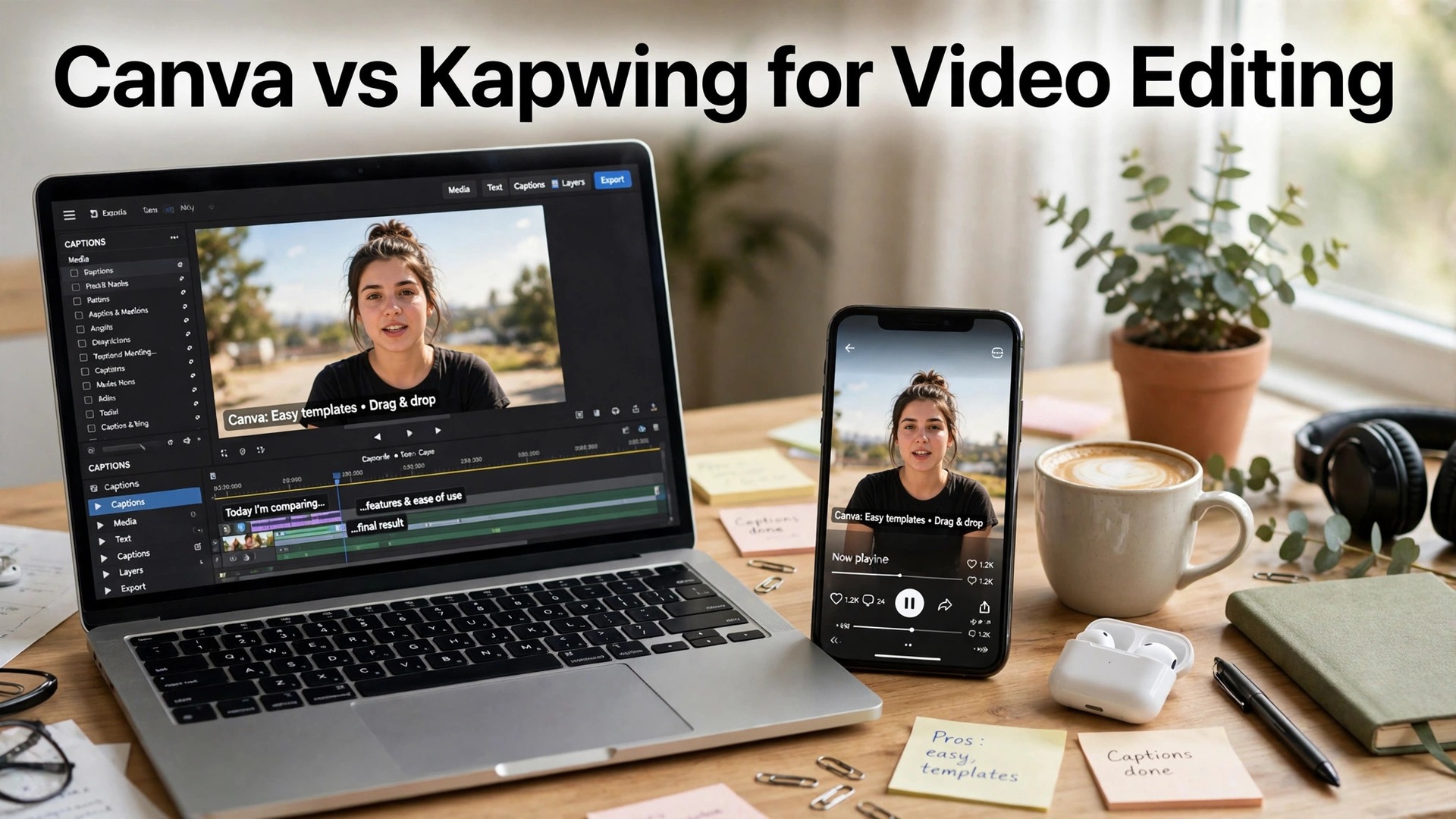
Canva vs Kapwing for video editing comes down to one question, and it is not which tool is better. It is what kind of video you make. Canva wins when the video is a designed post, a template with text, music and a brand kit, made in minutes. Kapwing wins when the video is a real clip that needs captions, trimming, resizing and a clean export. A small business that makes both kinds of video will use both tools, and the smart move is to pick a main editor for the video you make most often, not to pay for both at once.
Social video has become the default format for a small business in 2026. A thirty-second clip with captions reaches more people than a polished photo, and a template video with a strong headline reaches more people than a plain post. The catch is the time. A video that takes an hour to make will not get made every week, and a video that takes five minutes will. The tools in this guide are ranked on the result a viewer actually sees, and on the time it takes to get there, not on the feature list.
The two tools look similar on a pricing page, and they are not similar in use. Canva is a design tool that learned video, so its strength is the template, the brand kit and the layout. Kapwing is a video tool that learned design, so its strength is the timeline, the captions and the clip. A business that understands that difference will pick the right tool in a day, and a business that does not will pay for both and use neither well.
The trap is the subscription stack. A business that pays for Canva Pro and Kapwing Pro at once spends $34 a month on video tools that overlap in half their features. The fix is to test the free tier of both, pick the one whose workflow fits the video you make most often, and pay for that one only. Canva Pro costs $18 a month or $144 a year. Kapwing Pro costs $24 a month or $16 a month billed yearly. Both have free plans, but Kapwing adds a watermark on its free plan, and Canva does not.
Quick jump
- Quick Answer. Canva vs Kapwing in 30 Seconds
- Templates. Canva Wins by a Wide Margin
- Captions. Kapwing Wins by a Wide Margin
- Pricing. Canva Is Cheaper, Kapwing Is Fair
- Ease of Use. Both Are Easy, Canva Is Easier
- Export Quality. A Tie at 4K, Canva Wins Free
- The Free Plan Test. Canva vs Kapwing Without Paying
- Which Videos Each Tool Handles Best
- Canva vs Kapwing for Video Editing. The Verdict by Job
- Related Guides
- Frequently Asked Questions
- The Bottom Line
Quick Answer. Canva vs Kapwing in 30 Seconds
If you want the short version, here it is. Canva is the best pick for a designed video, with thousands of templates, a brand kit and a free plan that exports without a watermark. Kapwing is the best pick for a real clip that needs captions, with the best subtitle tools here and a Pro plan at $24 a month or $16 a month billed yearly. A business that makes template videos should pay for Canva Pro at $18 a month or $144 a year. A business that makes captioned clips should pay for Kapwing Pro.
The canva vs kapwing for video editing decision is really a decision about the video you make most often. The table below compares the two on the facts that change a decision, and the sections after it test each one on templates, captions, pricing, ease of use and export quality.
| Feature | Canva | Kapwing |
|---|---|---|
| Best for | Designed template videos | Real clips with captions |
| Free tier | Free plan, no watermark | Free plan, watermarked 720p |
| Paid from | $18/mo or $144/yr Pro | $24/mo or $16/mo annual Pro |
| Templates | 600,000+ | Smaller, video-focused |
| Captions | Basic auto captions | Best auto captions here |
| Export quality | 1080p on free, 4K on Pro | 720p free, 4K on Pro |
| Brand kit | 5 brand kits on Pro | Brand kit on Pro |
| Scheduler | Included on Pro | Not included |
| Learning curve | Easiest here | Easy, video-first |
Templates. Canva Wins by a Wide Margin
The first test is templates, and Canva wins it by a wide margin. Canva lists more than 600,000 templates, with thousands built for social video, covering sales, new products, events, holidays, testimonials and hiring posts. The templates are designed, not just laid out, with text animation, music and transitions built in, and most of them are free. A video that starts from a Canva template looks finished in minutes, because the layout, the fonts and the timing are already decided.
Kapwing has templates too, but its library is smaller and more focused on video, with templates for memes, subtitles, reaction videos and repurposed clips. The templates are practical rather than decorative, and they suit a creator who starts from a real clip rather than a blank canvas. A Kapwing template is a starting point for an edit, not a finished design, and that difference matters. A business that makes template videos every week will find Canva faster. A business that edits real clips will find Kapwing more direct.
The template gap shows up in the brand kit as well. Canva Pro includes 5 brand kits, which lock in colors, fonts and logos across every video you make. Kapwing Pro includes a brand kit too, with custom fonts and colors, but the template range it applies to is smaller. A business that makes a dozen videos a month will feel the difference in the time it takes to start each one.
Captions. Kapwing Wins by a Wide Margin
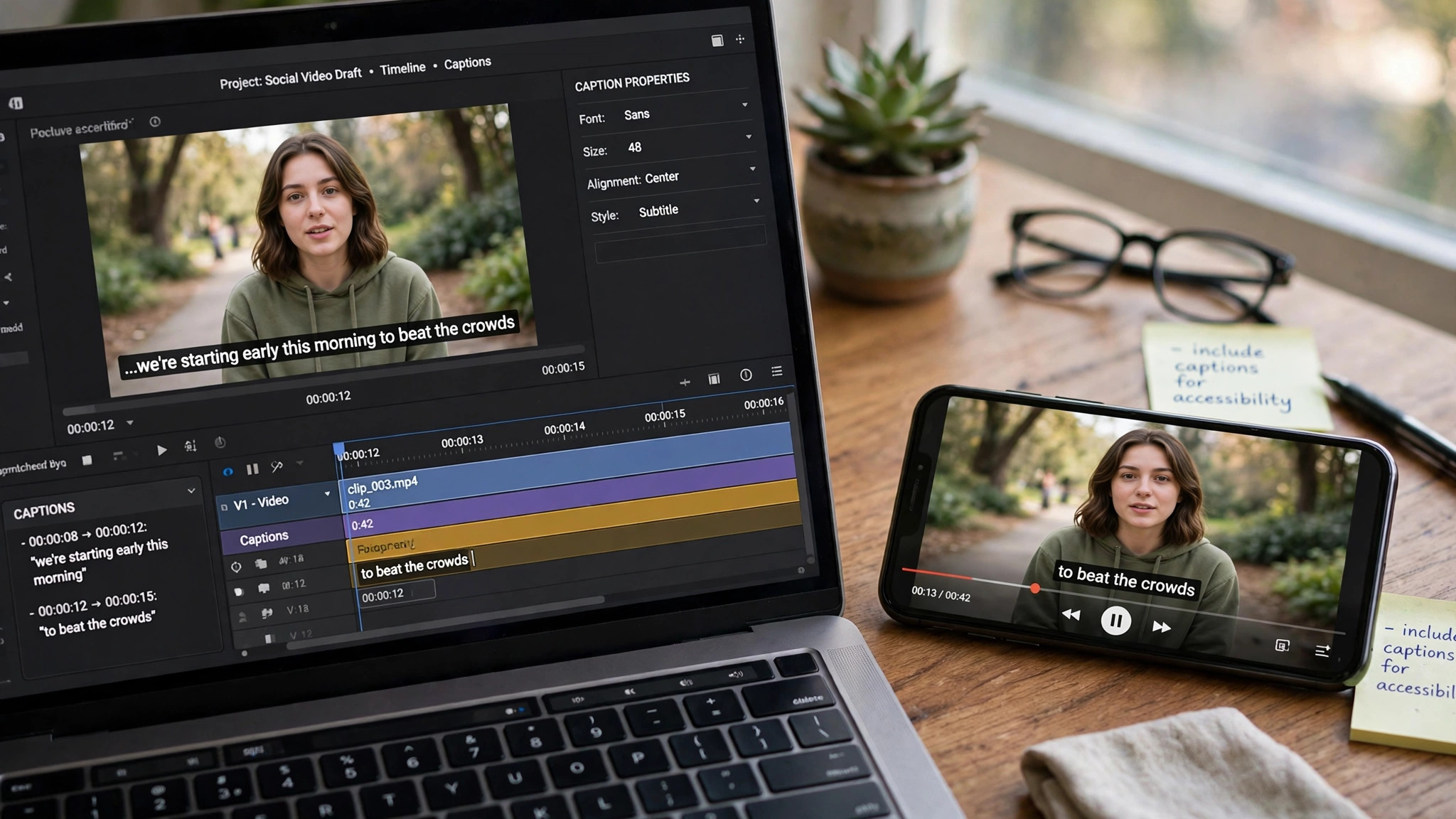
The second test is captions, and Kapwing wins it by a wide margin. Most social video is watched with the sound off, so captions are not a nice extra. They are the difference between a video that gets watched and a video that gets skipped. Kapwing’s subtitle tools are the best in this comparison, with automatic captions that can be styled, positioned and timed in seconds, and with 1,000 subtitle minutes a month on Pro. The captions are accurate, the styling is flexible, and the export keeps the captions burned in or as a separate file.
Canva has auto captions too, but they are basic next to Kapwing, with fewer styling options and a slower workflow. Canva’s captions suit a template video with a short headline, not a real clip with a minute of speech. A business that makes talking-head videos, interviews or tutorials will feel the difference in the first week, because Kapwing turns an hour of captioning into five minutes, and Canva turns it into a chore.
The caption gap is the reason many businesses use both tools. They design the video in Canva, export it, and caption it in Kapwing, or they caption the clip in Kapwing and design the thumbnail in Canva. That workflow works, but it costs two subscriptions, so a business that captions daily should pay for Kapwing Pro, and a business that captions rarely should stay on Canva.
Pricing. Canva Is Cheaper, Kapwing Is Fair
The third test is pricing, and Canva is cheaper. Canva Pro costs $18 a month or $144 a year for one person, and it adds premium templates and stock, 5 brand kits, Magic Resize, the background remover, the scheduler and 100GB of storage. The free plan covers the video editor, thousands of templates and full-size exports, with no watermark, which makes it the best free video editor in this comparison.
Kapwing Pro costs $24 a month, or $16 a month billed yearly at $192 a year, and it adds 1,000 credits a month, no watermark, 4K export, exports up to 2 hours, 1,000 subtitle minutes and a brand kit. The free plan covers 10 credits in total, watermarked exports at 720p, and basic tools, which makes it a test, not a workflow. Kapwing Business costs $64 a month, or $50 a month billed yearly, and it adds 4,000 credits and more subtitle minutes.
The price gap is $6 a month on monthly billing, or $48 a year on annual billing, and the value gap depends on the job. A business that makes template videos gets more from Canva Pro at $144 a year than from Kapwing Pro at $192 a year. A business that captions clips daily gets more from Kapwing Pro, because the subtitle minutes alone are worth the price. Check the price at checkout, because both tools change their prices often.
Ease of Use. Both Are Easy, Canva Is Easier
The fourth test is ease of use, and both tools are easy, with Canva a little easier. Canva’s editor is drag and drop, with a short learning curve and no buried menus. You pick a template, swap the text and the photo, and export. The video editor is the same editor as the design tool, so a user who knows Canva for posts already knows Canva for video. The learning curve is the shortest in this comparison, and a first video takes minutes, not an afternoon.
Kapwing’s editor is also easy, with a browser-based timeline, drag and drop, and a clean layout, but it is a video editor first, so it has more controls to learn. The timeline, the layers and the export settings take an hour to learn, and a first video takes longer than in Canva. The payoff is control. A user who learns Kapwing can trim, resize, caption and export a real clip faster than in Canva, because the tools are built for video, not adapted from a design tool.
The ease gap matters less than the workflow gap. A business that makes one video a week will find Canva faster. A business that makes five videos a week will find Kapwing faster, because the video-first tools save time once they are learned. Pick the tool that fits the volume, not the one that feels easier on day one.
Export Quality. A Tie at 4K, Canva Wins Free
The fifth test is export quality, and it is a tie on paid plans, with Canva winning on free. Both tools export at 4K on their Pro plans, with no watermark, and both export at 1080p on their free or basic tiers, with one difference. Canva exports at 1080p on its free plan with no watermark, which makes it the best free video editor here. Kapwing exports at 720p on its free plan with a watermark, which makes its free tier a test, not a workflow.
The export settings differ too. Canva exports a video as an MP4, with a simple quality setting and a direct share to social platforms. Kapwing exports as an MP4, a GIF or a series of images, with more control over resolution, frame rate and compression, and with a file size display that shows the result before you download. A business that needs a GIF from a video will find Kapwing more direct. A business that needs a simple MP4 will find Canva faster.
The quality gap is small, and the free gap is large. A business that cannot pay yet should use Canva, because its free export is clean and full size. A business that can pay should pick by the job, not by the export, because both tools export at 4K on Pro.
The Free Plan Test. Canva vs Kapwing Without Paying
The free plans are where the canva vs kapwing for video editing decision often gets made, because the gap between them is large. Canva’s free plan covers the video editor, thousands of templates and full-size exports with no watermark, which makes it the best free video editor in this comparison. A business that cannot pay yet can still make a clean video in Canva, publish it, and build an audience, with no watermark telling the viewer the tool was unpaid. The free plan holds back premium stock, the background remover and the best AI tools, but it does not hold back the editor itself.
Kapwing’s free plan is a test, not a workflow. It covers 10 credits in total, watermarked exports at 720p, and basic tools, which means a business can make one or two videos to test the editor, but it cannot publish a clean video without paying. The watermark sits on the export, and the 720p resolution looks soft on a large screen. A business that captions daily will run out of credits in the first week, and a business that makes one video a month will still need Pro to publish it clean.
The third test is what the paid plan adds. Canva Pro at $18 a month or $144 a year adds premium templates and stock, 5 brand kits, Magic Resize, the background remover, the scheduler and 100GB of storage. Kapwing Pro at $24 a month or $16 a month billed yearly adds 1,000 credits a month, no watermark, 4K export, exports up to 2 hours, 1,000 subtitle minutes and a brand kit. Both paid plans are fair for what they cover, and the choice depends on the job, not the price.
1. Canva. Best for Designed Template Videos
Canva is the strongest choice in the canva vs kapwing for video editing comparison when the video is a designed post. Its template library is the largest here, with thousands of video templates for sales, events, announcements and testimonials, and its editor is drag and drop, with text animation, music, transitions and a brand kit built in. Canva also includes a scheduler, so you can design and queue a video without leaving the app, and its Magic Studio AI tools can generate and edit video, remove backgrounds and resize a design in one click.
Pricing starts free and stays useful. The free plan covers the video editor, thousands of templates and full-size exports with no watermark. Canva Pro costs $18 a month or $144 a year for one person, and it adds premium templates and stock, 5 brand kits, Magic Resize, the background remover, the scheduler and 100GB of storage. Pro is a one-person licence, so a second editor means moving to Business at $25 a month or $250 a year per person.
Canva’s video editor also covers the whole workflow around the video. The scheduler publishes the video at the right time, the brand kit keeps every video on brand, and Magic Resize turns one video into a square post, a story and a wide video in a single click. A business that makes a dozen videos a month will feel the saving in the time it takes to start each one, because the template, the fonts and the colors are already decided.
What works. The template library is the largest here, and the free export is full size with no watermark, which is the detail that matters most. The brand kit and the scheduler mean one login covers design, video and posting.
What to watch. The caption tools are basic next to Kapwing, and the video editor is a design tool first, so a real clip that needs trimming and captions will take longer. The free plan holds back the best stock and the background remover.
2. Kapwing. Best for Real Clips with Captions
Kapwing is the strongest choice in this comparison when the video is a real clip that needs captions. Its subtitle tools are the best here, with automatic captions that can be styled, positioned and timed in seconds, and its editor covers trimming, resizing, text, stickers, background removal and repurposing in a browser, with no install. Kapwing also includes a meme generator, a video editor and a subtitler, so the clip can be one step in a larger video workflow, and its Repurpose Studio turns a long video into short clips automatically.
Pricing starts free, but the free plan adds a watermark. The free plan covers 10 credits in total, watermarked exports at 720p, and basic tools. Kapwing Pro costs $24 a month, or $16 a month billed yearly at $192 a year, and it adds 1,000 credits a month, no watermark, 4K export, exports up to 2 hours, 1,000 subtitle minutes and a brand kit. Kapwing Business costs $64 a month, or $50 a month billed yearly, and it adds 4,000 credits and more subtitle minutes.
Kapwing’s Repurpose Studio is the feature that sets it apart for a business with long videos. It turns a long video, such as a webinar or an interview, into short clips automatically, with captions and a vertical format ready for social feeds. A business that records one long video a week can turn it into five short clips in minutes, which is a workflow Canva cannot match.
What works. The subtitle tools are the best here, and the browser editor is strong enough for a full video workflow. The 4K export and the brand kit suit a business that makes videos every week.
What to watch. The free plan adds a watermark, so it cannot publish a clean video. The price is higher than Canva, and the credit system is confusing at first, so check the allowance before you commit.
Which Videos Each Tool Handles Best
The canva vs kapwing for video editing choice becomes clear when you sort videos by type. A sale announcement, with a headline, a price and a call to action, belongs in Canva, because the template does the design work and the video is finished in minutes. A product launch, with a short clip of the product and a caption, belongs in Kapwing, because the captions carry the message when the sound is off. A testimonial, with a customer speaking to camera, belongs in Kapwing, because the subtitles make it watchable without sound. A holiday post, with a festive template and music, belongs in Canva, because the template is already designed for the occasion.
A tutorial belongs in Kapwing, because the editor can trim the long pauses, add captions, and export a clean video that teaches. A behind-the-scenes clip belongs in Kapwing too, because the clip is real and the captions make it accessible. A hiring post belongs in Canva, because the template carries the role, the benefits and the call to action in a designed layout. A webinar clip belongs in Kapwing, because Repurpose Studio turns the long recording into short clips automatically.
The pattern is simple. A video that starts from a template belongs in Canva. A video that starts from a real clip belongs in Kapwing. A business that makes both kinds should use both tools, with Canva free for design and Kapwing Pro for captions, or Canva Pro for design and Kapwing free for testing, and pay for the second tool only when the volume justifies it.
Canva vs Kapwing for Video Editing. The Verdict by Job
Start with the video you make most often, not the tool. In the canva vs kapwing for video editing decision, a business that makes template videos should pay for Canva Pro. A business that makes captioned clips should pay for Kapwing Pro. A business that makes both should use Canva free for design and Kapwing Pro for captions, or Canva Pro for design and Kapwing free for testing, and pay for the second tool only when the volume justifies it.
Step 1. Count the videos. Write down how many videos you make each week, and how many of them are template videos and how many are real clips with speech. A business that makes five template videos a week needs Canva. A business that makes five captioned clips a week needs Kapwing.
Step 2. Test both free. Open the free tier of Canva and Kapwing, and make the same video in both. Compare the result side by side, and check the export, the captions and the time it took. A tool that feels easy on day one may not feel easy on day thirty.
Step 3. Check the captions. If the video has speech, caption it in Kapwing and check the accuracy, the styling and the time it took. If the video has no speech, skip this step, because Canva’s basic captions are enough for a headline.
Step 4. Check the export. Export the video at 1080p and check it on a phone. Canva exports clean at 1080p on its free plan. Kapwing exports at 720p with a watermark on its free plan, so a clean export needs Pro.
Step 5. Pay for one. Pick the tool that fits the video you make most often, and pay for that one only. A second subscription should wait until the volume justifies it, because two tools that overlap cost more than one tool that fits.
Related Guides
- CapCut vs Descript for Video Editing
- How to Build a Content Calendar for a Small Business
- How to Design an Instagram Grid That Looks Professional
Frequently Asked Questions

Is Canva or Kapwing better for video editing?
It depends on the video. In canva vs kapwing for video editing, Canva is better for a designed template video, because its template library is the largest and its editor is the easiest. Kapwing is better for a real clip with captions, because its subtitle tools are the best here and its editor is built for video. Most small businesses should test both free, make the same video in each, and pay for the one that fits the video they make most often.
Can I use Canva free for video editing?
Yes. Canva’s free plan covers the video editor, thousands of templates and full-size exports with no watermark, which makes it the best free video editor in this comparison. The free plan holds back premium stock, the background remover and the best AI tools, but it does not hold back the editor itself, so a business that cannot pay yet can still make a clean video.
Does Kapwing add a watermark on free videos?
Yes. Kapwing’s free plan exports at 720p with a watermark, and it covers 10 credits in total, so the free tier is for testing, not for publishing. A clean export needs Kapwing Pro, which costs $24 a month or $16 a month billed yearly, and adds 1,000 credits a month, no watermark and 4K export.
Which tool is better for captions?
Kapwing is better for captions by a wide margin. Its subtitle tools generate accurate captions automatically, with styling, positioning and timing controls, and Pro includes 1,000 subtitle minutes a month. Canva has auto captions too, but they are basic next to Kapwing, with fewer styling options and a slower workflow. A business that captions daily should pay for Kapwing Pro.
Can I use both Canva and Kapwing together?
Yes, and many businesses do. They design the video in Canva, export it, and caption it in Kapwing, or they caption the clip in Kapwing and design the thumbnail in Canva. That workflow works, but it costs two subscriptions, so a business should pay for the second tool only when the volume justifies it. Start with one paid tool and one free tool, and add the second subscription later.
Which tool should a beginner start with?
Canva is the better start for a beginner, because its editor is drag and drop, its templates do the design work, and its free plan exports a clean video with no watermark. A first video takes minutes, not an afternoon, and the learning curve is the shortest in this comparison. Kapwing is the better second tool, because its caption and trimming tools are worth learning once the video habit is working, and its Pro plan is the right upgrade when captions become daily work. Start with Canva free, add Kapwing when the videos need captions, and pay for the tool that fits the video you make most often.
The Bottom Line
Canva vs Kapwing for video editing comes down to the video you make most often. Canva is the best choice for a designed template video, because its library is the largest, its editor is the easiest, and its free plan exports clean at 1080p. Kapwing is the best choice for a real clip with captions, because its subtitle tools are the best here and its editor is built for video.
A business that makes template videos should pay for Canva Pro at $18 a month or $144 a year. A business that makes captioned clips should pay for Kapwing Pro at $24 a month or $16 a month billed yearly. Start with both free, make the same video in each, and pay only for the one that fits the video you make most often.
1 thought on “Canva vs Kapwing for Video Editing”