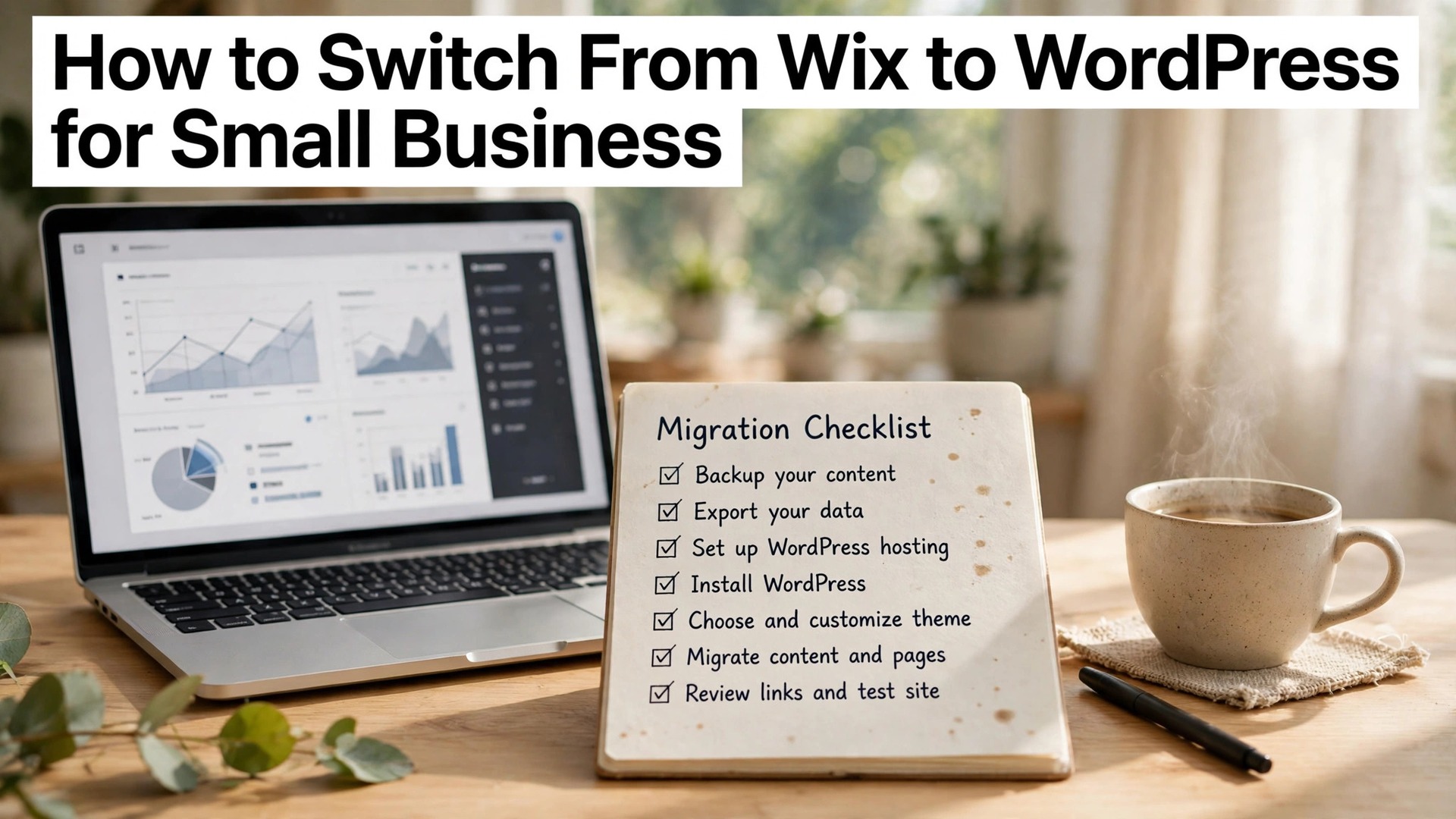
Learning how to switch from Wix to WordPress for small business is a move many growing businesses make when they need more control. Wix is easy, fast, and brilliant for a first website. WordPress is flexible, powerful, and built for a site that will grow, with thousands of plugins, full ownership of the content, and no limits on what the site can become.
The switch is not about Wix being bad. It is about the business outgrowing it. A shop that needs a custom checkout, a blog that needs serious SEO tools, or a business that wants to own its hosting and its data will find WordPress worth the move. This guide covers the full switch, from the decision to the content migration, the SEO protection, and the launch, with the mistakes that cost rankings if they are missed.
The move takes a weekend of work and a month of care, and it is worth doing properly. A rushed switch loses pages, breaks links, and drops the site from Google for weeks. A planned switch keeps every ranking, every link, and every customer, and ends with a site the business truly owns.
Quick jump
- Quick Answer. The Wix to WordPress Switch in 30 Seconds
- How to Switch from Wix to WordPress for Small Business in 6 Steps
- What Moves, What Does Not, and the Redirect Map
- Choosing Hosting, a Theme and the Plugins
- SEO Protection, Rankings and Google Search Console
- Costs, Time and the Budget for the Switch
- Mistakes That Cost Rankings and Customers
- After Launch, Maintenance and Growing the Site
- A Weekend Timetable for the Switch
- Related Guides
- Frequently Asked Questions
- The Bottom Line
Quick Answer. The Wix to WordPress Switch in 30 Seconds
Knowing how to switch from Wix to WordPress for small business means moving the content, the domain, and the SEO in the right order. Set up WordPress hosting, install WordPress, export the content from Wix, rebuild the pages in WordPress, set up 301 redirects for every old URL, move the domain, and test everything before launch. WordPress.com Business costs $25 a month in the first year, renewing at $28, and it allows plugins. Self-hosted WordPress costs hosting from around $3 to $10 a month plus a domain, with full control.
The switch needs four things. A full backup of the Wix site, a WordPress install with a matching theme, a redirect map for every page, and a launch checklist that protects search rankings. The rest of this guide proves that short answer, with the decision, the migration, and the SEO steps in order.
| Switch element | Wix | WordPress |
|---|---|---|
| Cost | From $17/mo billed yearly | Hosting from $3/mo plus domain |
| Ownership | Rented platform, site cannot move | You own the files and the data |
| Plugins | Wix App Market, limited | 60,000+ plugins, full choice |
| SEO tools | Built-in, good for basics | RankMath, Yoast, full control |
| Best for | A first site, fast launch | A growing site, full control |
How to Switch from Wix to WordPress for Small Business in 6 Steps
Step one is the decision. Ask whether the business needs WordPress, or whether Wix still fits. WordPress fits when the site needs custom features, when SEO matters deeply, when the business wants to own its data, and when the site will grow beyond a brochure. Wix fits when the site is simple, the owner values ease over control, and the business has no plans to add complex features. A business that moves for fashion will move back within a year, because WordPress needs more care than Wix.
Step two is the hosting and the install. Choose a WordPress host, such as Bluehost, SiteGround, or Hostinger, with a plan from around $3 to $10 a month on an introductory term, and install WordPress with one click. Alternatively, choose WordPress.com Business at $25 a month in the first year, which handles hosting and updates, and allows plugins. Set up the new site on a temporary domain or a staging address, so the live Wix site keeps running while the new site is built.
Step three is the content export. Wix does not offer a one-click export to WordPress, so the content must be moved by hand or with a migration tool. Copy the text of every page into a document, download every image at full size, and list every page URL in a spreadsheet. A migration plugin or a service can automate part of this, but the owner should check every page after the move, because automated migration misses formatting, images, and custom elements.
Step four is the rebuild. Choose a WordPress theme that matches the business, such as Astra, GeneratePress, or Kadence, all of which offer free versions and work well with the block editor. Rebuild each page in WordPress, using the copied text and images, and improve the pages as you go, because a migration is a chance to fix weak copy and old photos. Install the plugins the site needs, such as RankMath for SEO, a contact form plugin, and a backup plugin, and set them up before launch.
Step five is the SEO protection. This is the step that decides whether the switch costs the business its Google rankings. Map every old Wix URL to its new WordPress URL, and set up a 301 redirect for each one, so a visitor or Google following an old link arrives at the right new page. Keep the page titles and meta descriptions the same, or improve them, and submit the new sitemap to Google Search Console. A switch without redirects will lose rankings for weeks, and a switch with redirects will keep them.
Step six is the domain move and the launch. Point the domain to the new WordPress host, wait for the change to spread, and test every page, every link, and every form. Check the site on a phone, check the speed, and check that the redirects work. Keep the Wix site live for a month after the switch, as a backup, and cancel it only when the WordPress site has run cleanly for four weeks. A launch with a backup is a safe launch. A launch without one is a gamble.
What Moves, What Does Not, and the Redirect Map
Text moves, with work, and the copy is a chance to improve every page as you learn how to switch from Wix to WordPress for small business. The words of every page can be copied from Wix into WordPress, and the copy is a chance to improve them. A page that was thin on Wix can be made stronger in WordPress, with better headings, clearer calls to action, and the keywords customers actually search for. Copy the text, then rewrite the weak parts, because a migration that only copies will carry the old site’s weaknesses into the new one.
Images move, with care. Download every image from Wix at full size, and upload it to the WordPress media library with a descriptive file name. An image named IMG_4821.jpg tells Google nothing, while an image named manchester-sourdough-loaf.jpg tells Google what the image shows. Compress the images before upload, so the new site loads fast, and add alt text to every image, because alt text helps both accessibility and search.
The design does not move. A Wix template cannot be exported to WordPress, so the site must be rebuilt in a WordPress theme. This is the most time-consuming part of the switch, and it is also the biggest opportunity, because a new theme can make the site look more professional than the old one. Choose the theme for its structure and its speed, not for its demo photos, and customise the colours and fonts to match the brand.
The URL structure changes, and that is why the redirect map matters. Wix URLs and WordPress URLs follow different patterns, so the same page will have a different address after the move. The redirect map is a spreadsheet with two columns, the old Wix URL and the new WordPress URL, one row per page. A redirect plugin such as Redirection, free in the WordPress plugin directory, will apply the map, and every old link will land on the right new page.
The blog needs special care. Wix blog posts can be exported as an RSS feed and imported into WordPress, which moves the text and the dates, though the images may need manual fixing. Check every imported post, fix the images, and check the URLs, because a blog post with a broken image or a wrong date will lose the readers it earned on Wix. A blog with a hundred posts will take a day to check properly, and the day is worth spending.
Choosing Hosting, a Theme and the Plugins
Hosting is the foundation of a WordPress site, and the choice matters. Shared hosting from Bluehost, SiteGround, or Hostinger costs from around $3 to $10 a month on an introductory term, renewing higher, and it suits most small businesses. Managed WordPress hosting from WP Engine or Kinsta costs from around $20 to $30 a month, and it suits a business that wants speed, security, and support handled by the host. Choose a host with a good reputation, a backup tool, and support that answers quickly, because the host is the business partner for the life of the site.
The theme decides how the site looks and how fast it loads. Astra, GeneratePress, and Kadence are the best free themes for a small business, because they are fast, flexible, and well supported. Each offers a free version that covers most needs, and a paid version from around $50 a year for more features. Avoid a theme chosen for its demo photos, because the demo will be replaced by your content, and a theme that looks good in the demo can look poor with real content. Choose a theme for speed, for structure, and for support.
Plugins add the features the site needs, and they should be chosen sparingly. RankMath is the best free SEO plugin, with titles, meta descriptions, sitemaps, and schema in one place. A contact form plugin such as WPForms or Contact Form 7 handles enquiries. A backup plugin such as UpdraftPlus protects the site. A security plugin such as Wordfence adds a firewall. Install only the plugins the site needs, because every extra plugin slows the site and adds a security risk.
The editor in WordPress is the block editor, and it works differently from Wix. A page is built from blocks, such as paragraphs, headings, images, and buttons, stacked in order. The block editor is less free-form than Wix, which means less freedom, but also a more consistent result. Learn the blocks in an afternoon, with a practice page, before you rebuild the real pages, because a team that learns by doing will build faster than a team that learns by reading.
Keep the plugin list short and the theme updated. Update WordPress, the theme, and the plugins every month, and take a backup before every update. A site that is never updated will be hacked, and a site that is updated without a backup will break at the worst moment. A monthly update routine, with a backup first, is the habit that keeps a WordPress site safe.

SEO Protection, Rankings and Google Search Console
SEO protection is the most important part of the switch, because a business that loses its Google rankings loses its customers. That protection is the skill that defines how to switch from Wix to WordPress for small business well. The first rule is to keep the page titles and meta descriptions the same, or to improve them, because Google ranks pages partly on those fields. A page that changes its title without reason will be re-evaluated by Google, and the ranking may drop while Google relearns the page.
The second rule is the 301 redirect for every page. A 301 redirect tells Google that a page has moved permanently, and it passes most of the old page’s ranking to the new one. A missing redirect tells Google the page is gone, and the ranking is lost. Map every old URL to its new URL, apply the redirects with a plugin, and test each one by clicking the old link and confirming it lands on the right new page.
The third rule is the sitemap. WordPress generates a sitemap automatically, through RankMath or Yoast, and the sitemap should be submitted to Google Search Console. Search Console is free, and it shows which pages Google has indexed, which pages have errors, and which searches bring visitors. Submit the new sitemap on launch day, and check Search Console weekly for the first month, fixing any errors it reports.
The fourth rule is patience. Google takes days to weeks to process a site move, and rankings may dip briefly before they recover. A dip in the first week is normal, and it is not a reason to panic or to undo the switch. A dip that lasts a month is a problem, and it usually means a missing redirect, a broken page, or a title that changed without reason. Check the redirects, check the titles, and check Search Console before you assume the worst.
The fifth rule is to keep the content the same or better. A page that loses content in the migration will lose ranking, because Google ranks pages on their content. A page that gains content, with better headings and clearer answers, will rank better over time. The migration is a chance to improve every page, and the improvement will pay off in rankings within weeks.
Costs, Time and the Budget for the Switch
The cost of WordPress is lower than Wix in the long run, and higher in time, and that trade is the honest price of how to switch from Wix to WordPress for small business. Shared hosting from around $3 to $10 a month, plus a domain at $10 to $15 a year, plus a premium theme at $50 a year if you choose one, gives a total under $200 a year for most small businesses. Wix Light at $17 a month billed yearly costs $204 a year, and Wix Core at $29 a month costs $348 a year. WordPress is cheaper in money, and more expensive in time, because the owner must maintain it.
The time cost is a weekend for the migration, and an hour a month for maintenance. The weekend covers the hosting, the install, the rebuild, the redirects, and the launch. The monthly hour covers updates, backups, and a check of Search Console. A business that budgets the weekend and the monthly hour will find WordPress easy to run. A business that expects WordPress to run itself will find it frustrating, because WordPress needs care that Wix does not.
A migration service can do the work for a fee, with prices from a few hundred dollars for a small site. A service suits a business with no time to learn WordPress, or a site with many pages that would take days to move by hand. Check the service’s reviews, ask what it covers, and confirm that it includes the redirects, because a service that moves the content without the redirects will cost the business its rankings. A service that includes redirects, testing, and a month of support is worth the fee.
Keep the Wix site for a month after the switch, and budget for the overlap. A month of Wix at $17 to $29, plus the new hosting, costs a few dozen dollars, and it buys safety, because the old site can be restored if the new one fails. Cancel Wix only when the WordPress site has run cleanly for four weeks, with no broken links, no missing pages, and no ranking disaster. A switch with a backup is a safe switch.
Mistakes That Cost Rankings and Customers
The first mistake is launching without redirects. A site that moves without a redirect map will lose every ranking it earned on Wix, because Google will find the old pages gone and the new pages unknown. The fix is the redirect map, built before launch, applied on launch day, and tested page by page. A switch without redirects is not a switch. It is a fresh start, and a fresh start costs months of rankings.
The second mistake is changing every URL without reason. A page that keeps a similar URL, such as /about, will be easy to redirect and easy for Google to follow. A page that changes its URL for no reason, such as from /about to /about-our-company, adds risk for no benefit. Keep the URLs the same where you can, and change them only when the new URL is clearly better.
The third mistake is losing content in the migration. A page that arrives in WordPress with half its text, missing images, or broken formatting will rank worse than it did on Wix, because Google ranks pages on their content. The fix is to check every page after the move, against the original, and to fix the gaps before launch. A migration checked page by page will keep the rankings. A migration checked by luck will lose them.
The fourth mistake is forgetting the contact form and the email. A site that launches with a contact form that sends replies to an old address, or with no form at all, will lose enquiries silently. The fix is to test the form on launch day, and to check the email settings, because a form that looks right and sends nowhere is worse than no form. A business that misses enquiries will not know it is missing them, until a customer complains.
The fifth mistake is no backup. A WordPress site without a backup plugin will lose everything when an update breaks it, or when a hack corrupts it. The fix is a backup plugin, set to run weekly, with the backups stored outside the hosting account. A site with a backup can be restored in an hour. A site without one can be lost forever, and the business with it.

After Launch, Maintenance and Growing the Site
Launch day is the start, not the end. The first week after launch should be spent checking Search Console daily, fixing any errors, and confirming the redirects work. The first month should be spent checking the rankings weekly, and comparing them with the rankings before the switch. A ranking that recovers within a month is a successful switch. A ranking that does not recover needs investigation, starting with the redirects and the titles.
Maintenance is a monthly habit. Update WordPress, the theme, and the plugins, take a backup before each update, and check the site speed. A site that is updated monthly will stay fast and secure. A site that is never updated will slow down, break, and eventually be hacked. The monthly hour is the cheapest insurance a WordPress site can buy, and it is the habit that separates a site that lasts from a site that fails.
Growth is where WordPress earns its keep. A blog with new posts each month will bring new visitors from search. A new service page will rank for a new keyword. A plugin for bookings, for a shop, or for a membership will add a feature Wix could not offer. A site that grows with new content will rank better over time, because Google rewards fresh, relevant pages. A site that never grows will slowly lose rankings to competitors who do.
The team should learn the block editor, because the site will be edited by the team, not only by the person who built it. A short guide, with the steps to edit a page, add a photo, and publish a post, will let the whole team keep the site fresh. A site that only one person can edit will go stale when that person is away. A site the whole team can edit will stay alive.

A Weekend Timetable for the Switch
Saturday morning is hosting and install. Choose the host, buy the plan, install WordPress, and set up the staging address. Saturday afternoon is the theme and the plugins. Install the theme, set the colours and fonts, install RankMath, the contact form, and the backup plugin, and build the homepage. By Saturday evening, the new site should have a homepage that looks like the business, even if the other pages are still empty.
Sunday morning is the content move. Copy the text of every page, download every image, and rebuild the pages one by one in WordPress. Sunday afternoon is the redirect map and the testing. Build the spreadsheet of old and new URLs, apply the redirects, test every link, and check the site on a phone. By Sunday evening, the new site should be complete, tested, and ready to launch.
Monday is the domain move and the launch. Point the domain to the new host in the morning, when you have the whole day to fix problems, and test the site again once the change has spread. Submit the new sitemap to Google Search Console, and check the site speed. A launch on Monday gives you the working week to fix anything that breaks, while a launch on Friday leaves the weekend to worry about it.
The month after launch is the care period. Check Search Console weekly, fix any errors, and compare the rankings with the month before the switch. A ranking that recovers within a month is a successful switch, and a ranking that does not needs investigation. Keep the Wix site live for the whole month, and cancel it only when the WordPress site has run cleanly for four weeks.
Related Guides
- Website Builder Pricing for Small Business
- How to Build a Website Without Coding
- How to Choose a Domain Name for Your Business
Frequently Asked Questions
How long does it take to switch from Wix to WordPress?
A small business site takes a weekend to migrate, with a month of care after launch. The weekend covers hosting, the install, the rebuild, the redirects, and the launch. The month after covers checking Search Console, fixing errors, and confirming the rankings recover. A site with many pages or a large blog will take longer, and a migration service can do it faster for a fee.
Will I lose my Google rankings when I switch?
You should not lose rankings if the switch is done properly, with a 301 redirect for every page, the same titles and meta descriptions, and a new sitemap submitted to Google Search Console. Rankings may dip briefly in the first week, and they should recover within a month. A switch without redirects will lose rankings, so the redirect map is the most important part of the move.
How much does WordPress cost compared to Wix?
WordPress costs less in money and more in time. Shared hosting from around $3 to $10 a month, plus a domain at $10 to $15 a year, gives a total under $200 a year for most small businesses. Wix Light costs $204 a year, and Wix Core costs $348 a year. WordPress needs a monthly hour for updates and backups, which Wix does not, so the saving in money is paid in time.
Can I move my Wix blog to WordPress?
Yes. Wix blog posts can be exported as an RSS feed and imported into WordPress, which moves the text and the dates, though the images may need manual fixing. Check every imported post, fix the images, and check the URLs, because a blog post with a broken image or a wrong date will lose the readers it earned on Wix.
Do I need a developer to switch to WordPress?
No, for a small business site. A careful owner can complete the switch with a weekend of work, using a host’s one-click install, a free theme, and a redirect plugin. A developer helps for a large site, a shop, or a site with custom features, and a migration service can do the whole move for a fee. The owner should still check every page after the move, because no service can check the content as well as the owner.
What happens to my domain when I switch?
The domain moves with the site. Point the domain to the new WordPress host by changing the nameservers or the DNS records, and the site will appear at the same address. The domain registration stays with the current registrar, unless you choose to transfer it, and the email attached to the domain needs checking, because a DNS change can affect email if it is not done carefully.
The Bottom Line
Knowing how to switch from Wix to WordPress for small business is a weekend of careful work that buys the business full control. Set up hosting, install WordPress, move the content by hand, rebuild the pages in a fast theme, protect the rankings with a redirect for every page, and move the domain only when everything is tested. WordPress.com Business at $25 a month in the first year, or self-hosted WordPress from around $3 a month, costs less than Wix in the long run.
Start with the decision, build the redirect map before launch, and keep the Wix site for a month as a backup. That discipline is how to switch from Wix to WordPress for small business without losing a single ranking. The switch that keeps its rankings is the one that treats SEO as the main job, not an afterthought, and it ends with a site the business truly owns, ready to grow.
1 thought on “How to Switch from Wix to WordPress for Small Business”