A font is the voice of a design, and a designer who cannot find the right voice will settle for a voice that almost fits. The best font makers let a designer stop settling, by turning hand lettering, a sketch, or an idea into a real font file that can be installed, typed with, and used anywhere. Fontself Maker leads this list because it works inside Illustrator and Photoshop, where designers already draw, and it turns those drawings into a working OpenType font without leaving the app.
A font maker earns its place by doing three things well. It must let the designer draw or import letters easily, with tools that handle curves, spacing, and kerning without a degree in type design. It must export a real font file, in TTF or OTF, that installs and works in every app, rather than a keyboard skin or an image. And it must handle the details that make a font usable, from ligatures and alternates to the spacing that keeps words readable. The twelve tools in this guide were judged on those three jobs.
Quick jump
The 12 Tools at a Glance
This table compares the best font makers on the facts that decide a purchase. Prices are the entry paid tier from each vendor site, checked in November 2026. Where a vendor publishes no entry price, the table shows the model rather than a figure.
| Tool | Entry paid plan | Free option | Best for |
|---|---|---|---|
| Fontself Maker | $39 one-time Illustrator | No | Fonts from vector art |
| Calligraphr | $10 a month Pro | Yes | Handwriting into a font |
| FontForge | Free | Yes | Full editing for free |
| Glyphs | 319 euros, Mini 49 euros | Trial | Professional Mac type design |
| FontLab | One-time licence | Trial | Professional cross-platform |
| Birdfont | Free plan | Yes | Simple desktop font editing |
| Fontstruct | Free | Yes | Building fonts from blocks |
| BitFontMaker | Free | Yes | Pixel fonts in a browser |
| Prototypo | Paid plans on site | Trial | Parametric font design |
| FontArk | Free | Yes | Browser-based font editing |
| Metaflop | Free | Yes | Modular font experiments |
| YourFonts | Paid plans on site | Yes | Handwriting fonts online |
The 12 Tools in Detail
This section tests the best font makers against the same three jobs. Letters drawn or imported easily, a real TTF or OTF file exported, and spacing and details that make the font usable. Figures in this guide mean the lowest paid plan unless a sentence flags a different basis, all checked in November 2026.
1. Fontself Maker
No tool in this list turns a designer’s existing work into a font as naturally as Fontself Maker, which is why it leads. It is an extension panel inside Illustrator or Photoshop, so the designer drags vector shapes or Photoshop layers onto it and each becomes a character, with auto spacing, kerning, alternates, ligatures, and colour fonts in OpenType-SVG. A designer who already draws letters in Illustrator will make their first font here faster than anywhere else, because the drawing never leaves the app they know.
The Illustrator version costs $39, and the bundle with Photoshop costs $59, with free updates and no subscription. Student and teacher discounts reach fifty percent. Fontself for iPad costs $19.99, with an in-app pack at $14.99 that unlocks use across other apps and devices. The one-time price is the honest deal in this list, because the designer pays once and owns the tool, with no monthly bill and no risk of the price rising next year.
The limit is the host app. Fontself needs Illustrator or Photoshop, so a designer who does not own Adobe software must buy that too, which changes the maths. The tool is also simpler than Glyphs or FontLab for a professional type designer who needs multiple masters and variable fonts. For a designer who lives in Illustrator and wants a working font this week, it is the best tool in this list.
2. Calligraphr
Calligraphr is the easiest way to turn handwriting into a real font, and it suits anyone whose best letters are written by hand. Download a template, fill it in with any pen or brush, scan it back in, and clean each glyph in the built-in editor. The result is a TTF or OTF that installs and works immediately, and the character randomisation, where several versions of each letter rotate as the designer types, makes the text read as genuinely handwritten rather than mechanically stamped.
The free plan covers 75 characters and two variants per letter, which is enough to test the idea, and Pro costs $10 a month for a single month, with 600 characters and full features. A single Pro month is the honest way to buy it, because most people need the full character set once, not every month. The workflow is pleasingly analogue, and the scan-and-clean step teaches the designer more about their own letterforms than any digital tool.
The limit is the character set. A free plan with 75 characters covers the alphabet and the basics, but a full font with punctuation, numbers, and accented characters needs Pro. The editor is also simpler than a desktop font editor, with less control over curves and spacing. For a personal handwriting font, it is the best tool in this list, and the easiest first font a beginner will ever make.
3. FontForge
FontForge is the best free desktop font editor, and it is the tool that proves a first font does not need to cost anything. It is open source, it runs on Windows, Mac, and Linux, and it offers complete control over every glyph, with drawing tools, spacing, kerning, and OpenType features that match the paid editors. A designer on a zero budget who wants a full editor will find FontForge the most capable free tool in this list.
The price is free, with donations welcome, and there is no paid plan, no trial, and no limit on the fonts produced. That makes it the cheapest honest start in this list, and the price is genuinely zero rather than a trial that converts. The editor handles everything from drawing a letter from scratch to importing and fixing an existing font, and the scripting support lets a designer automate repetitive work.
The limit is the learning curve and the interface, which shows its open-source roots. FontForge is powerful rather than pretty, and a beginner will spend longer learning it than learning Calligraphr or Fontself. The documentation is extensive but uneven, and the community support varies. For a designer who can tolerate rough edges, it is the best free editor here. For a designer who wants polish, Glyphs or FontLab is the better buy.
4. Glyphs
Glyphs is the professional standard on Mac, and it is what most Mac-based type designers use as their main tool. Glyphs 4, released in July 2026, offers deep control over drawing and spacing, with multiple masters, variable fonts, colour fonts, custom OpenType code, and plug-ins that extend every part of the workflow. A type designer building a professional family will find Glyphs the most complete Mac editor in this list.
Glyphs 4 costs 319 euros, with students at 159 euros and teachers at 199 euros. Glyphs Mini 2 costs 49 euros and uses the same drawing engine, but without multiple masters, variable fonts, colour fonts, custom OpenType code, or plug-ins. A free trial lets a designer test the full editor before paying, which is the honest way to judge a tool at this price.
The limit is the platform. Glyphs runs only on Mac, so a Windows designer must look elsewhere, and the price is the dearest in this list for a first font. A designer who needs a professional family on a Mac will find it worth every euro. A designer making a first font should start with FontForge or Calligraphr, and move to Glyphs only when the work demands it.
5. FontLab
FontLab is the cross-platform professional option, and it is the natural pick for Windows users who need a serious type-design editor. FontLab 9 adds a Stem tool, Sigma for master blending, Superkerning, and more than five hundred improvements, with variable fonts, colour fonts, and detailed outline tools. A professional type designer on Windows will find FontLab the most capable editor in this list, and the cross-platform support means the same file works on Mac and Windows.
FontLab is sold as a one-time licence, with a free trial for testing the editor on a real project before paying. The price is in the professional range, alongside Glyphs, and the educational discounts help students and teachers. The editor handles large character sets, complex scripts, and variable fonts, which is the depth a professional family needs.
The limit is the same as Glyphs. FontLab is a professional tool with a professional price and a professional learning curve, and a beginner making a first font will find it overwhelming. A designer who needs cross-platform professional editing will find it the best in this list. A designer making a first font should start free with FontForge, and move to FontLab when the work outgrows it.
6. Birdfont
Birdfont is the simple desktop font editor, with a clean interface and a straightforward workflow that suits a designer making a first font without a steep learning curve. It draws letters with bezier curves, handles spacing and kerning, and exports TTF, OTF, and EOT files, with a free plan that covers the basics and a paid plan for commercial use. A designer who wants a desktop editor without the weight of Glyphs or FontLab will find Birdfont the most approachable in this list.
The pricing is listed on the vendor site, with a free plan for personal use and a paid licence for commercial fonts. The interface is deliberately simple, with the tools a beginner needs and none of the panels a professional expects. The editor handles the whole workflow, from drawing the first letter to exporting the finished font, without requiring a second tool.
The limit is depth. Birdfont lacks the multiple masters, variable fonts, and advanced OpenType features of the professional editors, and a type designer building a family will outgrow it. For a first font, or a simple display font, it is the best balance of simplicity and capability in this list. For a professional family, Glyphs or FontLab is the better buy.
7. Fontstruct
Fontstruct is the workshop-friendly font builder, and it is the most fun tool in this list. It builds fonts from blocks on a grid, in a browser, with no install and no cost, and the community shares thousands of fonts built the same way. A teacher running a font workshop, or a designer who wants to prototype an idea quickly, will find Fontstruct the fastest way to a working font, because the grid makes every letter consistent by construction.
The price is free, with no paid plan and no limit on the fonts built. That makes it the cheapest honest start in this list alongside FontForge, and the browser-based workflow means it runs on any computer. The grid system is the strength and the limit at once, because it forces a modular, blocky style that suits display fonts and pixel fonts, but not a flowing script or a text face.
The limit is the style. A Fontstruct font always looks like it was built from blocks, which is charming for a display face and wrong for a body font. A designer who wants a text font should use FontForge or Glyphs instead. For a display font, a logo font, or a workshop exercise, it is the best free tool in this list.
8. BitFontMaker
BitFontMaker is the pixel font maker, built for the designer who wants a retro, bitmap-style font for a game, a poster, or a website. It runs in a browser, with a grid editor that lets the designer draw each letter pixel by pixel, and it exports a real TTF that installs and works anywhere. A game developer who needs a pixel font for a retro title will find BitFontMaker the fastest route to one.
The price is free, with no paid plan and no account needed. That makes it the cheapest honest tool in this list for a pixel font, and the browser workflow means it runs on any computer. The editor is simple, with a clear grid and a preview that shows the font as it will look in use, which matters for a pixel font where every pixel counts.
The limit is the style, even more than Fontstruct. BitFontMaker makes pixel fonts and nothing else, and a designer who wants a smooth, vector font should look elsewhere. For a pixel font, it is the best tool in this list, and the only one built specifically for that job. For anything else, it is the wrong tool entirely.
9. Prototypo
Prototypo is the parametric font design tool, which lets a designer build a font by adjusting parameters rather than drawing each letter by hand. Change the thickness, the width, the serif style, or the contrast, and every letter updates at once, so a designer can explore a whole family of fonts by moving sliders. A designer who wants to prototype a typeface quickly, or who needs many weights from one design, will find Prototypo the most efficient tool here.
The pricing is listed on the vendor site, with a free trial for testing the parametric workflow on a real project before paying. The parameter system is the strength, because it turns type design from drawing into tuning, and a designer can generate a full family in the time it takes to draw a single weight by hand. The export produces real font files that install and work in any app.
The limit is the control. A parametric font is built from parameters, and a designer who wants a specific, hand-drawn letterform will find the sliders too coarse. The tool suits exploration and prototyping better than final production, and a professional family will still need Glyphs or FontLab for the finishing work. For a designer exploring ideas, it is the best tool in this list.
10. FontArk
FontArk is the browser-based font editor, with a free workflow that runs entirely in a web page, with no install and no cost. It offers drawing tools, spacing, and kerning in a clean interface, and it exports real font files that install and work anywhere. A designer who wants a full editor without installing software will find FontArk the most capable browser tool here.
The price is free, with no paid plan for the core editing features. That makes it the cheapest honest start in this list for a browser-based editor, and the lack of installation means it runs on any computer, including a Chromebook. The interface is modern and approachable, with the tools a beginner needs and a preview that shows the font in use.
The limit is the depth. FontArk is a capable editor, but it lacks the multiple masters, variable fonts, and advanced OpenType features of the professional desktop tools. A designer building a professional family will outgrow it. For a first font, or a simple display font built in a browser, it is the best free tool in this list.
11. Metaflop
Metaflop is the modular font experiment, built for the designer who wants to explore type by adjusting the parameters of a modular system. It offers a set of base fonts that can be tuned by changing the proportions, the contrast, and the details, with the result exported as a real font file. A designer or a student who wants to understand how type works by taking it apart will find Metaflop the most educational tool here.
The price is free, with no paid plan and no account needed. That makes it the cheapest honest tool in this list for experimentation, and the browser workflow means it runs on any computer. The modular system is the strength, because it shows how small changes to a parameter change the whole character of a font, which is a lesson no amount of reading can replace.
The limit is the output. Metaflop produces fonts from its modular system, and a designer who wants a specific, original letterform will find the parameters too limiting. It is a tool for learning and for exploration, not for a final production font. For a student or a curious designer, it is the best free experiment in this list.
12. YourFonts
YourFonts turns handwriting into a font online, with a template the user prints, fills in by hand, scans, and uploads. The service builds the font from the handwriting and returns a TTF that installs and works anywhere. A person who wants a personal handwriting font without learning an editor will find YourFonts the simplest route, because the work is done by hand on paper and the service does the rest.
The pricing is listed on the vendor site, with a free tier for trying the service and paid plans for the full font. The workflow is the simplest in this list, with no software to learn and no editor to master, and the result is a genuine handwriting font that can be used in any app. The template covers the full character set, so the font works for real writing rather than just for a signature.
The limit is the control. YourFonts builds the font from the handwriting, and the user has little say over the spacing, the kerning, or the details. A designer who wants a polished handwriting font should use Calligraphr instead, where the editor gives more control. For a person who wants their own handwriting as a font with no learning curve, it is the easiest tool in this list.
What Makes a Font Usable
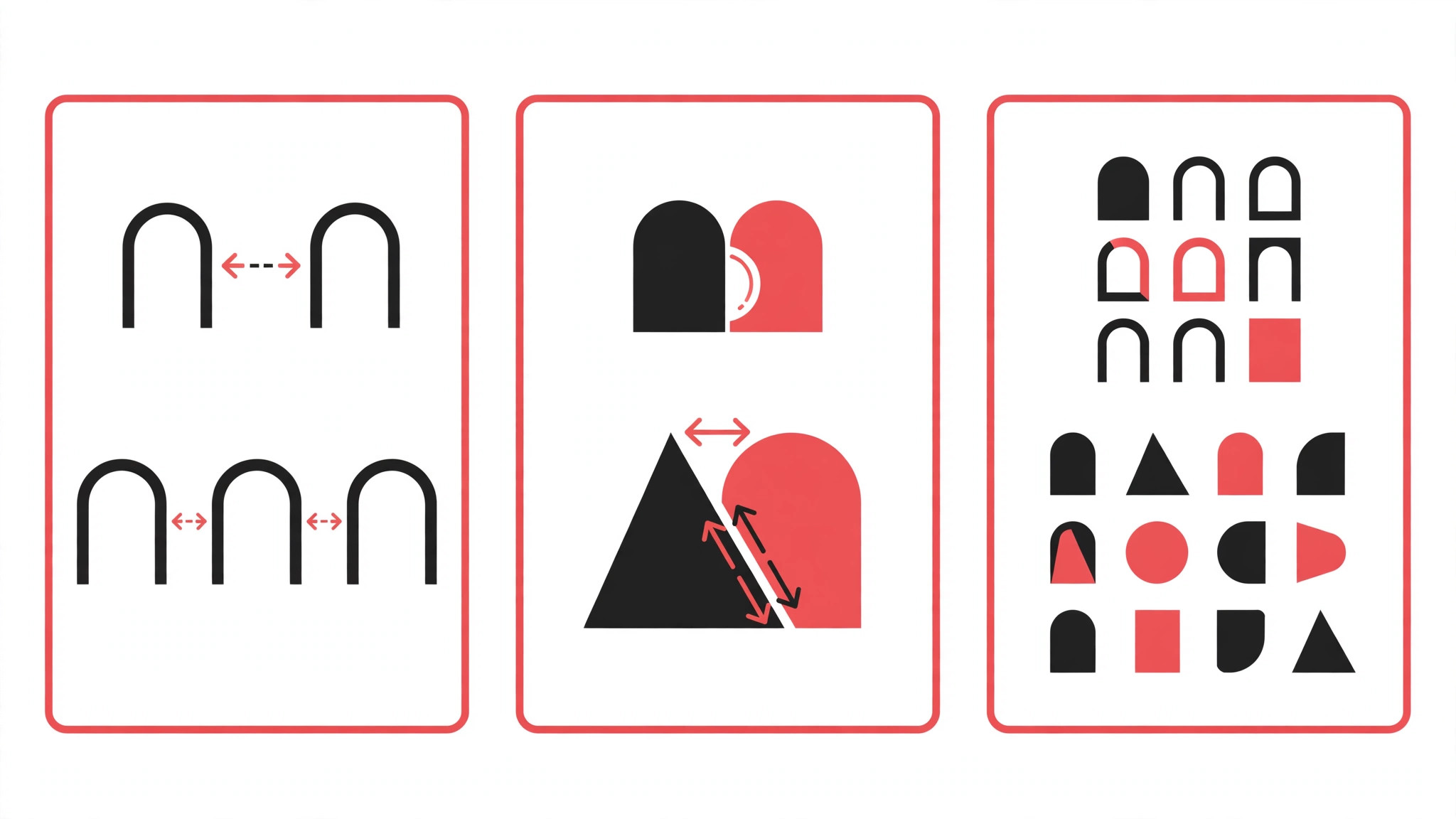
The first test is the spacing. A font with beautiful letters and bad spacing is unreadable, because the eye trips over the gaps between letters rather than reading the words. The best font makers handle kerning and sidebearings properly, so the tools in this list that manage spacing well, such as Glyphs, FontLab, and FontForge, produce fonts that read well, while the tools that leave spacing to chance produce fonts that look good in a specimen and fail in a paragraph. The best font makers make the spacing visible and adjustable, because the space between letters matters as much as the letters themselves.
The second test is the character set. A font that covers only the alphabet will break the moment a user types a number, a punctuation mark, or an accented character, and the document will fall back to a different font mid-sentence. The tools that make a full character set easy, such as Calligraphr Pro with 600 characters, do better work than the tools that stop at the alphabet. A designer should check the character set before choosing, because a font that cannot type an email address is a font that cannot be used.
The third test is the export. A real font file, in TTF or OTF, installs and works in every app, while a keyboard skin or an image does not count as a font at all. The tools here that export real files are the ones worth paying for, and the designer should test the export by installing the font and typing a paragraph in a word processor before calling the job done. A font that only works in the tool that made it is not a font, it is a demo.
What the Best Font Makers Cost
The cheapest honest route in this list is free, which is FontForge, Fontstruct, BitFontMaker, FontArk, and Metaflop, all of which produce real font files for $0. Calligraphr Pro costs $10 for a single month, which is the honest way to buy it, because most people need the full character set once rather than every month. Fontself Maker costs $39 for Illustrator or $59 for the bundle, as a one-time purchase with free updates and no subscription.
The professional tools cost real money, and the price reflects the depth. Glyphs 4 costs 319 euros, with Mini 2 at 49 euros for a designer who wants the same drawing engine without the professional features. FontLab is sold as a one-time licence in the same professional range. A designer making a first font should start free, and move to a professional tool only when the work demands it, because a $319 editor will not make a first font better than a free one, and the skill matters more than the software.
A second cost hides in the host app. Fontself needs Illustrator or Photoshop, which the designer may already own or may need to buy, and that changes the maths. A designer who does not own Adobe software should count the subscription before choosing Fontself, because the total cost includes the host. A designer who already pays for Adobe will find Fontself the cheapest professional route, because the host is already paid for.
Best Pick by Job
| Job | Best pick | Why |
|---|---|---|
| Fonts from vector art | Fontself Maker | Works inside Illustrator and Photoshop |
| Handwriting into a font | Calligraphr | Easiest template workflow, character randomisation |
| Full editing for free | FontForge | Complete open-source editor, no cost |
| Professional Mac type design | Glyphs | Industry standard, deepest Mac tool |
| Professional cross-platform | FontLab | Best Windows editor, variable fonts |
| Simple desktop font editing | Birdfont | Clean interface, straightforward workflow |
| Building fonts from blocks | Fontstruct | Free, browser-based, workshop friendly |
| Pixel fonts in a browser | BitFontMaker | Only tool built specifically for pixel fonts |
| Parametric font design | Prototypo | Build a family by moving sliders |
| Browser-based font editing | FontArk | Free, full editor, no install |
| Modular font experiments | Metaflop | Best way to learn how type works |
| Handwriting fonts online | YourFonts | Simplest route, no software to learn |
Questions to Ask Before You Make a Font
Will the font work everywhere I need it?
A real font file in TTF or OTF installs and works in every app, while a keyboard skin or an image does not count as a font. The best font makers export real font files, so test the export by installing the font and typing a paragraph in a word processor before calling the job done. A font that only works in the tool that made it is not a font, it is a demo.
How many characters do I actually need?
A font that covers only the alphabet will break the moment a user types a number, a punctuation mark, or an accented character. Calligraphr Pro covers 600 characters, which is enough for real writing, while the free plan covers 75. Count the characters the font must support before choosing, because a font that cannot type an email address cannot be used.
Should I draw by hand or on screen?
A designer whose best letters are written by hand should use Calligraphr or YourFonts, because the hand is the tool. A designer who draws in Illustrator should use Fontself, because the drawing never leaves the app. A designer who wants to learn type design should use FontForge or Glyphs, because the drawing tools teach the craft. The starting point decides the tool.
Do I need a professional editor for my first font?
No, and a professional editor will not make a first font better than a free one. Start with FontForge, Calligraphr, or Fontstruct, and move to Glyphs or FontLab only when the work demands multiple masters, variable fonts, or a commercial family. The skill matters more than the software, and the first font should be made with the simplest tool that can do the job.
How much should a font cost to make?
A first font can cost nothing, with FontForge or Fontstruct, or $10 for a single month of Calligraphr Pro, or $39 for Fontself Maker. A professional family costs 319 euros for Glyphs 4, and the price is justified only when the font will be sold or used commercially. A font made for fun should cost nothing, and a font made for sale should pay for its tool.
Can I sell a font I make with a free tool?
Yes, if the licence allows it. FontForge is open source and the fonts it produces belong to the designer, Fontstruct fonts can be shared and sold under the site terms, and Calligraphr’s Pro plan covers commercial use. Check the licence before selling, because a font made on a free plan may carry restrictions, and the terms matter more than the price.
Start With One Alphabet, Not With a Professional Editor
The best font makers in this guide do not win on feature count alone. They win on the three tests that decide whether a font gets used, letters drawn or imported easily, a real TTF or OTF file exported, and spacing and details that make the font usable. Fontself passes all three for a designer in Illustrator, Calligraphr passes them for handwriting, and FontForge passes them for free.
Start with one alphabet, not with a professional editor, and make a working font before paying for anything. The first font shows whether the letters hold together, whether the spacing reads, and whether the export installs. A tool that passes that font earns the subscription, and a tool that fails it costs nothing to walk away from. Pick the tool that matches the job the next font must do, draw one alphabet, and reuse the workflow until every letter you draw becomes a letter you can type.