
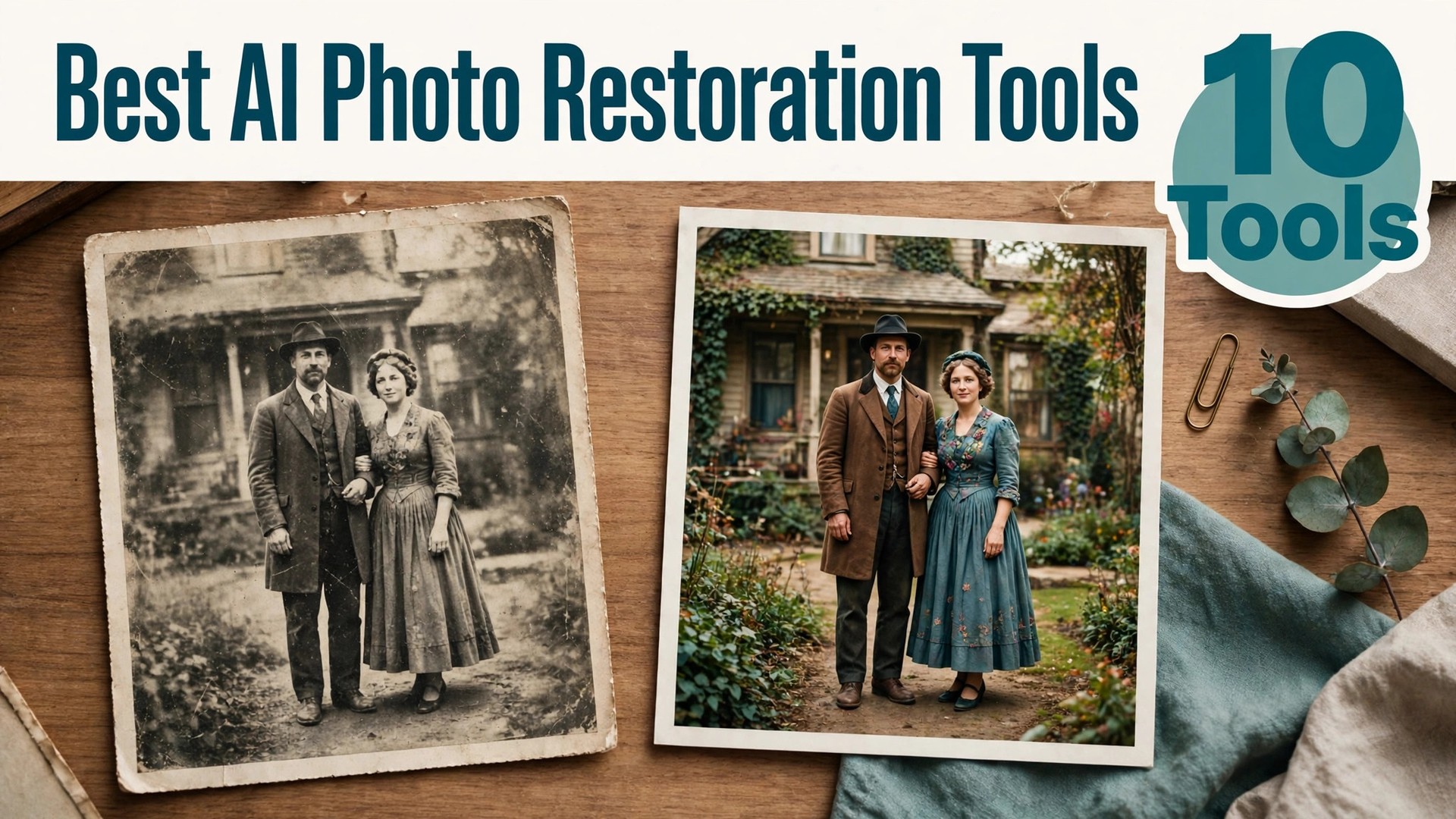
An old photograph fades a little every year, and the faces in it fade with it. The print cracks, the colours wash out, and the grandmother nobody photographed properly becomes a blur that the family can barely recognise. The best ai photo restoration tools bring those faces back, repairing scratches, sharpening soft features, and restoring colour to black-and-white prints, without inventing a face that was never there. Topaz Photo AI leads this list because it repairs with the most control and the least invention, and for a family archive that matters more than speed.
A restoration tool earns its place by doing three things well. It must repair the damage, from scratches and dust to blur and faded colour, without smoothing the photograph into a plastic portrait. It must reconstruct faces carefully, because a face that has been guessed looks wrong in a way the family will notice immediately. And it must export at a quality worth printing, because a restoration that only looks good on a phone is a restoration that fails when the family wants it on the wall. The ten tools in this guide were judged on those three jobs.
Quick jump
The 10 Tools at a Glance
This table compares the best ai photo restoration tools on the facts that decide a purchase. Prices are the entry paid tier from each vendor site, checked in November 2026. Where a vendor publishes no entry price, the table shows the model rather than a figure.
| Tool | Entry paid plan | Free option | Best for |
|---|---|---|---|
| Topaz Photo AI | $199 a year | Trial | Professional repair |
| Remini | $9.99 a week Pro | Yes | One photo on a phone |
| MyHeritage Photo Enhancer | $189 a year Complete | Yes | Family archives |
| VanceAI | $180 a year Starter | Trial | Batch restoration |
| Adobe Photoshop | $22.99 a month | Trial | Full manual control |
| Fotor | $8.99 a month Pro | Yes | Quick online fixes |
| Hotpot.ai | Paid plans on site | Yes | Fast web restoration |
| PhotoGlory | Paid plans on site | Trial | Old photo repair on desktop |
| AKVIS Retoucher | Paid plans on site | Trial | Scratch and stain removal |
| ImageColorizer | Paid plans on site | Yes | Colourising black and white |
What Restoration Should Not Do
The first rule of restoration is that the tool should repair what is there, not invent what is not. An AI that guesses a face will produce a face that looks plausible and wrong at the same time, with eyes that do not match, a smile that never existed, and details that the family knows are false. The tools in this list that reconstruct faces carefully, and that let the user control how much invention is allowed, do better work than the tools that smooth every face into the same generic portrait. The best ai photo restoration tools show the user what they changed, and they let the user turn the invention down.
The second rule is about the original. A restoration should never destroy the only copy of a photograph, and the tool should always work on a scan or a copy, never on the print itself. The workflow that protects a family archive is simple. Scan the print at high resolution, store the scan in two places, and restore a copy of the scan, so the original survives whatever the software does. A tool that only works on the phone camera, with no export of the original scan, is a tool that risks the archive it was meant to save.
The third rule is about print. A restoration that looks good on a phone can fall apart on paper, because the phone hides the blur and the artefacts that a print reveals. The tools here that export at high resolution, with upscaling that adds real detail rather than smearing the pixels, are the ones worth paying for when the family wants the photo on the wall. A restoration should be judged on a print, not on a screen, and the tools that survive that test are the ones in this list.
The fourth rule is about the number of photos. A person restoring one photograph needs a different tool from a person restoring a whole album, and the price follows the count. Remini suits one photo, VanceAI suits a steady project of a few dozen a month, and Topaz suits an album of hundreds, because the batch processing and the lack of a monthly cap make the large job feasible. The best ai photo restoration tools make the count clear before the purchase, so the buyer can match the tool to the archive rather than discovering the cap halfway through the box.
The 10 Tools in Detail
This section tests the best ai photo restoration tools against the same three jobs. Damage repaired without plastic smoothing, faces reconstructed carefully rather than guessed, and an export worth printing. Figures in this guide mean the lowest paid plan unless a sentence flags a different basis, all checked in November 2026.
1. Topaz Photo AI
No tool in this list repairs a photograph with as much control as Topaz Photo AI, which is why it leads. It is built from separate defect tools, Dust and Scratch, Denoise, Sharpen, Recover Faces, and Upscale, so the restorer can fix each problem on its own terms rather than applying one filter to everything. A professional restoring a client archive will find the per-module sliders the difference between a repair and a guess, because the face can be recovered gently while the background is sharpened firmly.
Topaz Photo costs $199 a year, or $39 a month with no commitment, for the Personal plan, and $599 a year for Pro with full commercial use. There is no free plan, only a trial, and the plans are subscription only. The desktop app renders on the user’s own computer, which matters for a large archive, because the work does not depend on an internet connection or a cloud queue. The batch processing handles up to a thousand images at once, which is the feature that makes a whole family album feasible.
The limit is the price and the learning curve. Topaz is the dearest tool here, and it rewards a user who understands each module rather than one who wants a single button. A person restoring one photo will find Remini faster and cheaper. For a professional or a family with a box of scans to work through, it is the best restoration tool in this list, and the control it offers is the reason the results look like the original rather than like a new photograph.
2. Remini
Remini is the fastest way to restore a single photograph, and it is the app most people already have on their phone. Photograph the print, tap once, and a blurred face resolves into something recognisable within seconds. A person who found one old photo in a drawer and wants to see the face clearly will get a result here faster than anywhere else in this list, and the free tier makes that first restoration cost nothing.
The free app repairs photos with ads, and Pro costs $9.99 a week, with a one-month plan also listed at $9.99. The weekly price adds up fast if the subscription is forgotten, so a user should cancel immediately after the restoration is done, or choose the monthly plan instead. The free tier allows a few enhancements a day, which is enough for a single photo, and the paid plan removes the limits and adds batch processing.
The limit is invention. Remini’s generative model can alter facial features in subtle but noticeable ways, and a test found it changed the eye shape of nearly a quarter of test subjects compared to a reference. For a single photo shared on social media, that trade is easy to accept. For a family archive where accuracy matters, Topaz or MyHeritage is the safer choice, because the face in the frame should be the face that was there.
3. MyHeritage Photo Enhancer
MyHeritage Photo Enhancer is the family archive pick, because it restores and colourises photographs inside the genealogy platform where the family tree already lives. Upload an old photo, enhance the faces, colourise the black and white, and attach the result to the person in the tree, so the restoration becomes part of the family record rather than a file on a phone. A person building a family history will find that integration more useful than any standalone feature.
The photo tools come bundled with the genealogy subscription, and the Complete plan costs $189 a year. A few photos can be enhanced free with a logo, which is enough to test whether the enhancement suits the archive before paying. The colourisation is the standout, because it adds plausible colour to black-and-white portraits without the garish tones that cheaper tools produce, and the face enhancement is gentle rather than aggressive.
The limit is the bundle. A person who only wants photo restoration must buy a genealogy subscription to get it, which is a poor deal if the family tree holds no interest. The enhancement is also less controllable than Topaz, with fewer sliders and less say over the result. For a person already building a family tree, it is the natural choice. For a person who only wants one photo fixed, Remini is faster and cheaper.
4. VanceAI
VanceAI is the batch restoration pick, built for a box of scans rather than a single photo. Its Photo Restorer repairs scratches, blur, and faded colour, and the credit system lets a user work through an archive methodically, with the cost tied to the number of photos rather than to a monthly subscription. A person with a hundred scans to restore will find the credit model more honest than a monthly plan that charges whether the photos are done or not.
Starter costs $180 a year for 260 credits a month, and the Photo Restorer costs four credits per result at standard resolution, or ten credits at 4K. That works out at 65 restorations a month on the Starter plan, which is enough for a steady archive project. Past roughly 65 photos a month, Topaz Photo AI at $199 a year becomes the cheaper route, because it has no monthly cap. The free trial lets a user test the restorer on a real scan before buying credits.
The limit is the cap. A user with a large archive will hit the monthly limit and wait, while Topaz would let them finish. The face recovery is also less refined than Topaz, with more smoothing on difficult faces. For a steady project of a few dozen photos a month, VanceAI is the most predictable way to budget the work. For a large archive, Topaz is the better buy.
5. Adobe Photoshop
Adobe Photoshop is the manual control pick, and it remains the tool professionals turn to when the AI gets it wrong. The neural filters repair scratches, colourise black and white, and enhance faces, but the real strength is the manual tools, the clone stamp, the healing brush, and the layers, which let a restorer fix exactly what is broken and leave everything else alone. A damaged photograph with a torn corner or a stain across a face needs a human decision, and Photoshop is where that decision happens.
Photoshop costs $22.99 a month on the single-app plan, with a free trial for testing the restoration tools on a real photograph before paying. The Photography plan, which includes Lightroom, is the better value for a photographer who also edits new work. The neural filters are improving every year, and the Generative Fill can reconstruct a missing corner from the surrounding image, which is a genuine restoration tool rather than a gimmick.
The limit is skill. Photoshop rewards a user who understands layers and masks, and it punishes one who wants a single button. A beginner will get a better result from Remini in ten seconds than from Photoshop in ten minutes. For a professional or a dedicated hobbyist, it is the most capable tool in this list. For a person with one photo to fix, it is the wrong choice.
6. Fotor
Fotor is the quick online fix, with a photo enhancer that sharpens, denoises, and restores old photographs in a browser, without installing anything. A person who wants a better version of a photo in two minutes will find Fotor the easiest tool here, with a clean interface and a one-click enhancer that handles the common problems. The free tier covers the basics, and the paid plan adds the restoration tools and higher-resolution exports.
Pro costs $8.99 a month, or $39.99 a year, which is one of the cheapest paid plans in this list. The annual price is the honest one, because the monthly rate costs more than double over a year. The enhancer works on faces, landscapes, and documents, and the batch processing lets a user run a set of photos through the same fix without repeating the work.
The limit is depth. Fotor enhances well, but it does not repair deep scratches, reconstruct torn corners, or offer the per-module control of Topaz. A photograph with serious damage will need a deeper tool. For a quick improvement of a faded or soft photo, it is the best value in this list, and the price is low enough to keep for a year without thinking about it.
7. Hotpot.ai
Hotpot.ai is the fast web restoration, with an AI picture restorer that repairs old photographs in a browser, plus colourisation and enhancement tools beside it. A person who does not want to install software will find Hotpot the quickest route to a restored photo, with no account needed for a first test. The interface is simple, the processing is fast, and the result downloads in seconds.
The pricing is listed on the vendor site, with a free tier for trying the restorer and paid plans for higher volumes and commercial use. The credit system means a user pays for the photos they restore rather than for a monthly subscription, which suits an occasional user. The colourisation is a useful extra, because a black-and-white photo restored and colourised in one pass saves a second tool.
The limit is control. Hotpot is a one-click tool, and a photograph that needs careful work will get a generic result. The face enhancement is also less refined than Remini or Topaz, with more smoothing on difficult faces. For a quick restoration of a moderately damaged photo, it is a good choice. For a precious photograph, Topaz or Photoshop is the safer route.
8. PhotoGlory
PhotoGlory is the desktop repair pick for old photographs, with tools built specifically for the damage that age causes. It removes scratches, dust, and stains, restores faded colour, and colourises black-and-white prints, all in a program designed for a person who has never edited a photo before. A family member digitising the archive will find PhotoGlory the most approachable desktop tool here.
The pricing is listed on the vendor site, with a free trial for testing the repair tools on a real scan before paying. The scratch removal is the standout, because it handles the long thin scratches that scanners leave, and the colour restoration brings back the tones that time washed out. The interface guides the user through the steps, which matters for a person who has never used an editor.
The limit is the audience. PhotoGlory is built for family archives, not for professional work, and a restorer who needs batch processing or commercial licensing will find it thin. The face recovery is also simpler than Topaz, with less control over the result. For a family digitising its own history, it is the most welcoming tool in this list.
9. AKVIS Retoucher
AKVIS Retoucher is the specialist pick for scratch and stain removal, with tools that fill in missing areas by sampling the surrounding image. It handles scratches, dust, stains, and small tears, and it works as a standalone program or as a Photoshop plugin, so a professional can use it inside the editor they already know. A photograph with a scratch across a face needs this kind of targeted repair, and AKVIS is built for exactly that job.
The pricing is listed on the vendor site, with a free trial for testing the retouching on a real photograph before paying. The sampling tools are the strength, because they let the restorer choose which part of the image fills the damage, rather than letting the AI guess. The plugin version integrates with Photoshop, which suits a professional workflow where the repair is one step among many.
The limit is scope. AKVIS repairs damage brilliantly, but it does not enhance faces, upscale, or colourise, so a full restoration needs a second tool beside it. A user who only needs scratch removal will find it the best in this list. A user who needs the whole restoration should start with Topaz and add AKVIS for the difficult scratches.
10. ImageColorizer
ImageColorizer is the colourising pick, built for the black-and-white photographs that need colour to feel alive again. Upload a black-and-white portrait, and the AI adds plausible colour to skin, clothes, and backgrounds, with a result that looks natural rather than painted. A family with a box of black-and-white portraits will find ImageColorizer the fastest way to see those faces in colour for the first time.
The pricing is listed on the vendor site, with a free tier for trying the colourisation on a real photograph and paid plans for higher volumes and resolution. The colourisation is the core, and it handles skin tones better than most general tools, because it was trained on portraits rather than on landscapes. The interface is simple, with no settings to learn and no installation required.
The limit is that colourisation is all it does well. ImageColorizer will not repair scratches, sharpen blur, or upscale a photo, so a damaged black-and-white print needs a restoration tool first and ImageColorizer second. Used as the colour step after Topaz or VanceAI, it is the best colouriser in this list. Used alone on a damaged photo, it will colour the damage as faithfully as the face.
What the Best AI Photo Restoration Tools Cost
The cheapest honest year in this list belongs to Fotor Pro at $39.99 a year, followed by the free tiers of Remini, Hotpot, and ImageColorizer for a single photo. VanceAI Starter at $180 a year, MyHeritage Complete at $189 a year, and Topaz Photo at $199 a year sit in the middle, and each justifies the price only when its specialist job, batch restoration, family archives, or professional repair, is the reason the subscription exists. Photoshop at $22.99 a month costs $275.88 over a year, which is the dearest route here, and it justifies the price only when the manual control is the reason for buying.
The weekly price is the trap to watch. Remini Pro at $9.99 a week costs more than $500 over a year if the subscription is forgotten, which is more than double the cost of Topaz. A user who needs Remini for one photo should cancel immediately after the restoration, or choose the monthly plan instead. The same warning applies to any weekly subscription, because the small number hides a large annual total.
A second cost hides in the credits. VanceAI charges four credits per restoration at standard resolution and ten at 4K, so a user restoring at the highest quality will burn through the monthly allowance twice as fast. Before buying credits, decide the export resolution, because a 4K restoration of a photo that will only be shared on a phone wastes credits that a standard restoration would have saved. The best ai photo restoration tools make the credit cost clear beside each resolution, so the buyer can choose the quality that matches the use rather than paying for pixels nobody will see.
Best Pick by Job
| Job | Best pick | Why |
|---|---|---|
| Professional repair | Topaz Photo AI | Per-module control, least invention |
| One photo on a phone | Remini | Fastest single restoration, free to try |
| Family archives | MyHeritage Photo Enhancer | Restoration inside the family tree |
| Batch restoration | VanceAI | Credit model for a steady archive project |
| Full manual control | Adobe Photoshop | Clone stamp, layers and neural filters |
| Quick online fixes | Fotor | Cheapest paid plan, browser-based |
| Fast web restoration | Hotpot.ai | No install, credit-based, quick results |
| Old photo repair on desktop | PhotoGlory | Most approachable for beginners |
| Scratch and stain removal | AKVIS Retoucher | Targeted sampling repair, Photoshop plugin |
| Colourising black and white | ImageColorizer | Best skin tones, free to try |
Questions to Ask Before You Restore a Photo
Should I scan the print first?
Yes, always, and at high resolution. Scan the print, store the scan in two places, and restore a copy of the scan, so the original survives whatever the software does. A tool that only works on a phone camera photo, with no export of the original scan, risks the archive it was meant to save.
Will the AI invent a face that was never there?
It can, and the risk is highest on badly damaged faces. Remini’s model can alter facial features in subtle ways, and any tool that smooths aggressively will produce a plausible face that the family knows is wrong. Topaz offers the most control over how much invention is allowed, and Photoshop lets a human decide. Judge the result against the original, not against how pretty it looks. The best ai photo restoration tools show the user what they changed, and a tool that hides its changes should not be trusted with a face the family remembers.
What resolution should I restore at?
Restore at the highest resolution the tool offers if the photo will be printed, and at standard resolution if it will only be shared on a phone. VanceAI charges ten credits at 4K against four at standard resolution, so a 4K restoration of a phone-only photo wastes credits. Decide the use before buying, because the resolution decides the cost.
Is a weekly subscription ever worth it?
Only for a single photo, with immediate cancellation. Remini Pro at $9.99 a week costs more than $500 over a year if forgotten, which is more than double the cost of Topaz. Cancel immediately after the restoration is done, or choose the monthly plan instead. A weekly price is a small number hiding a large annual total.
Can I restore a whole album, or just one photo?
A whole album needs batch processing, and Topaz handles up to a thousand images at once, while VanceAI caps the monthly restorations by credits. A single photo needs only Remini or Fotor. Count the photos before choosing, because the tool that suits one photo will frustrate an album, and the tool that suits an album will overcharge a single photo.
Will the restored photo look good printed?
Judge the restoration on a print, not on a screen, because the phone hides the blur and the artefacts that paper reveals. Topaz and Photoshop export at high resolution with upscaling that adds real detail, while the phone apps optimise for the screen. Print a test before restoring the whole album, because the print is the test that matters.
Start With One Photo, Not With a Subscription
The best ai photo restoration tools do not win on feature count alone. They win on the three tests that decide whether a restoration earns its keep, damage repaired without plastic smoothing, faces reconstructed carefully rather than guessed, and an export worth printing. Topaz passes all three for a professional, Remini passes them for a single photo, and MyHeritage passes them for a family archive.
Start with one photo, not with a subscription, and restore it on the free tier of the tool that matches the job. The first photo shows whether the faces look right, whether the scratches disappear, and whether the print holds up on paper. A tool that passes that photo earns the subscription, and a tool that fails it costs nothing to walk away from. Pick the tool that matches the job the next photo must do, scan the original first, and restore a copy until every face in the family album looks like the person the family remembers.