
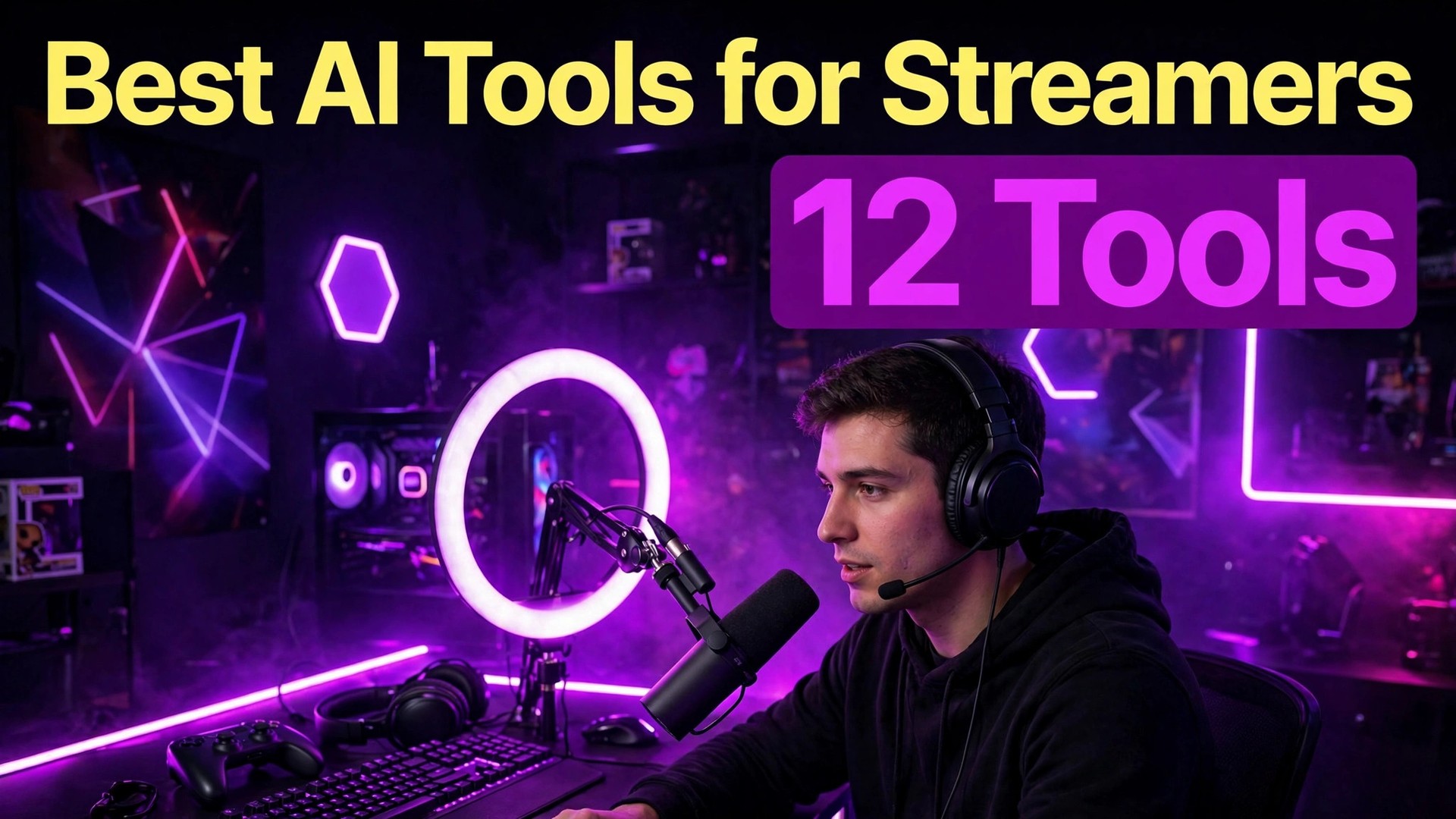
A stream does not fail because the game is boring or the host is dull. It fails because the audio crackles, the camera lags, the chat is ignored, and the best moment of the night disappears when the stream ends, because nobody clipped it. The best ai tools for streamers fix the parts the audience actually notices, which are the sound, the look, the interaction, and the clips that live on after the broadcast. OBS Studio leads this list because it is free, it runs everything, and every other tool here either plugs into it or replaces one part of it.
A streaming tool earns its place by doing three things well. It must keep the broadcast stable, because a stream that drops frames loses viewers faster than any content choice can win them back. It must turn the live moments into clips worth posting, because the clip is what brings tomorrow’s viewers to the channel. And it must help the streamer talk to the chat, because a viewer who gets an answer stays, and a viewer who gets ignored leaves for a channel that notices them. The twelve tools in this guide were judged on those three jobs.
Quick jump
The 12 Tools at a Glance
This table compares the best ai tools for streamers on the facts that decide a purchase. Prices are the entry paid tier from each vendor site, checked in November 2026. Where a vendor publishes no entry price, the table shows the model rather than a figure.
| Tool | Entry paid plan | Free option | Best for |
|---|---|---|---|
| OBS Studio | Free | Yes | Broadcasting everything |
| Streamlabs | Paid plans on site | Yes | All-in-one streaming |
| Restream | Paid plans on site | Yes | Streaming to many platforms |
| StreamElements | Free | Yes | Overlays and chat tools |
| Eklipse | Paid plans on site | Yes | Automatic clip making |
| Lightstream | Paid plans on site | Trial | Browser-based streaming |
| StreamYard | Paid plans on site | Yes | Guest interviews |
| XSplit | Paid plans on site | Trial | Professional production |
| Powder | Paid plans on site | Yes | AI clips for gamers |
| OWN3D | Paid plans on site | Yes | Overlays and alerts |
| PRISM Live Studio | Free | Yes | Mobile streaming |
| vMix | Paid plans on site | Trial | Multi-camera production |
The 12 Tools in Detail
This section tests the best ai tools for streamers against the same three jobs. A broadcast that stays stable for hours, a live moment turned into a clip worth posting, and a chat that feels like a conversation rather than a wall of text. Figures in this guide mean the lowest paid plan unless a sentence flags a different basis, all checked in November 2026.
1. OBS Studio
No tool in this list does more for less money than OBS Studio, which is why it leads. It is free and open source, it runs on Windows, Mac, and Linux, and it handles scenes, sources, audio mixing, and streaming to any platform that accepts a stream key. A streamer who learns OBS can broadcast anywhere, with any layout, without paying a subscription, and the plugin community adds features the paid tools charge for, from noise suppression to advanced scene switching.
The price is zero, and the cost is learning time. OBS is powerful rather than friendly, and a new streamer will spend an evening learning scenes, sources, and audio levels before the first broadcast looks right. That evening pays off for years, because the knowledge transfers to every platform and every setup. A streamer who outgrows OBS usually does so because they want a cloud tool or a simpler interface, not because OBS cannot do the job.
The limit is that OBS broadcasts, it does not clip, multistream, or manage the chat on its own. A streamer who wants automatic clips needs Eklipse or Powder beside it, a streamer who wants to reach two platforms at once needs Restream, and a streamer who wants overlays needs StreamElements or OWN3D. Used as the base with those tools plugged in, OBS is the most capable and cheapest broadcast setup in this list.
2. Streamlabs
Streamlabs is the all-in-one pick, with broadcasting, overlays, alerts, chat tools, and tipping in one account. It is built on OBS, so a streamer who knows OBS will feel at home, but it adds the cloud features that OBS lacks, including cloud backups, a mobile app, and a dashboard that shows the stream health, the chat, and the donations in one place. A new streamer who wants everything working on day one will get further here than with a set of separate tools.
The pricing is listed on the vendor site, with a free plan for the core broadcasting and overlays and paid plans for the cloud features, the premium overlays, and the advanced tools. The Ultra plan adds multistreaming, premium apps, and priority support, which suits a streamer who broadcasts to two platforms and wants the extras without buying them separately. The free tier is enough to test whether the all-in-one approach fits before paying.
The limit is performance. Streamlabs uses more system resources than plain OBS, and a streamer on a modest computer may see frame drops that OBS would not cause. It also locks some features behind the subscription that OBS offers free through plugins. For a streamer with a capable computer who wants one account for everything, it is the most convenient tool here. For a streamer on a tight machine, plain OBS plus free plugins is the better choice.
3. Restream
Restream solves the problem of reaching two audiences at once, by sending one broadcast to Twitch, YouTube, Facebook, and other platforms simultaneously. A streamer who broadcasts to Twitch and YouTube can reach both audiences without running two computers, and the chat from all platforms appears in one window, so the streamer can answer everyone without switching tabs. A creator growing on two platforms will find Restream the only tool here that makes multistreaming simple.
The pricing is listed on the vendor site, with a free plan for basic multistreaming and paid plans for more destinations, higher quality, and extra features. The free tier is enough to test whether the second audience is worth the effort, which is the honest question, because a second platform with ten viewers costs the same attention as a first platform with a thousand. The chat aggregation is the feature that makes multistreaming workable, because answering two chats separately is not possible during a live game.
The limit is that multistreaming splits attention. A streamer who answers the Twitch chat will ignore the YouTube chat, and the viewers on the ignored platform will leave. The right use is a streamer with a real audience on two platforms, or a streamer testing a second platform while keeping the first. For a streamer starting out, one platform done well beats two platforms done badly.
4. StreamElements
StreamElements is free, and it covers the overlays, alerts, chat bot, and tipping tools that make a stream feel professional. It runs in the cloud, so the overlays do not tax the streaming computer, and the editor lets a streamer build a full overlay set without design software. A streamer who wants the channel to look polished without paying for overlays will find StreamElements the best free tool in this list.
The price is zero for the core features, with paid options for premium services, and the chat bot is one of the best free bots available, handling commands, timers, loyalty points, and moderation without a subscription. The tipping system takes no cut beyond the payment processing, which is a fairer deal than some rivals. A streamer can build the whole presentation layer here, then broadcast it through OBS, and the combination costs nothing.
The limit is that StreamElements is a presentation layer, not a broadcaster. It needs OBS or Streamlabs to actually send the stream, and it does not clip or multistream. Used beside OBS, it is the most complete free overlay and chat setup in this list. Used alone, it is a set of graphics with no stream to put them on.
5. Eklipse
Eklipse turns a live stream into short clips automatically, using AI to find the kills, the reactions, and the funny moments, then cutting them with captions and posting them to TikTok, YouTube Shorts, and Reels. A streamer who finishes a four-hour broadcast with no clips will find Eklipse the most valuable tool here, because the clip is what brings tomorrow’s viewers, and a human editor cannot watch four hours to find ten seconds.
The pricing is listed on the vendor site, with a free plan for trying the clipping on a real stream and paid plans for more clips, more platforms, and faster processing. The AI detection is the core, and it works best on games with clear highlight moments, such as shooters and battle royales. A streamer should test it on a real broadcast before paying, and compare the clips it finds against the moments the chat actually reacted to.
The limit is that AI clipping works better for some games than others. A just-chatting stream or a slow strategy game produces fewer clear highlights, and the AI may miss the moments that matter. Among the best ai tools for streamers, Eklipse is the one to test on the streamer’s own game before paying, because the detection quality is the whole product, and a clip tool that misses the best moment is worse than no clip tool at all.
6. Lightstream
Lightstream streams from the browser, with no software to install and no computer powerful enough to run OBS required. A streamer can broadcast from a modest laptop or a console, with scenes, overlays, and guests managed in a web page. A streamer who wants to go live from anywhere, or who broadcasts from a console without a capture card setup, will find Lightstream the simplest route to a live stream.
The pricing is listed on the vendor site, with a free trial for testing the browser streaming on a real broadcast before paying. The cloud processing is the strength, because the heavy work happens on Lightstream’s servers rather than on the streamer’s computer, which means a weak machine can still broadcast cleanly. The guest feature lets a streamer bring in a co-host through a link, without any software on the guest’s side.
The limit is control. Lightstream is simpler than OBS, and that simplicity costs the fine control over audio, scenes, and plugins that OBS offers. A streamer who needs advanced production will outgrow it. For a streamer who wants to go live quickly from any machine, it is the most accessible tool in this list.
7. StreamYard
StreamYard is the guest interview pick, built for the streamer who talks to people rather than playing games. It runs in the browser, brings guests in through a link, and handles the layout, the overlays, and the multistreaming, so a podcast or a talk show can go live with a professional look and no software. A streamer who interviews guests weekly will find StreamYard the easiest way to make the show look good.
The pricing is listed on the vendor site, with a free plan for testing the guest workflow and paid plans for more guests, more destinations, and recording features. The recording is the quiet strength, because the show is recorded locally in high quality while it streams, so the streamer gets a clean file for clips and replays without a separate recorder. The branding features keep every episode looking like the same show.
The limit is gaming. StreamYard is built for talk shows, not for gameplay, and a gaming streamer will find it a poor fit. It also costs more than OBS for a streamer who only needs the basics. For a talk-format streamer who brings guests on every week, it is the best tool in this list. For a gaming streamer, OBS plus a guest tool is the better route.
8. XSplit
XSplit is the professional production pick, with a polished interface and a plugin store that adds features without the learning curve of OBS. It handles scenes, audio, and streaming with a cleaner setup flow, and the Broadcaster and Presenter tools cover both live streaming and video presentations. A streamer who wants a professional look without spending an evening learning OBS will find XSplit the fastest route to a clean broadcast.
The pricing is listed on the vendor site, with a free trial for testing the production tools on a real stream before paying. The plugin store is the strength, because it adds chat, alerts, and effects that OBS requires manual setup for, and the interface is more approachable for a streamer who has never configured a broadcast. The Presenter tool is useful for a streamer who also records tutorials or presentations.
The limit is the subscription. XSplit charges for features that OBS offers free, and a streamer on a tight budget will find the price hard to justify. The plugin ecosystem is also smaller than OBS, so a niche feature may not exist. For a streamer who values a clean interface and a fast setup over a zero price, it is a good choice. For a streamer who wants the most for nothing, OBS wins.
9. Powder
Powder is the AI clip tool built specifically for gamers, and it finds the moments that matter in a match without the streamer having to watch the replay. It detects kills, wins, and reactions, cuts them into vertical clips with captions, and posts them to the platforms where the audience lives. A competitive gamer who wants a clip of every highlight without an editor will find Powder the most focused clip tool here.
The pricing is listed on the vendor site, with a free plan for trying the clipping on a real match and paid plans for more clips and faster processing. The game detection is the core, and it works best on the popular competitive titles where the highlight moments are clear and frequent. A streamer should test it on their own game before paying, because the detection quality varies by title.
The limit is the game list. Powder covers the major competitive games well, and a streamer playing a niche or story-driven title will find fewer highlights detected. It is also a clip tool only, with no broadcasting or chat features, so it needs OBS beside it. For a competitive gamer, it is the best clip tool in this list. For a variety streamer, Eklipse covers more games.
10. OWN3D
OWN3D sells the overlays, alerts, and emotes that make a channel look like a brand rather than a hobby. The designs are professional, the alerts are animated, and the emote maker lets a streamer create custom emotes without design software. A streamer who wants the channel to look polished from day one will find OWN3D the fastest way to get there, with packages that cover the whole presentation layer in one purchase.
The pricing is listed on the vendor site, with a free plan for basic overlays and paid plans and one-time purchases for premium packages. The design quality is the strength, because the overlays look better than anything a non-designer can build in an afternoon, and the alerts are timed to feel rewarding rather than intrusive. The stream design tools let a streamer customise colours and text without opening a design app.
The limit is that OWN3D sells the look, not the broadcast. It needs OBS or Streamlabs to actually stream, and it does not clip or manage the chat. A streamer who buys the overlays but never fixes the audio will still lose viewers, because the look cannot save a bad sound. Used beside OBS with good audio, it is the best presentation upgrade in this list.
11. PRISM Live Studio
PRISM Live Studio is the mobile streaming pick, built for the streamer who broadcasts from a phone. It handles the camera, the overlays, the chat, and the streaming in one app, with filters and effects that make a phone broadcast look better than the raw camera. A streamer who broadcasts from events, from outdoors, or from anywhere without a computer will find PRISM the only tool here built for that job.
The app is free, with no paid plan required for the core mobile streaming features. That makes it the cheapest honest start for a mobile streamer, and the price is genuinely zero rather than a trial. The desktop version also exists for streamers who want the same tools on a computer, with the same overlays and effects.
The limit is the phone itself. A mobile broadcast will never match a desktop setup for quality, and a streamer who wants multi-camera production or advanced audio will outgrow the phone quickly. For a streamer whose content happens on the move, it is the best tool in this list. For a streamer at a desk, OBS is the better choice.
12. vMix
vMix is the multi-camera production pick, built for the streamer who runs a show with several cameras, guests, and live switching. It handles up to a thousand inputs, mixes them live, and outputs a broadcast that looks like a television show rather than a webcam. A streamer running a studio show, a tournament, or a multi-person podcast will find vMix the only tool here that can handle that complexity.
The pricing is listed on the vendor site, with a free trial for testing the production tools on a real show before paying. The paid plans are one-time licences rather than subscriptions, which suits a production team that wants to own the tool rather than rent it. The live switching is the strength, because the director can cut between cameras, guests, and graphics in real time, with transitions that make the show feel professional.
The limit is the learning curve and the hardware. vMix needs a capable computer and a operator who understands live production, and a solo streamer will find it more tool than the job needs. For a team running a real show, it is the best production tool in this list. For a solo streamer at a desk, OBS covers the same job for free.
What Makes a Stream Watchable
The first test is audio. A viewer will watch a blurry stream with good audio, but will leave a beautiful stream with crackling sound within seconds, because bad audio is physically uncomfortable in a way bad video is not. The tools in this list that handle noise suppression, audio mixing, and level monitoring are the ones that keep viewers, and the streamer should test the audio on a recording before going live. The best ai tools for streamers all treat audio as the first job, because the audience hears the problem before they see anything else.
The second test is the first minute. A viewer who clicks a stream decides within sixty seconds whether to stay, and the streamer who spends that minute adjusting settings, greeting the chat, and warming up will lose them. The tools that let the streamer start with a scene already set, an overlay already live, and a welcome message already showing are the ones that keep the first-minute viewers. A streamer should rehearse the opening, not just the content, because the opening is what the new viewer judges.
The third test is the clip after the stream. A four-hour broadcast that produces no clips is a four-hour broadcast that only the live viewers ever saw, while a broadcast that produces ten clips reaches ten times the audience over the following week. The clip tools here, Eklipse and Powder, are the ones that turn a live event into lasting content, and a streamer who ignores them is leaving the largest audience on the table. The best ai tools for streamers treat the clip as the product, not as an extra, because the clip is the reason the stream grows.
What the Best AI Tools for Streamers Cost
The cheapest honest setup in this list costs nothing, which is OBS Studio for broadcasting, StreamElements for overlays and chat, and PRISM Live Studio for mobile, all free. A streamer can go live professionally without paying a subscription, and the free tools cover the broadcast, the look, and the chat completely. The paid tools earn their price by saving time, not by enabling the broadcast, and a streamer should only pay when the time saved is worth more than the subscription.
The clip tools are the first paid upgrade worth making, because the clips bring the new viewers that grow the channel. Eklipse and Powder both offer free plans for testing the clipping on a real stream, and the paid plans scale by clip volume. A streamer who broadcasts four hours a week and gets ten clips from it will find the clip tool pays for itself in audience growth, while a streamer who broadcasts rarely will find the free tier enough.
A second cost hides in the multistreaming. Restream and StreamYard charge for extra destinations, and a streamer who broadcasts to three platforms pays for the privilege, even if two of those platforms bring ten viewers each. The honest question is whether the second audience is worth the fee, and the answer comes from the viewer count, not from the ambition. A streamer should multistream only when the second platform has a real audience, and otherwise focus on the platform where the viewers already are.
Best Pick by Job
| Job | Best pick | Why |
|---|---|---|
| Broadcasting everything | OBS Studio | Free, runs everything, every tool plugs in |
| All-in-one streaming | Streamlabs | Broadcast, overlays and chat in one account |
| Streaming to many platforms | Restream | One broadcast, many platforms, one chat |
| Overlays and chat tools | StreamElements | Free, cloud-based, best free chat bot |
| Automatic clip making | Eklipse | AI finds the highlights and captions them |
| Browser-based streaming | Lightstream | No install, cloud processing, easy guests |
| Guest interviews | StreamYard | Browser guests, local recording, clean look |
| Professional production | XSplit | Polished interface, fast setup, plugin store |
| AI clips for gamers | Powder | Game-specific highlight detection |
| Overlays and alerts | OWN3D | Professional designs, custom emotes |
| Mobile streaming | PRISM Live Studio | Free, built for broadcasting from a phone |
| Multi-camera production | vMix | Live switching for studio shows |
Questions to Ask Before You Pick a Streaming Tool
Do I need to pay anything to start streaming?
No, and that is the honest answer. OBS Studio broadcasts for free, StreamElements covers overlays and chat for free, and PRISM Live Studio streams from a phone for free. A streamer can go live professionally without paying a subscription, and the paid tools earn their price by saving time, not by enabling the broadcast.
How do I turn a stream into clips?
Use a clip tool beside the broadcaster, because OBS does not clip on its own. Eklipse finds the highlights in any stream and captions them, Powder finds them in competitive games, and both post to the platforms where the audience lives. The clip is what brings tomorrow’s viewers, so the clip tool is the first paid upgrade worth making, and the best ai tools for streamers are the ones that make the clip without the streamer having to watch four hours of replay to find ten seconds.
Should I stream to more than one platform?
Only when the second platform has a real audience. Restream makes multistreaming easy, but it splits the streamer’s attention, and the viewers on the ignored platform will leave. A streamer starting out should focus on one platform done well, and add a second only when the first has a steady audience.
What matters more, video quality or audio quality?
Audio, without question. A viewer will watch a blurry stream with good audio, but will leave a beautiful stream with crackling sound within seconds. Test the audio on a recording before going live, and fix the microphone before buying a better camera.
How do I keep the chat engaged?
Answer the chat, and answer it by name. A viewer who gets an answer stays, and a viewer who gets ignored leaves for a channel that notices them. The chat bot in StreamElements handles the routine questions, but the streamer must handle the real conversation, because the bot cannot make a viewer feel seen.
When should I upgrade from free tools?
Upgrade when the time saved is worth more than the subscription. A clip tool that saves four hours of editing a week is worth paying for, and a multistreaming tool that reaches a real second audience is worth paying for. A paid overlay that only looks slightly better than the free one is not worth paying for until the channel earns.
Start With a Free Broadcast and Ten Clips
The best ai tools for streamers do not win on feature count alone. They win on the three tests that decide whether a channel grows, a broadcast that stays stable for hours, a live moment turned into a clip worth posting, and a chat that feels like a conversation rather than a wall of text. OBS Studio passes all three for free, Eklipse passes the clip test better than anything else here, and StreamElements passes the presentation test without charging a dollar.
Start with a free broadcast and ten clips, not with a subscription and a big setup. Go live on OBS, use StreamElements for the overlays, and run the recording through Eklipse to find the clips. The first week shows whether the audio holds up, whether the clips bring new viewers, and whether the chat stays engaged. A tool that passes that week earns the subscription, and a tool that fails it costs nothing to walk away from. Pick the tool that matches the job your next stream must do, build one broadcast routine, and reuse it until every hour you stream works as hard after the broadcast as it did during it.