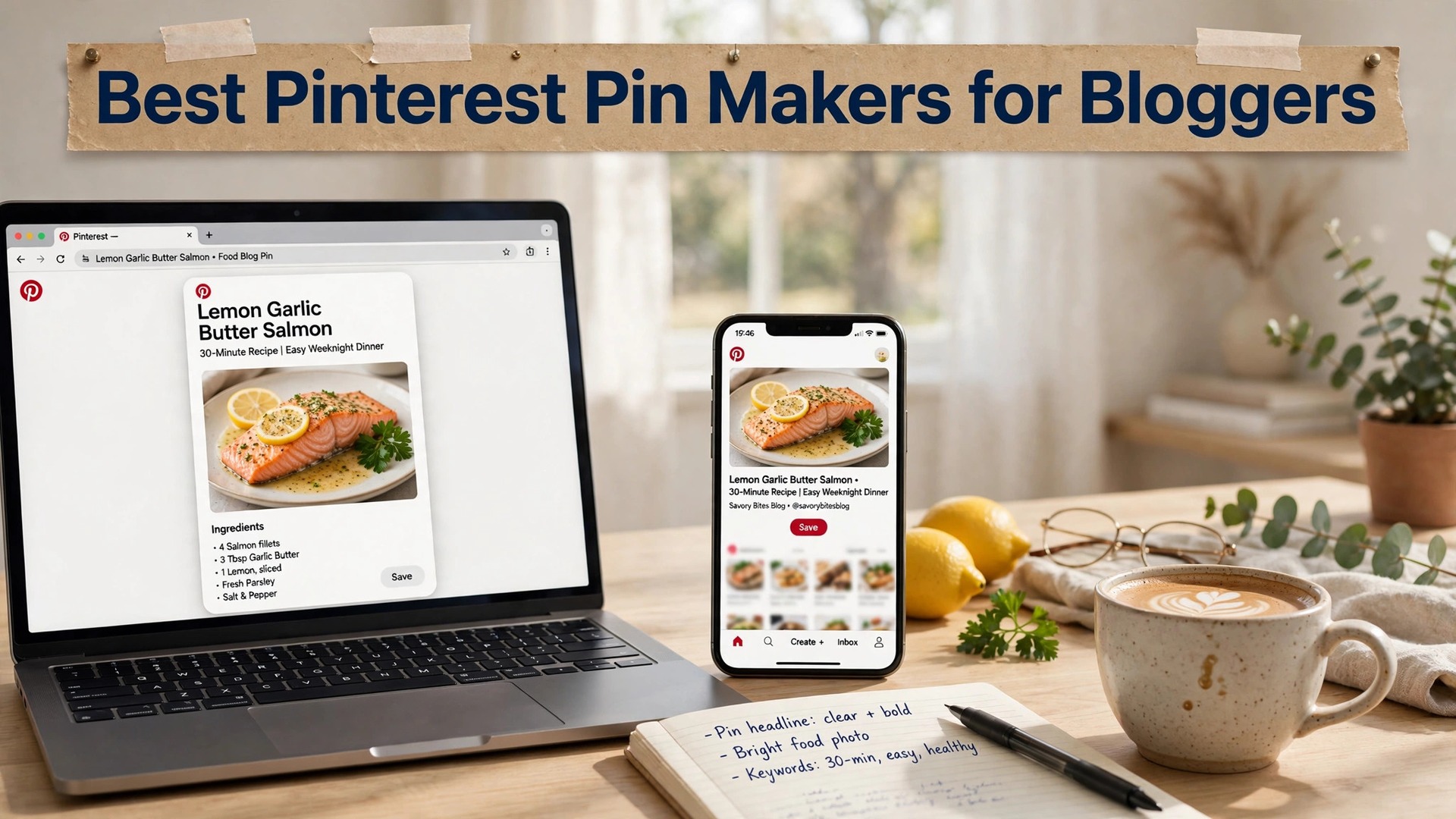
The best pinterest pin makers for bloggers in 2026 are Canva, Tailwind and Adobe Express, and the reason is simple. Pinterest is a search engine that happens to look like a social feed, so a pin has to do two jobs at once. It has to rank for the words a reader types, and it has to stop the scroll long enough to earn the click. Canva makes the pin. Tailwind schedules it at the right time. Adobe Express makes it look like a magazine cover.
A blog lives or dies on traffic, and Pinterest is still the cheapest traffic a blogger can buy with time instead of money. A single pin can send readers to a post for months, even years, long after the same post has vanished from every other feed. The difference between a pin that works and a pin that does not is rarely the photo. It is the size, the headline, and the keywords in the title and description that Pinterest reads before it shows the pin to anyone.
The trap is the square image. Bloggers who reuse an Instagram square as a pin lose most of the screen, because Pinterest shows tall images far larger than square ones. A pin should be 1000 by 1500 pixels, a 2 to 3 ratio, with the headline large enough to read on a phone and the blog name small enough to ignore. Every tool in this guide opens a canvas at exactly that size, and the best ones give you templates built around it.
In this article
- Quick Answer. The Best Pinterest Pin Makers in 30 Seconds
- What the Best Pinterest Pin Makers for Bloggers Get Right
- The Pin Formula. What the Best Pins Share
- The Free Plan Test. What You Get Without Paying
- How to Choose the Best Pinterest Pin Makers for Bloggers
- Related Guides
- Frequently Asked Questions
- The Bottom Line
Quick Answer. The Best Pinterest Pin Makers in 30 Seconds
If you want the short version, here it is. Canva is the best all-round pick, with the largest template library for pins, a free plan that exports at full size, and Pro at $18 a month or $144 a year. Tailwind is the best pick for scheduling, because its SmartSchedule posts when your audience is online and SmartLoop reshares your best pins automatically. Adobe Express is the best pick if you want Adobe fonts and stock photos, with Premium at $9.99 a month.
The best pinterest pin makers for bloggers are the ones that give you a 1000 by 1500 canvas, templates that put the headline first, and a scheduler that keeps fresh pins going out every week. The table below compares all eight on the facts that change a decision.
| Tool | Best for | Free tier | Paid from | Key strength |
|---|---|---|---|---|
| Canva | Biggest template library | Free plan | $18/mo or $144/yr | 600,000+ templates |
| Tailwind | Scheduling and SmartLoop | Free plan | $9.99/mo annual | SmartSchedule |
| Adobe Express | Adobe fonts and stock | Free plan | $9.99/mo | Premium Adobe Stock included |
| VistaCreate | Animated pins | Free plan | $13/mo or $120/yr | Motion templates |
| PicMonkey | Polished text layouts | 7-day trial | $7.99/mo | Strong text tools |
| Fotor | Photo-led pins | Free plan | $39.99/yr | Strong photo tools |
| Snappa | Fastest simple pins | Free plan | $15/mo or $120/yr | Built for social sizes |
| Easil | Clean, modern templates | Free plan | $7.50/mo annual | Drag and drop simplicity |
What the Best Pinterest Pin Makers for Bloggers Get Right
The first thing a good pin tool gets right is the size. Pinterest recommends 1000 by 1500 pixels, a 2 to 3 ratio, and every tool here opens a canvas at exactly that size. The difference shows up in the export. A free plan that exports at full resolution is worth more than a paid plan that caps downloads, because a pin at half size looks soft on a phone. Canva, Tailwind, Adobe Express, VistaCreate and Snappa all export full-size pins on their free plans.
The second thing is the headline. A pin headline should be four to eight words, large enough to read at a glance, and honest about what the post delivers. A pin that promises a recipe and links to a story gets reported, and a reported pin stops ranking. Canva and Easil have the strongest text tools here, with layered type and font pairings that make a headline look designed rather than typed. PicMonkey adds curved text and layered type for headlines that need a little more style.
The third thing is the image. A pin works best with one strong photo, a short headline, and empty space around both. A collage of five photos looks busy at phone size, and a stock photo that every other blog uses looks familiar before it is read. Fotor is the strongest here for cleaning up a real photo, with exposure, color and sharpening tools that fix a dull shot in seconds. If you use stock, pick a photo with one subject and space for the text.
The fourth thing is the schedule. Pinterest rewards fresh pins, which means new images linking to your posts, not the same pin republished. Tailwind is built for this, with SmartSchedule that posts when your audience is online and SmartLoop that reshares your best pins automatically. A blogger who publishes one post a week should make three to five fresh pins for it and spread them over the month, which is exactly the workflow Tailwind was built to run.
The Pin Formula. What the Best Pins Share
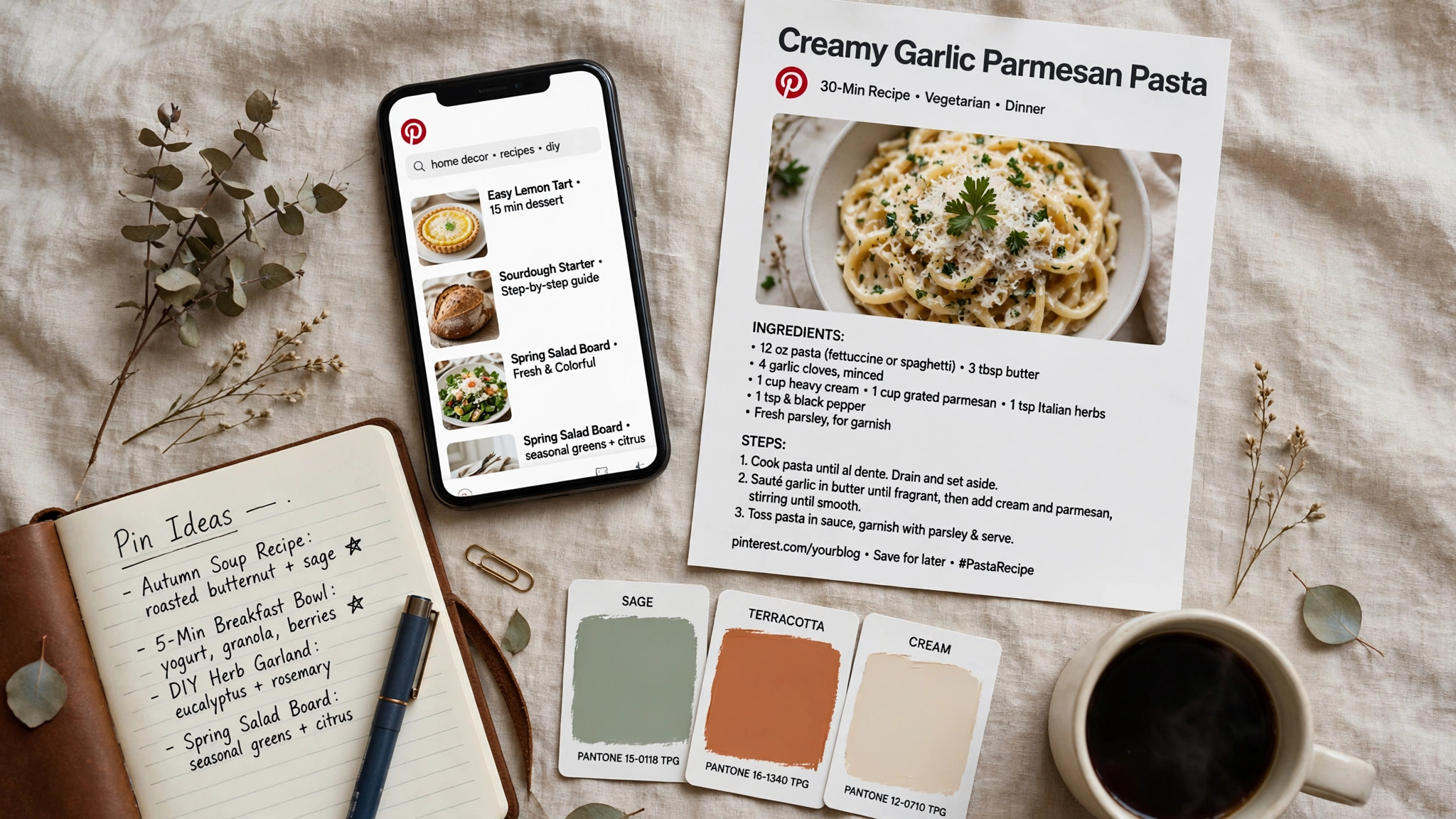
The best pins share a formula, and it is worth learning before you open any editor. One strong photo fills the top two thirds of the pin. A headline of four to eight words sits in the middle, large enough to read on a phone. Your blog name sits small at the bottom, where it brands the pin without competing with the headline. That is the whole layout, and the best pinterest pin makers for bloggers make it easy because their templates are built around it.
The photo matters most. A pin with a real photo of your own work, a finished recipe, a real room, a real destination, earns more saves than a pin with a stock photo, because readers recognise the difference before they can explain it. If you use stock, pick a photo with one subject and empty space for the text, and avoid the glossy shots that every other blog uses. Fotor and Canva both include photo tools that clean up a dull shot in seconds, and that cleanup is often the difference between a pin that gets saved and a pin that gets scrolled past.
The headline matters second. A headline that names the result earns the click. A headline that names only the topic does not. Compare the two. One pin says easy weeknight pasta. Another says 20 minute garlic butter pasta your kids will actually eat. The second pin wins, because it promises a time, a flavour and an outcome. Write the headline for the reader who is deciding in two seconds, not for the reader who already loves your blog.
The third part of the formula is the description. Pinterest reads the pin title and description before it shows the pin to anyone, so include the words a reader would type, such as the recipe name, the destination or the problem the post solves. A pin with no keywords is a pin nobody finds, no matter how good the image is. Write the description as a short paragraph, not a list of hashtags, and put the most important words in the first sentence.
The Free Plan Test. What You Get Without Paying
Seven of the eight best pinterest pin makers for bloggers offer a free plan, and the free plans are not equal. The test that matters is simple. Can you make a pin, export it at full size, and publish it without a watermark? Canva, Tailwind, Adobe Express, VistaCreate, Fotor, Snappa and Easil all pass that test. PicMonkey does not, because it has no free plan, only a 7-day trial that covers a batch of pins well enough.
The second test is what the free plan holds back. Canva holds back premium stock photos and the background remover. Adobe Express holds back most brand kits and Firefly output. Tailwind limits the free plan to 20 scheduled posts. Snappa limits you to three downloads a month. Fotor shows ads and holds back its AI tools. Easil limits the free plan to a handful of designs. None of these limits stops you from making a good pin, but they decide which tool you will still be using in six months, when the blog has grown and the pin habit is daily.
The third test is the watermark. None of the free plans in this list adds a watermark to a pin export, which is why all seven are worth recommending. A watermarked pin is worse than no pin at all, because it tells every reader you would not pay for the tool that made it. If a tool ever adds a watermark on its free plan, treat that as a reason to switch, not a reason to pay.
1. Canva. Best for the Biggest Template Library
Canva is the obvious first stop among the best pinterest pin makers for bloggers, and the reason is the size of its library. Its Pinterest templates number in the thousands, covering recipes, travel, home decor, finance, parenting, fashion and crafts, and most of them are free. The editor is drag and drop, the text tools are the strongest here, and the background remover, Magic Resize and brand kit all sit in the same login. Canva also includes a scheduler, so you can design and queue a pin without leaving the app.
Pricing starts free and stays useful. The free plan covers the pin maker, thousands of templates and full-size PNG and JPG exports. Canva Pro costs $18 a month or $144 a year for one person, and it adds premium templates and stock, 5 brand kits, Magic Resize, the background remover, the scheduler and 100GB of storage. Pro is a one-person licence, so a second editor means moving to Business at $25 a month or $250 a year per person.
What works. No other tool gives you this many pin templates with this little effort, and the free export is full size, which is the detail that matters most. Magic Resize turns one pin into a story, a post and a thumbnail in a single click.
What to watch. The free plan holds back the best stock photos and the background remover, and the template search can bury good designs under dozens of near-identical ones. Check the price at checkout, because Canva has changed it more than once.
2. Tailwind. Best for Scheduling and SmartLoop
Tailwind is the scheduler that Pinterest itself recommends to creators, and it is the best pick in this list for the second half of the job. Its SmartSchedule picks posting times from your audience data, its SmartLoop feature reshares your best pins automatically, and its design tool, Tailwind Create, turns a photo and a headline into a finished pin in seconds. The analytics show which pins drove traffic to your blog, which matters when you decide what to write next.
Pricing starts free. The free plan covers 20 scheduled posts and basic analytics, which suits a single blog testing the workflow. Tailwind Pro costs $9.99 a month on annual billing, or $14.99 a month billed monthly, and adds unlimited scheduling, SmartLoop, Tailwind Create and deeper analytics. Higher tiers add team features and more accounts.
What works. SmartLoop is a genuine time saver, because your best pins keep working without new effort. The scheduling is built for Pinterest first, so the defaults are right in a way a general scheduler cannot match.
What to watch. The design tool is basic next to Canva, so most bloggers design in Canva and schedule in Tailwind. The free plan caps you at 20 scheduled posts, which runs out fast if you pin daily.
3. Adobe Express. Best for Adobe Fonts and Stock
Adobe Express is Adobe’s browser and mobile design app, and it brings two things no rival here matches. The first is Adobe Fonts, more than 30,000 typefaces that make a pin look designed rather than typed. The second is premium Adobe Stock, which means the photos behind your pin are sharper and less familiar than the free stock every other tool shares. The pin templates are fewer than Canva, but the average quality is higher, and the magazine look suits food, travel and home blogs well.
Pricing is simple. The free plan costs nothing and includes 25 generative credits a month, templates and basic exports. Adobe Express Premium costs $9.99 a month, billed monthly with no annual commitment, and it adds 250 generative credits a month, 100GB of storage, premium templates and stock, brand kits and a content scheduler. Premium is included with most Creative Cloud single-app plans, so check your existing Adobe subscription before you buy a second seat.
What works. Premium undercuts Canva Pro by a wide margin and includes real Adobe Stock and fonts. Monthly billing means you can pay for one month, make a batch of pins, and stop.
What to watch. The free plan holds back most brand kits and Firefly output, and the template count for pins is smaller than Canva. The app covers many design types, so the workflow is less focused on Pinterest.
4. VistaCreate. Best for Animated Pins
VistaCreate, formerly Crello, is the pick if your pins should move. It offers animated templates with subtle motion, sliding text and looping video backgrounds, which stand out in a feed of static images. Pinterest supports video pins, and a short clip of a recipe, a room or a destination earns more saves than a still image. The editor is close to Canva in feel, with drag and drop, a brand kit, and a library of photos, videos and music.
Pricing starts free. The free plan covers thousands of templates, 10GB of storage and basic exports. VistaCreate Pro costs $13 a month, or $10 a month billed annually at $120 a year, and it adds the full template library, premium stock, background removal, a brand kit with unlimited brand assets, and team features. The annual price is the one to compare against Canva Pro, because it is the cheaper of the two.
What works. Animated and video pins are a genuine point of difference, and the Pro price undercuts Canva. The brand kit is generous for a single user.
What to watch. Animation does not show on every Pinterest view, so design the static frame first and treat motion as a bonus. The template count is smaller than Canva, and the editor can feel slower on older machines.
5. PicMonkey. Best for Polished Text Layouts
PicMonkey sits between a photo editor and a design tool, and its strength is polish. The text tools are the best in this list for a pin that leads with words, with curved text, layered type and a font library that includes professional pairings. The templates lean lifestyle and business, with clean layouts for recipes, guides and list posts, and the brand kit keeps colors and fonts consistent across every pin you make.
Pricing has no permanent free plan, but there is a 7-day free trial. PicMonkey Basic costs $7.99 a month, or $72 a year, and it adds unlimited downloads, the template library and 1GB of storage. PicMonkey Pro costs $12.99 a month, or $120 a year, and it adds the background remover, 100GB of storage and advanced tools. PicMonkey Business costs $23 a month and adds team features and more storage.
What works. The text handling is the best here for a pin that leads with words, and the templates look professional without effort. The trial is long enough to finish a batch of pins properly.
What to watch. There is no free plan, so the trial is the only way to test it without paying. The photo library is smaller than Canva or Adobe Express, and the price is higher than Snappa for similar output.
6. Fotor. Best for Photo-Led Pins
Fotor is a photo editor first and a design tool second, which makes it the right pick when your pin starts with a photograph. Its editing tools cover exposure, color, sharpening and cropping, and its AI tools can clean up a noisy photo, remove an object, or turn a plain shot into a stylised background. The pin templates are fewer than Canva, but the photo handling is stronger, and the result looks like a real photo rather than a stock collage.
Pricing starts free. The free plan covers basic editing, templates and exports with ads. Fotor Pro costs $39.99 a year on annual billing, or $8.99 a month billed monthly, and it adds the full template library, AI tools, background removal, batch processing and an ad-free editor. There is a Pro Plus tier above it for teams that need more storage and collaboration.
What works. The photo tools are the best value here for a pin built around a real photo, and the annual price is low. Batch processing helps if you manage several boards.
What to watch. The design templates are thinner than Canva or VistaCreate, and the free plan shows ads that slow the workflow. The AI tools are good, not great, so check the result before you export.
7. Snappa. Best for Fastest Simple Pins
Snappa was built for people who make social graphics every day and want the job done in five minutes. Its editor is the simplest in this list, with a short learning curve and no buried menus. You pick a pin template, swap the text and the photo, and export. The templates are built for social sizes from the start, so the image fits the feed without cropping surprises.
Pricing starts free. The free plan covers 3 downloads a month, which is enough to test the tool and make a few pins. Snappa Pro costs $15 a month, or $10 a month billed annually at $120 a year, and it adds unlimited downloads, the full template library, background removal, team sharing and 10GB of storage. There is a Team plan above Pro for small groups that share assets.
What works. The speed is real. A first pin takes minutes, not an afternoon, and the templates are practical rather than decorative. The price is fair for a tool you will use weekly.
What to watch. Three free downloads a month is tight if you pin daily, and the photo library is smaller than Canva or Adobe Express. The editor is simple by design, so advanced effects are not here.
8. Easil. Best for Clean, Modern Templates
Easil is a design tool from Australia that has quietly built one of the cleanest template libraries in this list. Its Pinterest templates are modern and uncluttered, with strong typography and generous white space, and the editor is drag and drop with a short learning curve. The brand kit keeps colors and fonts consistent, and the templates for food, travel and lifestyle blogs are particularly strong.
Pricing starts free. The free plan covers a limited number of designs, basic templates and exports. Easil Plus costs $7.50 a month on annual billing and adds unlimited designs, the full template library, premium stock and the brand kit. Easil Edge costs $59 a month and adds team features, more storage and priority support.
What works. The templates are the cleanest here, and the annual price is low. A pin made in Easil looks designed, not templated, which matters in a feed full of near-identical Canva layouts.
What to watch. The template count is smaller than Canva, and the photo library is thinner. The free plan limits the number of designs, so it suits testing rather than daily use.
How to Choose the Best Pinterest Pin Makers for Bloggers
Start with the job, not the tool. A food blogger needs a pin that shows the dish, the recipe name and one reason to click. A travel blogger needs the destination, the promise and the photo that sells it. A finance blogger needs the number, the outcome and the proof. Write those three facts down before you open any editor, because the tool cannot decide them for you.
Step 1. Pick the size first. Open a 1000 by 1500 canvas and check that the export is full size. If the free plan caps the export, the pin will look soft on a phone, and no template can fix that.
Step 2. Choose one template style. Browse the pin templates for your niche and pick one layout, not five. A template with a photo on top and text below suits most blogs, because the photo draws the eye and the headline sits where it will be read.
Step 3. Write eight words or fewer. A pin is not a blog post. Eight words that say what the reader gets will be read. A full sentence will be skipped. Put your blog name small at the bottom, where it brands the pin without competing with the headline.
Step 4. Add keywords to the title and description. Pinterest reads the pin title and description before it shows the pin to anyone, so include the words a reader would type, such as the recipe name, the destination or the problem the post solves. A pin with no keywords is a pin nobody finds.
Step 5. Make three to five fresh pins per post. One post deserves several pins with different photos and headlines, spread over the month. Tailwind SmartLoop keeps the best ones working, and fresh pins rank better than the same pin republished.
Related Guides
- Best Twitter Header Makers Online
- Canva vs Kapwing for Video Editing
- CapCut vs Descript for Video Editing
Frequently Asked Questions
What size should a Pinterest pin be?
Pinterest recommends 1000 by 1500 pixels, a 2 to 3 ratio, and that is the size every tool in this guide uses. Upload a file at least that large, keep it under 20 MB, and use PNG for graphics with text or JPG for photos. A square image loses most of the screen, because Pinterest shows tall images far larger than square ones.
Which of the best pinterest pin makers for bloggers is actually free?
Canva, Tailwind, Adobe Express, VistaCreate, Fotor, Snappa and Easil all have free plans that export a full-size pin. Canva and Adobe Express have the strongest free design tiers, and Tailwind has the best free scheduler. PicMonkey has no free plan, though its 7-day trial covers a batch of pins.
How many pins should I make for one blog post?
Three to five fresh pins per post is a good number, with different photos and headlines, spread over the month. Fresh pins rank better than the same pin republished, and different headlines reach different searches. A post with five pins will usually outrank the same post with one pin within a few weeks.
Do Pinterest pins still drive traffic in 2026?
Yes. Pinterest is a search engine that happens to look like a social feed, and a single pin can send readers to a post for months, even years, long after the same post has vanished from every other feed. The pins that work best have a tall image, a clear headline, and keywords in the title and description that match what readers type.
Why do my pins get impressions but no clicks?
The usual cause is a headline that does not promise anything specific. A pin that says the recipe name and one reason to click earns the click. A pin that says only the blog name does not. A second cause is a photo that looks like stock, because readers have seen it before and scroll past. Use a real photo of your own work whenever you can.
The Bottom Line
The best pinterest pin makers for bloggers in 2026 come down to three picks by job. Canva is the best all-round choice, because its template library is the largest and its free plan exports a full-size pin. Tailwind is the best choice for scheduling, because SmartSchedule and SmartLoop keep fresh pins going out without daily effort. Adobe Express is the best choice if you want Adobe fonts and stock photos at $9.99 a month.
VistaCreate is the pick for video pins, Fotor is the pick for photo-led pins, and Easil is the pick for the cleanest templates. Start with the free plan in one design tool and one scheduler, make three to five fresh pins for your next post, and pay only when the free tier holds back a feature you actually need.