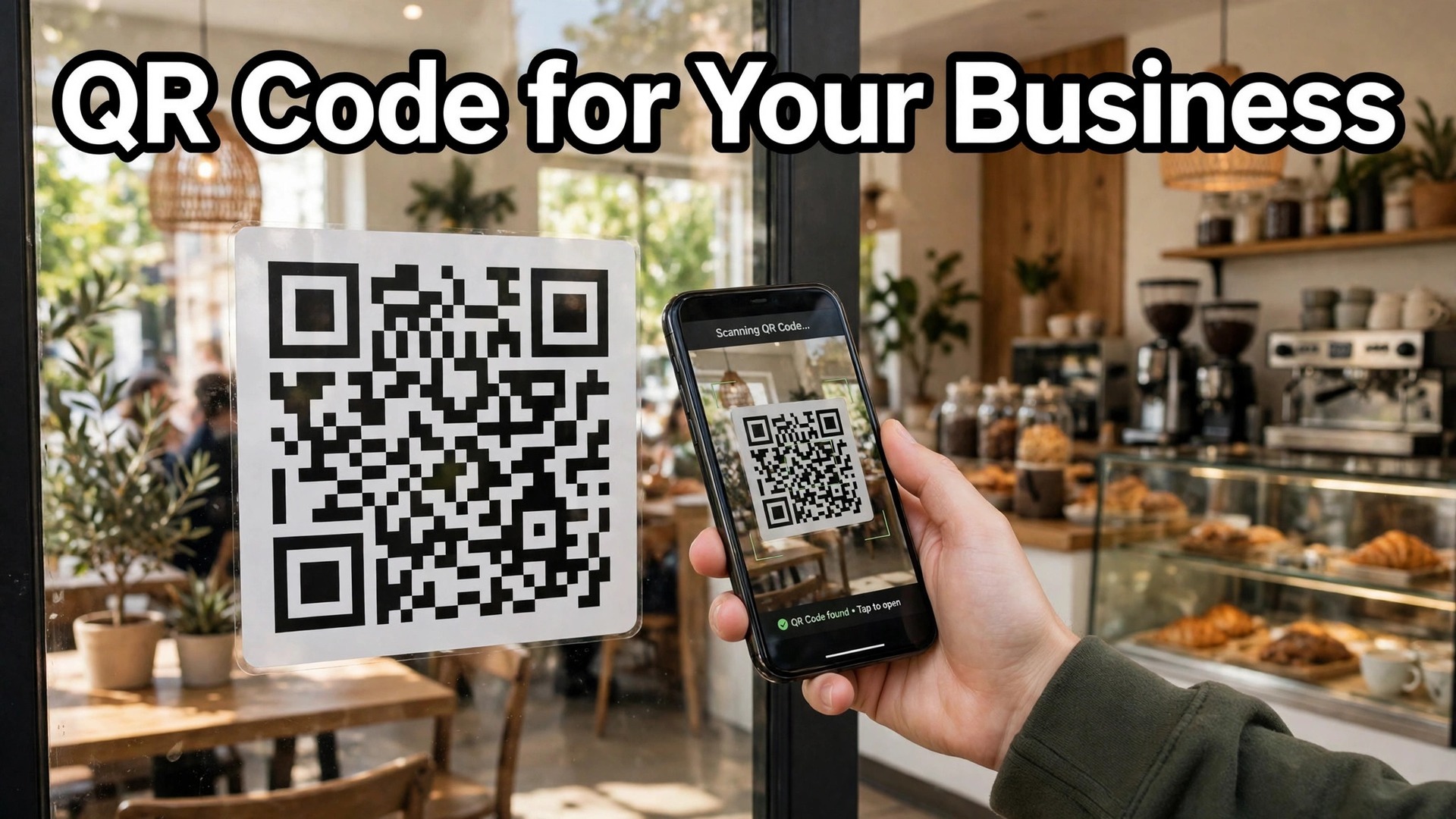
A static QR code and a dynamic QR code look identical on a menu. Scan them, and both open the same page. The difference shows up six months later, when you change your menu prices, move your website, or want to know how many people scanned the code. The static code is frozen forever. The dynamic code can be edited, tracked, and updated without reprinting anything. That single choice is the most important decision in learning how to make a qr code for your business, and it is the decision most guides bury at the bottom. This guide puts it first, then walks through the whole process with free tools, real prices, and print tips that keep the code scanning.
A QR code is a small square of black and white modules that a phone camera reads as a link. The technology is old, the use is simple, and the mistakes are predictable. A code printed too small does not scan. A code with too little white space around it does not scan. A code linking to a page that no longer exists scans perfectly and sends the customer nowhere. Every one of those failures is avoidable, and this guide covers each of them before you print a single copy.
In this article
- Quick Answer. How to Make a QR Code for Your Business in Five Minutes
- Static or Dynamic. The Choice That Decides Everything
- The Best Free Tools for a Business QR Code
- How to Make a QR Code for Your Business, Step by Step
- Print Tips. Making a Code That Scans Every Time
- Tracking Scans. What the Numbers Tell You
- Where to Put QR Codes in Your Business
- Mistakes to Avoid With Your Business QR Code
- How to Choose the Right Tool for Your Code
- Related Guides
- Frequently Asked Questions
- The Bottom Line
Quick Answer. How to Make a QR Code for Your Business in Five Minutes
Here is the short version. Open QRCode Monkey in your browser, paste your website address, pick your colours, add your logo, and download a free PNG or SVG. That gives you a static code that works forever and costs nothing.
If you want to change the destination later or track scans, use a dynamic code instead. QRCodeChimp gives you 10 dynamic codes free, Hovercode gives you 3, and Flowcode gives you 2, all with tracking included. Print the code at least 2 by 2 centimetres for close scanning, keep a clear white border around it, test it with two different phones, and then print. The whole job takes five minutes for a static code and fifteen for a tracked dynamic one.
| The decision | Static code | Dynamic code |
|---|---|---|
| What it stores | The link itself, baked into the pattern | A short link that redirects to your page |
| Can you change the destination later | No, you must reprint | Yes, edit it online any time |
| Scan tracking | No | Yes, counts, locations, devices |
| Cost | Free, forever | Free for a few codes, paid after that |
| Best free tool | QRCode Monkey | QRCodeChimp, 10 codes free |
| Best for | A menu that never changes, a business card | Menus, campaigns, anything you measure |
| Risk | None, the code never stops working | The code stops working if you stop paying |
Static or Dynamic. The Choice That Decides Everything
A static QR code encodes the destination directly into the pattern. The phone reads the pattern, finds the web address, and opens it. Nothing sits between the code and the page, which means nothing can break, nothing can be switched off, and nothing needs a subscription. A static code printed today will still work in ten years, as long as the web address still exists. That permanence is its strength and its weakness.
This is the first question in how to make a qr code for your business, and it decides the tool, the cost, and the risk. If the web address changes, the code is dead, and every printed copy is waste.
A dynamic QR code encodes a short redirect link owned by the generator service. The phone reads the pattern, visits the short link, and the service sends it on to your page. Because the redirect lives on the service’s server, you can change the destination any time without touching the printed code. The service also counts scans, records locations and device types, and shows you which codes get used. The price of that flexibility is dependence. If you stop paying, most services deactivate the dynamic codes, and scanners land on an error page or a service page instead of your site.
The rule is simple. Use a static code when the destination will never change. A link to your homepage, a link to a PDF menu that you will update by replacing the file at the same address, or a link to a Google review page. Use a dynamic code when the destination might change or when you need to know how many people scanned it. A campaign page, a seasonal menu, a flyer for an event, or any code you print in quantity. If you are unsure, pick dynamic, because the cost of reprinting a thousand flyers is higher than the cost of a $7 a month plan.
One warning belongs here. Never build your business around a dynamic code from a free trial that you plan to cancel. The moment the trial ends, the code dies, and every printed copy becomes a dead link. If you use a dynamic code, budget for the subscription for as long as the printed material exists.
The Best Free Tools for a Business QR Code
You do not need to pay anything to make a good QR code. The tools below cover every job, and each one suits a different kind of business. Pick the one that matches how you will use the code, not the one with the longest feature list.
QRCode Monkey. The Best Free Static Code
QRCode Monkey is the generator to send a friend to for a one-off static code. It needs no signup, it states plainly that the codes it makes are static, and it lets you add a logo, change colours, and download PNG, SVG, PDF, or EPS for free. The SVG download matters, because a vector file prints sharply at any size, from a business card to a shop window. There is no paid plan for the QR codes themselves, and no account to manage. Open the site, paste the link, design the code, download it, and you are done in three minutes.
The trade-off is that QRCode Monkey does not do dynamic codes. If you need tracking or an editable destination, you need a different tool. For a permanent link, though, it is the best free option available, and the one this guide recommends first.
QRCodeChimp. The Best Free Dynamic Codes
QRCodeChimp gives you 10 dynamic codes free, with 1,000 scans a month across them, which is the most generous free dynamic offer available. The paid plan costs $6.99 a month on annual billing and raises the limit to 50 dynamic codes. The tool also handles more than web links. It makes codes for vCards, Wi-Fi passwords, menus, and app downloads, and it includes a landing page builder for codes that need more than a redirect.
For a small business that wants to track scans without paying, QRCodeChimp is the best starting point. Ten codes cover a menu, a business card, a flyer, a window sticker, and a receipt, with room to spare. The limit to watch is the scan cap. A busy restaurant can pass 1,000 scans a month across ten codes, and when the cap is hit, the codes stop tracking until the next month.
Hovercode. The Honest Free Dynamic Offer
Hovercode is a UK company with the most straightforward free dynamic plan. Three dynamic codes, unlimited static codes, no scan cap, no ads, and no watermark, and the company says plainly that the free plan is not a trial. The paid plan costs $12 a month or $120 a year for 100 dynamic codes and a custom domain. For a business that needs two or three tracked codes and nothing more, Hovercode is the cleanest deal, because there is no scan cap to hit and no trial clock ticking.
Flowcode. The Best Branded Codes for Events
Flowcode is built for branded QR experiences, and it shows in the design options. The free plan includes 2 dynamic codes with Flowcode branding, and the paid plans start at $25 a month on annual billing. The codes come with landing pages and analytics, and the platform is popular for events, retail campaigns, and packaging. For a small business, Flowcode is the premium choice rather than the budget choice. Pick it when the code itself is part of the brand experience, not when you need a cheap menu link.
QR Code Generator and QR TIGER. The Established Paid Options
QR Code Generator, at qr-code-generator.com, is one of the oldest names in the category. It offers a 14-day free trial and paid plans from about $5 a month, with bulk creation and API access on higher tiers. QR TIGER offers 12 dynamic codes with unlimited scans from $7 a month, which is the most dynamic codes for the money at the entry tier. Both are solid, established choices, and both suit a business that has outgrown the free plans and wants reliability, bulk tools, and support. Neither is the best first choice for a business making its first code, because the free options above cover the first code better.
| Tool | Free plan | Paid from | Dynamic codes | Best for |
|---|---|---|---|---|
| QRCode Monkey | Free static codes, no signup | No paid QR plans | No, static only | A permanent link, free forever |
| QRCodeChimp | 10 dynamic codes, 1,000 scans a month | $6.99 a month annual | Yes | Free tracked codes |
| Hovercode | 3 dynamic codes, no scan cap | $12 a month or $120 a year | Yes | A few tracked codes, no cap |
| Flowcode | 2 dynamic codes, branded | $25 a month annual | Yes | Events and branded campaigns |
| QR Code Generator | 14-day trial | About $5 a month | Yes | Bulk creation and API |
| QR TIGER | Limited free tier | $7 a month, 12 dynamic codes | Yes | Most dynamic codes for the money |
How to Make a QR Code for Your Business, Step by Step
With the tool chosen, the build itself follows eight steps. Work through them in order, and do not skip the test at the end. The test is where most QR codes are saved.
Step 1. Decide What the Code Should Open
Before you open any tool, decide the destination. A menu page, a booking page, a Google review page, a WhatsApp chat, or a Wi-Fi login. The destination decides the code type, because a booking page that might move needs a dynamic code, while a homepage that will not move works as a static code. Write the destination down. If you cannot describe it in one sentence, the code will confuse the customer too.
Step 2. Shorten and Clean the Link
A long link with tracking parameters makes a dense QR pattern that is harder to scan. Use the shortest clean version of the address. If the page address is long, use your own short domain or a link shortener you control. Avoid links with long query strings, and avoid links that redirect through three hops before reaching the page. Every redirect is a chance for the scan to fail.
Step 3. Generate the Code
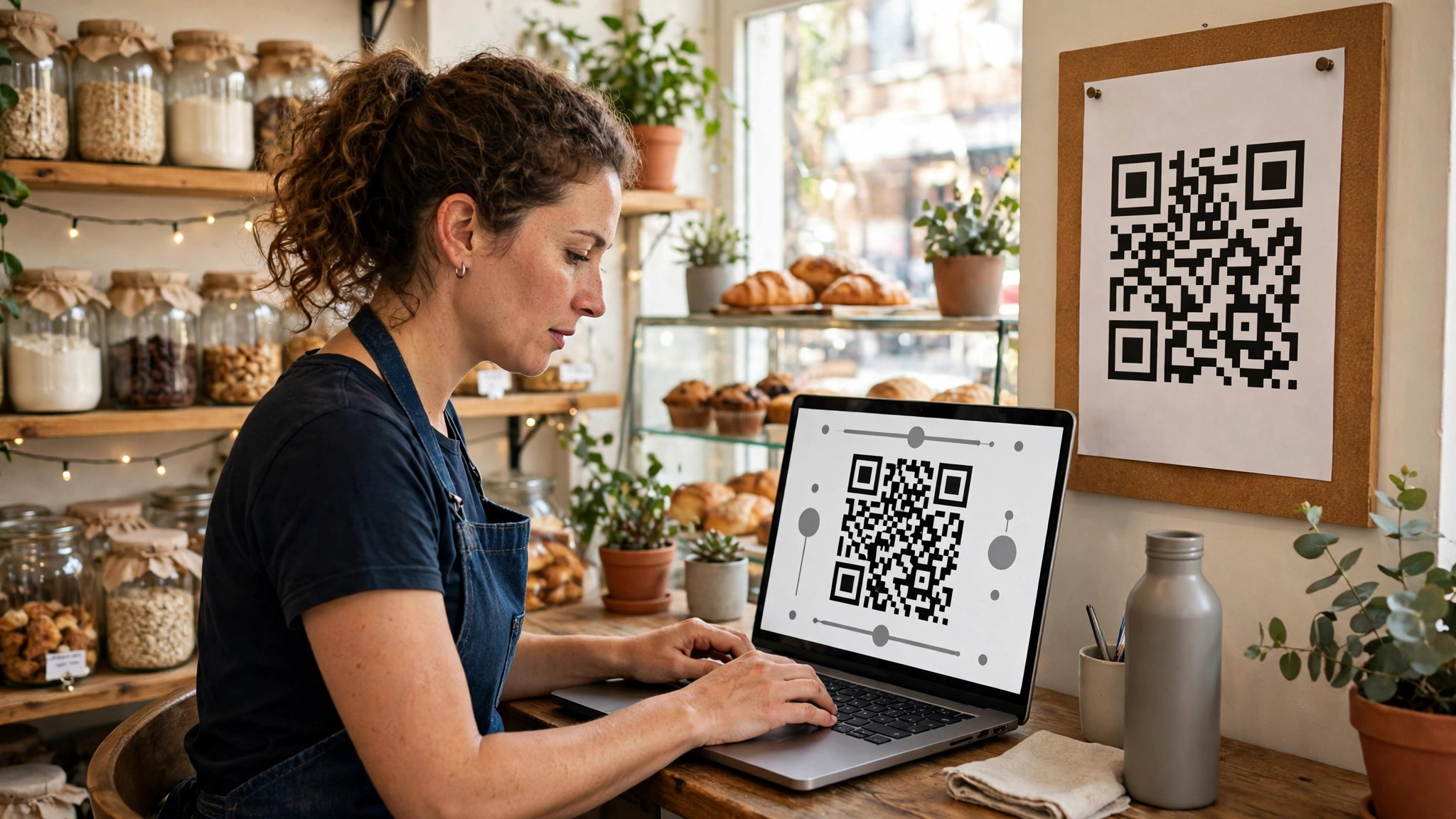
Open your chosen tool, paste the link, and generate the code. If the tool offers a choice, pick static for a permanent destination and dynamic for anything you might change or measure. Do not add design customisation yet. Generate the plain code first, and confirm it scans, before you spend time on colours and logos.
Step 4. Add Your Logo and Brand Colours
A QR code with your logo in the centre looks professional and builds trust, because a customer can see at a glance whose code it is. Keep the logo small, no more than 20 to 30 percent of the code’s width, and keep it in the centre where it covers the least data. Use your brand colours for the modules, but keep the contrast strong. Dark modules on a light background are the rule. Light modules on a dark background fail on many phone cameras, and low-contrast colour pairs fail on most.
Step 5. Set the Right Size and Quiet Zone
A QR code needs white space around it, called the quiet zone, so the camera can find its edges. Leave a border at least four modules wide on all sides, and never let text, a logo, or a table edge touch the code. For print size, the rule is simple. A code scanned from arm’s length needs to be at least 2 by 2 centimetres. A code scanned from a metre away needs to be at least 5 by 5 centimetres. A code on a shop window scanned from the pavement needs to be larger still. Bigger is safer, and there is no penalty for a code that is larger than it needs to be.
Step 6. Download the Right File Format
Download an SVG or PDF for anything that will be printed, because vector files stay sharp at any size. Download a PNG for anything that will be used on screen, at the highest resolution the tool offers. A PNG downloaded at 500 pixels wide will look soft on a printed menu, while an SVG will look sharp at any size. If the tool offers an EPS download, take it for professional print work. Keep the original file, because you will need it when you reprint.
Step 7. Test the Code on Two Phones
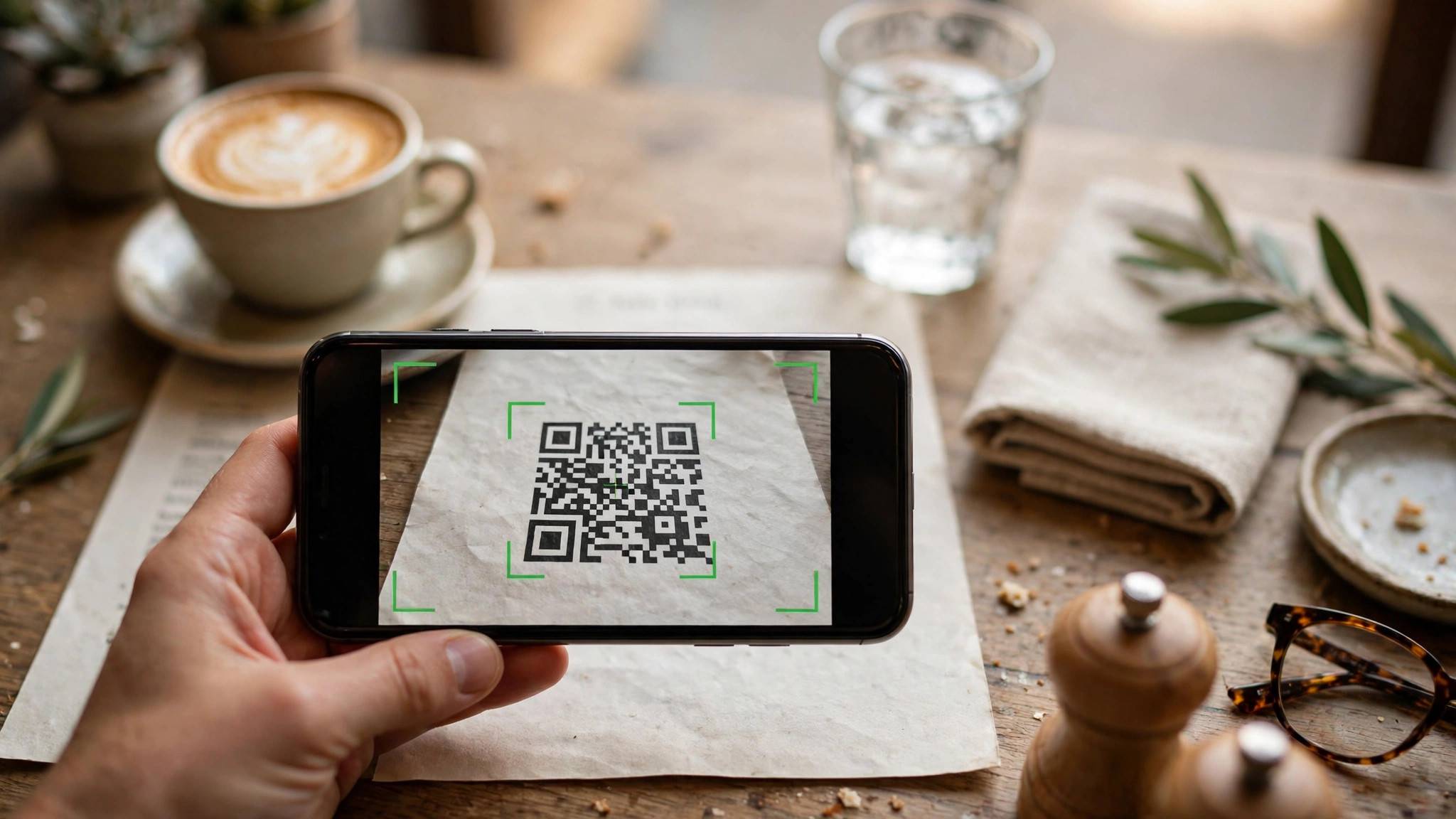
Scan the printed code with an iPhone and an Android phone, in normal indoor light, from the distance a customer will stand at. If either phone struggles, the code is too small, too dense, or too low in contrast. Fix it before you print. Test the code again after it is printed, because a screen test does not catch print problems. A code that scans on a monitor and fails on paper is usually printed too small or on glossy paper that reflects the light.
Step 8. Print and Place It Where Customers Look
Print the code on the material customers actually see. A table stand, a receipt, a business card, a window sticker, or the bottom of a menu. Place it at eye level or on the table, not on the floor or behind a door. Add a short instruction next to it, because a code with no explanation gets ignored. “Scan to see the menu” or “Scan to leave a review” tells a customer what they get. A bare code tells them nothing.
Print Tips. Making a Code That Scans Every Time
Printing is where good QR codes go wrong, and the fixes are all cheap. Print quality is the part of how to make a qr code for your business that most guides skip, and it is where good codes fail. Paper matters. Matte paper scans better than glossy paper, because glossy paper reflects light into the camera and washes out the modules. If you must use glossy stock, test the code under the actual lighting where it will be displayed, not under your desk lamp. A code that scans at your desk and fails under a restaurant’s downlights is a code that needs matte paper or a larger size.
Size matters more than design. A dense code with a long link has more modules packed into the same square, and each module is smaller and harder for a camera to read. Shorten the link, and the pattern gets simpler and more forgiving. If the code still looks dense, make it bigger. A 3 by 3 centimetre code is the minimum for a table stand. A 5 by 5 centimetre code is the safe choice for a menu. A window code should be 10 centimetres or more, because the customer is standing a metre away.
Colour matters too. Black modules on white background are the safest combination ever tested. Dark blue on white works. Dark green on cream works. Light grey on white does not work, and neither does yellow on white, because the camera cannot tell the modules from the background. If your brand colours are light, put the code in a white box with a dark border, and keep the brand colours for the frame, not for the modules. The code is a tool, not a logo, and readability comes first.
Error correction is the quiet feature that saves codes. QR codes carry built-in error correction, which means a damaged or partly covered code can still scan. Most generators let you pick the level, from low at about 7 percent recovery to high at about 30 percent. Pick high when you add a logo, because the logo covers part of the pattern and the error correction has to rebuild it. Pick medium for a plain code. Never pick low when the code will be printed, handled, or displayed outdoors.
Tracking Scans. What the Numbers Tell You
A dynamic code with tracking tells you how many times it was scanned, when, where, and on what device. That data is useful when you know what to do with it. Tracking is the part of how to make a qr code for your business that turns a printed square into a measurable marketing tool. A menu code that gets 200 scans a week and a flyer code that gets 5 tells you where customers actually look. A code that gets scanned mostly on weekends tells you when to run a promotion. A code that gets scanned in one city and not another tells you where the campaign works.
The data has limits worth knowing. Scan counts do not tell you whether the customer bought anything, and a scan is not a sale. Location data is approximate, based on the phone’s IP address, and it will not tell you which table the customer sat at. Device data tells you iPhone or Android, which matters for testing but not for much else. Use the numbers to compare codes against each other, not to judge a single code in isolation. A code with 50 scans and a code with 500 scans tell a clear story. A code with 50 scans on its own tells you almost nothing.
Privacy matters too. Scan tracking records IP addresses and device information, which is personal data in many countries. If your business operates in the EU or the UK, check that your QR provider’s privacy policy covers your use, and add a line to your own privacy notice. Most small businesses never think about this, and most never face a problem, but the ones that do wish they had checked earlier.
Where to Put QR Codes in Your Business
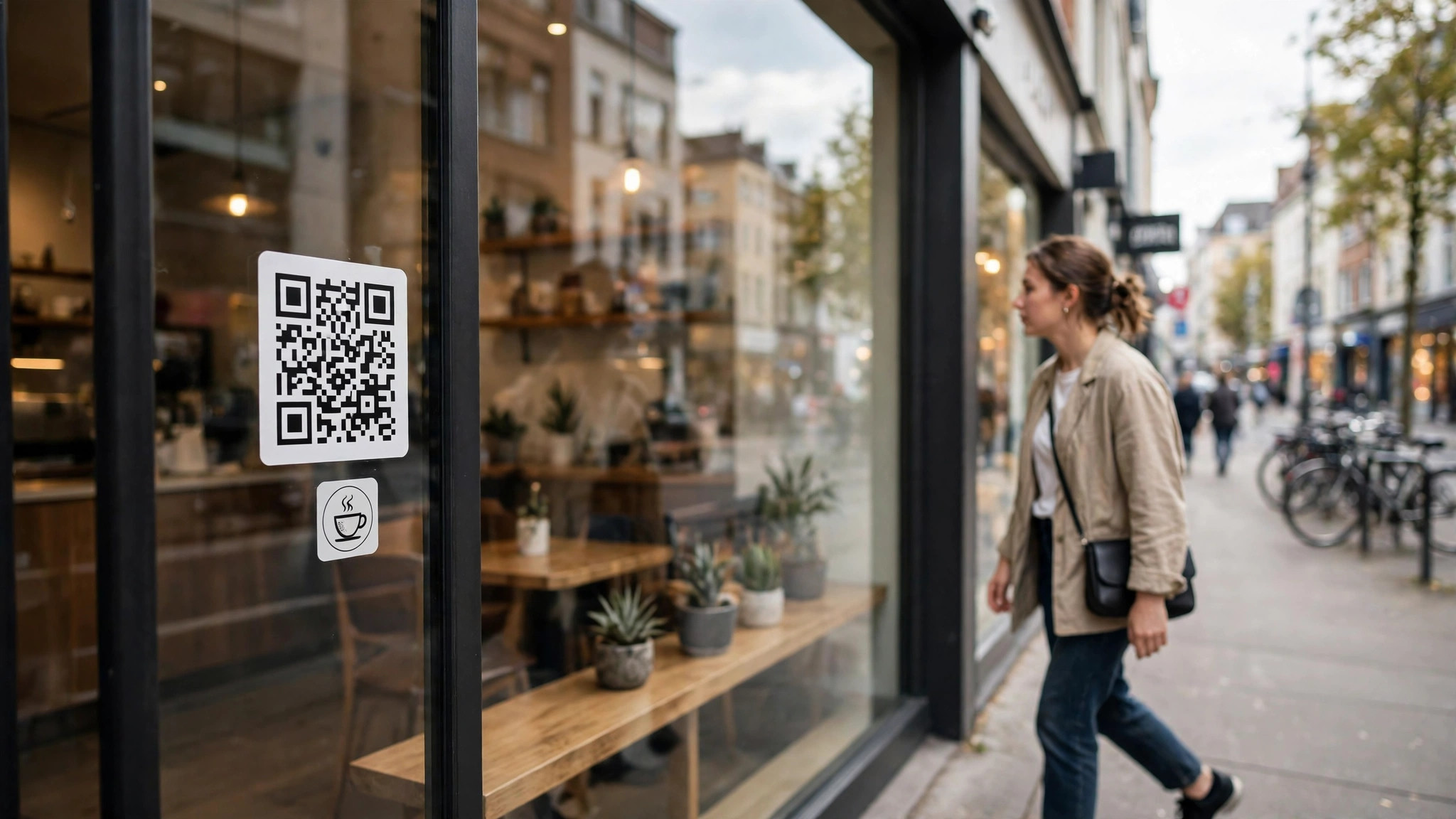
A QR code works when it sits where a customer already has their phone in their hand and a reason to scan. Placement is the last step in how to make a qr code for your business, and it decides whether the code gets used at all. The best spots are the ones you can name without thinking. On a restaurant table, linking to the menu. On a receipt, linking to a review page. On a business card, linking to a booking page. On a product label, linking to instructions or a warranty page. On a shop window, linking to opening hours or an online store. On a flyer, linking to an event page.
The worst spots are the ones where nobody stops. On a moving vehicle, where the code cannot be scanned safely. On a billboard beside a fast road, where no driver can scan it. On the back of a door that is always open, where the code faces the wall. On a television screen during a ten-second advert, where the viewer has no time. A QR code needs a stationary customer with ten seconds to spare. Give it that, and it works. Deny it, and the code is decoration.
Put one code in one place with one job. A table stand with two codes, one for the menu and one for Wi-Fi, confuses customers, and half of them will scan the wrong one. If you need two destinations, use a landing page with two buttons behind a single code. The code gets one job, and the page does the choosing.
Mistakes to Avoid With Your Business QR Code
The first mistake is a dynamic code from a free trial you let lapse. The code dies, the printed material is waste, and the customers who scan it land on an error page. If you use a dynamic code, pay for it for as long as the material exists, or use a static code instead.
The second mistake is a link that moves. A code pointing to a page you later delete or rename is a dead code. If the page must move, use a dynamic code so you can update the destination, or set up a redirect from the old address to the new one. A redirect costs nothing and saves every printed code.
The third mistake is a code printed too small. A 1 centimetre code on a business card looks neat and scans never. Test the smallest size with a real phone before you print a thousand cards. The test takes a minute. The reprint takes a week.
The fourth mistake is a code with no instruction. A bare code on a table is easy to ignore. A code with “Scan to see the menu” next to it gets scanned. The instruction is the difference between a code that works and a code that decorates the table.
The fifth mistake is a code that links to a page that is not mobile-friendly. A customer scans with a phone, and the page that opens must work on a phone. If your menu is a PDF that needs pinching and zooming, the customer will close it. If your booking page needs a desktop, the customer will give up. Test the destination on a phone, not on your laptop, before you print the code.
The sixth mistake is using a code for something a link would do better. A QR code on an email is pointless, because the reader can tap the link. A QR code on a website is pointless, because the visitor is already on the site. A QR code earns its place only where the customer is offline and the phone is the bridge. Menus, windows, packaging, receipts, and flyers. Everywhere else, a link is faster.
How to Choose the Right Tool for Your Code
The choice is short. If the destination will never change, use QRCode Monkey and pay nothing. If you want tracking and you need a few codes, use QRCodeChimp or Hovercode and pay nothing. If you need many codes, bulk tools, or an API, pay for QR TIGER at $7 a month or QR Code Generator from about $5 a month. If the code is part of a branded event campaign, look at Flowcode. That covers every small business, and the free options cover most of them.
The how to make a qr code for your business decision is really two decisions. Static or dynamic, then free or paid. Answer the first with the permanence of the destination. Answer the second with the number of codes you need. Everything else is design, and design is the easy part.
Related Guides
- Resume Builder Pricing
- Best Free Resume Builders for Job Seekers: Complete 2026 Guide
- Best QR Code Generators for Small Business
Frequently Asked Questions
How do I make a QR code for my business for free?
Open QRCode Monkey in your browser, paste your website address, and download a free PNG or SVG. No signup is needed, and the code is static, which means it works forever. If you want a dynamic code with tracking, QRCodeChimp gives you 10 dynamic codes free, and Hovercode gives you 3 with no scan cap. Both are free to start and need no payment details.
What is the difference between a static and a dynamic QR code?
A static code stores the link directly in the pattern, so it can never be changed, but it never stops working. A dynamic code stores a short redirect link, so you can change the destination and track scans, but the code stops working if you stop paying for the service. Use static for a permanent link and dynamic for a campaign, a seasonal menu, or anything you want to measure.
How big should a printed QR code be?
A code scanned from arm’s length should be at least 2 by 2 centimetres. A code on a menu or a table stand should be 3 to 5 centimetres. A code on a shop window scanned from a metre away should be 10 centimetres or more. Bigger is safer. Test the smallest size with a real phone before you print in quantity.
Can I put my logo on a QR code?
Yes, most generators let you place a logo in the centre of the code. Keep the logo small, no more than 20 to 30 percent of the code’s width, and use high error correction so the code still scans with part of the pattern covered. Test the finished code on two different phones before you print it.
Do QR codes expire?
A static QR code never expires, as long as the web address it points to still exists. A dynamic QR code expires when the subscription ends, because the redirect service stops working. If you print a dynamic code, keep paying for the service for as long as the printed material is in use, or switch the code to static before the trial ends.
How do I track how many people scan my QR code?
Use a dynamic QR code from a generator with analytics, such as QRCodeChimp, Hovercode, Flowcode, or QR TIGER. The dashboard shows scan counts, times, approximate locations, and device types. Compare codes against each other to see which placements work best. A scan count alone does not prove a sale, so treat the numbers as a guide to placement, not as revenue.
The Bottom Line
Learning how to make a qr code for your business takes five minutes, but the decisions around the code matter more than the generation itself. Pick static when the destination is permanent and dynamic when it might change or needs measuring. Keep the code big, keep the contrast strong, keep a clear border around it, and test it on two phones before you print. A QR code that scans every time is a quiet piece of infrastructure that earns its place on a table, a card, or a window. A QR code that fails is a dead link in print, and customers remember the business that wasted their time. Make the code properly once, and it will work for years.