The best gif makers for social media in 2026 are GIPHY, Canva and Kapwing, and the right pick depends on what the GIF is for. GIPHY wins when you want a GIF that people can find and share anywhere, because it is the library every platform searches. Canva wins when the GIF is a branded post, because its templates, fonts and brand kit turn a clip into a design. Kapwing wins when the GIF needs captions, because its subtitle tools are the best here for a clip that has to be understood with the sound off.
A GIF is the shortest video on the internet, and it works because it asks nothing of the viewer. There is no play button, no sound to turn on, and no time to commit. A two-second loop that makes a point will be watched ten times, while a thirty-second video with the same point will be skipped. That is why GIFs earn more shares than any other format on X, and why a small business with a phone and five minutes can make a GIF that reaches more people than a polished video ever will.
The trap is the file size. A GIF made from a ten-second video at full resolution can weigh 20 MB, and a 20 MB GIF loads slowly, eats mobile data, and gets compressed into a blurry mess by the platform. The fix is to keep the clip short, cut the frame rate, and shrink the dimensions before you export. Every tool in this guide handles that, but the ones that show the file size before you download it save you from a GIF that nobody waits for.
Quick jump
- Quick Answer. The Best GIF Makers in 30 Seconds
- What the Best GIF Makers for Social Media Get Right
- The Size and Speed Rules That Decide Whether a GIF Works
- The Free Plan Test. What You Get Without Paying
- How to Choose the Best GIF Makers for Social Media
- Related Guides
- Frequently Asked Questions
- The Bottom Line
Quick Answer. The Best GIF Makers in 30 Seconds
If you want the short version, here it is. GIPHY is the best all-round pick, because it is free, it is the library every platform searches, and its maker turns a video into a GIF in seconds. Canva is the best pick for a branded GIF, with Pro at $18 a month or $144 a year. Kapwing is the best pick for a GIF with captions, with Pro at $24 a month or $16 a month billed yearly. Ezgif is the best pick for a free, no-signup edit, because it resizes, crops and compresses any GIF in a browser.
The best gif makers for social media are the ones that give you a short clip, text that reads at a glance, and a file small enough to load fast on a phone. The table below compares all six on the facts that change a decision.
| Tool | Best for | Free tier | Paid from | Key strength |
|---|---|---|---|---|
| GIPHY | Finding and sharing GIFs | Free | $0 | Biggest GIF library |
| Canva | Branded GIFs | Free plan | $18/mo or $144/yr | 600,000+ templates |
| Kapwing | GIFs with captions | Free plan | $24/mo or $16/mo annual | Best subtitle tools |
| Adobe Express | Adobe-quality GIFs | Free plan | $9.99/mo | Premium Adobe Stock included |
| Ezgif | Free resizing and compression | Free | $0 | No signup needed |
| Imgflip | Meme GIFs | Free plan | $9.95/mo | Fastest meme maker |
What the Best GIF Makers for Social Media Get Right
The first thing a good GIF tool gets right is the length. A GIF should be two to six seconds long, because a loop that short plays ten times before the viewer notices, and a loop that long feels like a video that never ends. GIPHY caps most uploads at a short clip, which forces the discipline that makes GIFs work. Kapwing and Canva both let you trim a video to the exact seconds that matter, and Ezgif lets you cut a GIF after it is made. A GIF that runs for fifteen seconds is a video with the sound removed, and it will be skipped like one.
The second thing is the text. A GIF with text has to be readable at a glance, because the viewer will not pause to read it. Three to six words, large, bold and high contrast, is the right amount, and the text should sit in the centre of the frame, away from the edges that a phone crops.
Canva has the strongest text tools here, with layered type, font pairings and animation that makes the words move with the clip. Adobe Express adds Adobe Fonts, more than 30,000 typefaces, which means the text can look like a designed post rather than a typed caption. Kapwing adds the best subtitle tools, with automatic captions that can be styled and positioned in seconds.
The third thing is the file size. A GIF should stay under 6 MB for fast loading, and under 15 MB for X, which is the platform limit for an uploaded GIF. A GIF made from a ten-second video at full resolution can weigh 20 MB, so the tools that compress well matter. Ezgif is the best here for compression, with a tool that shrinks a GIF by cutting frames, reducing colors and resizing the dimensions, and it shows the file size before and after so you can see the saving. GIPHY compresses every upload automatically, and Kapwing lets you export at a lower resolution for a smaller file.
The fourth thing is the sharing. A GIF that lives only on your computer reaches nobody, and the tools that win here are the ones that put the GIF where people can find it. GIPHY is the library that X, Instagram, Facebook and WhatsApp all search, so a GIF uploaded to GIPHY can be found by anyone, anywhere. Imgflip is the fastest route to a meme GIF that spreads on Reddit and X, with a library of templates that people already recognise. Canva and Kapwing both export a GIF file you can upload anywhere, and both include a direct share to social platforms.
The Size and Speed Rules That Decide Whether a GIF Works
A GIF fails for one of three reasons, and all three are avoidable. The first is a file that is too large. A 20 MB GIF loads slowly, eats mobile data, and gets compressed into a blurry mess by the platform, so keep the clip short, cut the frame rate to 10 or 15 frames a second, and shrink the dimensions to 480 pixels wide for a feed post. The second is text that is too small. A caption set at 24 points looks fine on a laptop and unreadable on a phone, so keep GIF text large, short and high contrast, with no more than six words on screen at once.
The third is a loop that does not loop. A clip that jumps at the end feels broken, so pick a clip that starts and ends in the same place, or trim it until the cut is invisible.
Color choice matters more on a GIF than on a still image, because a GIF has only 256 colors, and a photo with a wide range of colors will band and dither when it is converted. A GIF with two or three strong colors looks clean. A GIF with a full photograph looks noisy. Pick a clip with a simple background, use one accent color for the text, and leave the rest of the frame empty. Empty space is not wasted space on a GIF. It is what makes the words readable at a glance, and it keeps the file small enough to load fast.
The Free Plan Test. What You Get Without Paying
Five of the six best gif makers for social media offer a free plan, and the free plans are not equal. The test that matters is simple. Can you make a GIF, export it at a usable size, and share it without a watermark? GIPHY, Ezgif, Canva, Adobe Express, Kapwing and Imgflip all pass that test on their free plans, with limits on the length, the resolution or the number of exports. GIPHY and Ezgif are free with no paid plan at all, which makes them the best free options in this list.
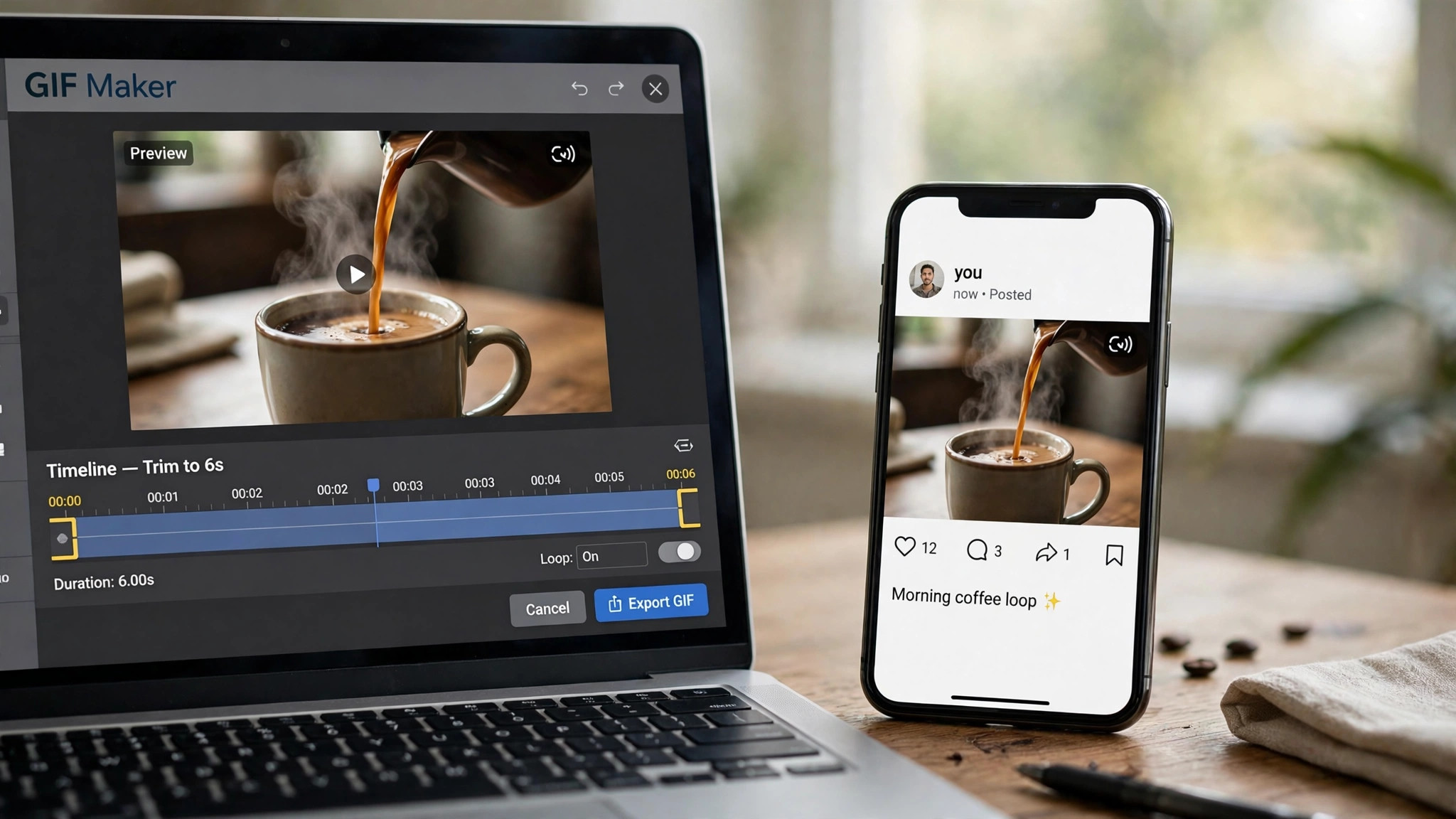
The second test is what the free plan holds back. Canva holds back premium stock and the background remover on its free plan. Adobe Express holds back most brand kits and Firefly output. Kapwing limits the free plan to watermarked exports at 720p, with 10 credits in total, so the free tier is for testing, not for publishing. Imgflip holds back the best templates and adds a watermark on some exports. None of these limits stops you from making a good GIF, but they decide which tool you will still be using in six months, when the GIF habit is daily.
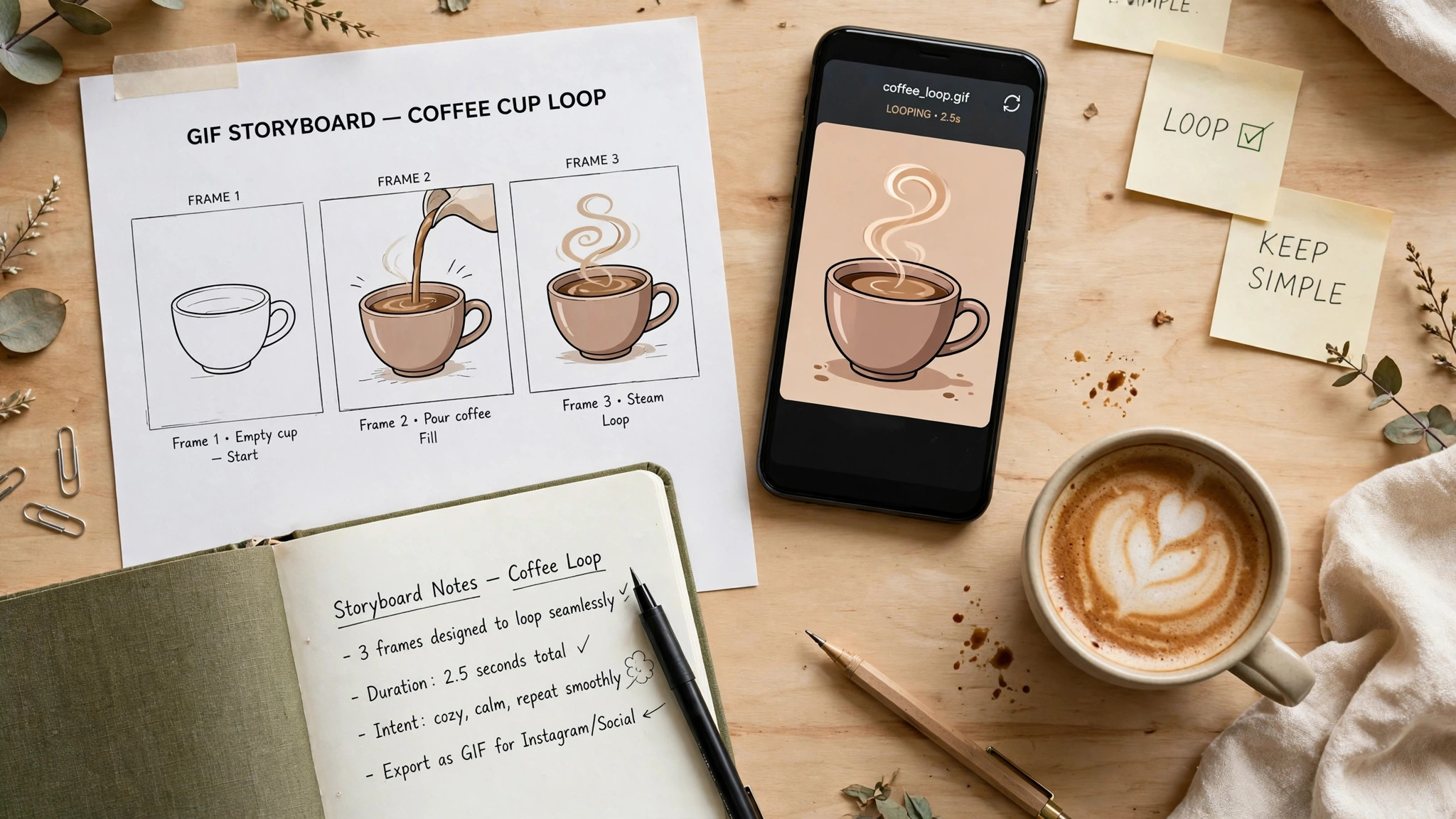
The third test is the watermark. GIPHY, Ezgif, Canva, Adobe Express and Imgflip do not add a watermark to a GIF export on their free plans, which is why all five are worth recommending. Kapwing adds a watermark on its free plan, so a GIF made there needs Pro at $24 a month or $16 a month billed yearly to publish clean. A watermarked GIF is worse than no GIF at all, because it tells every viewer you would not pay for the tool that made it.
1. GIPHY. Best for Finding and Sharing GIFs
GIPHY is the obvious first stop among the best gif makers for social media, and the reason is the library. GIPHY is the GIF search engine that X, Instagram, Facebook, WhatsApp and Slack all use, so a GIF uploaded to GIPHY can be found by anyone, anywhere, and a GIF made in GIPHY can be shared with a link, a download or a direct post. The maker itself is simple, with tools to turn a video into a GIF, add text, add stickers, and trim the clip to the exact seconds that matter.
Pricing is free. GIPHY costs nothing, with no paid plan, no watermark and no export limit that matters for a normal user. The maker accepts a video upload, a YouTube link or a Vimeo link, and it turns the clip into a GIF in seconds. The library is searchable by keyword, emotion, show, movie and meme, which makes it the fastest route to a GIF that already exists and the best place to publish a GIF you just made.
What works. The library is the point. A GIF on GIPHY can be found by anyone, and the maker is fast enough for a daily habit. The price is free, with no catch, and the sharing tools cover every platform that matters.
What to watch. The maker is simple by design, so a GIF that needs captions, brand fonts or precise timing will need a stronger tool such as Kapwing or Canva. The search results include GIFs of every quality, so check the file before you share it.
2. Canva. Best for Branded GIFs
Canva is the pick when the GIF is a branded post. Its editor covers animation, text, stickers and brand kits, so you can turn a design into a GIF with a few clicks, and the templates for social posts, sales, events and announcements are the largest here. The animation tools let text slide, fade and pop, and the brand kit keeps the colors and fonts consistent across every GIF you make. Canva also includes a scheduler, so you can design and queue a GIF without leaving the app.
Pricing starts free and stays useful. The free plan covers the GIF maker, thousands of templates and full-size exports. Canva Pro costs $18 a month or $144 a year for one person, and it adds premium templates and stock, 5 brand kits, Magic Resize, the background remover, the scheduler and 100GB of storage. Pro is a one-person licence, so a second editor means moving to Business at $25 a month or $250 a year per person.
What works. No other tool gives you this many GIF templates with this little effort, and the free export is full size, which is the detail that matters most. The brand kit keeps every GIF on brand without thinking, and the animation tools are the best here for a branded post.
What to watch. The free plan holds back the best stock photos and the background remover, and the template search can bury good designs under dozens of near-identical ones. Check the price at checkout, because Canva has changed it more than once.
3. Kapwing. Best for GIFs with Captions
Kapwing is the pick when the GIF needs captions. Its subtitle tools are the best here, with automatic captions that can be styled, positioned and timed in seconds, and its editor covers trimming, resizing, text, stickers and background removal in a browser, with no install. Kapwing also includes a meme generator, a video editor and a subtitler, so the GIF can be one step in a larger video workflow. The free plan is for testing, and Pro is the tier that publishes clean.
Pricing starts free, but the free plan adds a watermark. The free plan covers 10 credits in total, watermarked exports at 720p, and basic tools. Kapwing Pro costs $24 a month, or $16 a month billed yearly at $192 a year, and it adds 1,000 credits a month, no watermark, 4K export, exports up to 2 hours, 1,000 subtitle minutes and a brand kit. Kapwing Business costs $64 a month, or $50 a month billed yearly, and it adds 4,000 credits and more subtitle minutes.
What works. The subtitle tools are the best here, and the browser editor is strong enough for a full video workflow. The 4K export and the brand kit suit a business that makes GIFs and videos every week.
What to watch. The free plan adds a watermark, so it cannot publish a clean GIF. The price is higher than Canva or Adobe Express, and the credit system is confusing at first, so check the allowance before you commit.
4. Adobe Express. Best for Adobe-Quality GIFs
Adobe Express is Adobe’s browser and mobile design app, and it brings two things no rival here matches. The first is Adobe Fonts, more than 30,000 typefaces that make a GIF look designed rather than typed. The second is premium Adobe Stock, which means the photos and videos behind your GIF are sharper and less familiar than the free stock every other tool shares. The animation tools let text and images move, and the templates for social posts are strong.
Pricing is simple. The free plan costs nothing and includes 25 generative credits a month, templates and basic exports. Adobe Express Premium costs $9.99 a month, billed monthly with no annual commitment, and it adds 250 generative credits a month, 100GB of storage, premium templates and stock, brand kits and a content scheduler. Premium is included with most Creative Cloud single-app plans, so check your existing Adobe subscription before you buy a second seat.
What works. Premium undercuts Canva Pro by a wide margin and includes real Adobe Stock and fonts. Monthly billing means you can pay for one month, make a batch of GIFs, and stop.
What to watch. The free plan holds back most brand kits and Firefly output, and the GIF tools are a small part of a big app, so the workflow is less focused than GIPHY or Kapwing. The template count for GIFs is smaller than Canva.
5. Ezgif. Best for Free Resizing and Compression
Ezgif is the pick when the GIF already exists and only needs fixing. It runs entirely in the browser, with no signup and no install, and its tools cover resizing, cropping, rotating, reversing, optimising and compressing any GIF in seconds. The optimiser is the best here, with a tool that shrinks a GIF by cutting frames, reducing colors and resizing the dimensions, and it shows the file size before and after so you can see the saving. Ezgif also converts video to GIF, GIF to video, and GIF to sprite sheets.
Pricing is free. Ezgif costs nothing, with no paid plan, no watermark and no account needed. The site is supported by ads, which is the only cost, and the tools work on any GIF you upload. There is no library, no template and no sharing tool, because Ezgif does one job, which is to fix a GIF, and it does that job better than any tool here.
What works. The optimiser is the best here, and the price is free, with no catch. A GIF that is too large, too long or too wide can be fixed in a minute, and the file size display shows the saving before you download.
What to watch. There is no maker, no template and no library, so Ezgif cannot create a GIF from nothing. The interface is plain and dated, and the ads can be distracting, but the tools themselves are fast and reliable.
6. Imgflip. Best for Meme GIFs
Imgflip is the pick when the GIF is a meme. Its library of meme templates is the largest here, with every format that spreads on Reddit, X and Instagram, and its maker turns a template into a GIF in seconds, with text on top, text on the bottom, and a preview that shows the loop before you publish. The editor is simple, with a short learning curve, and the community is the fastest route to a meme that people already recognise.
Pricing starts free. The free plan covers the maker, the template library and basic exports, with a watermark on some exports. Imgflip Pro costs $9.95 a month and adds an ad-free editor, no watermark, more templates and priority processing. Check the current price at checkout, because Imgflip runs frequent promotions.
What works. The meme library is the best here, and the maker is the fastest route to a GIF that spreads. The price is low, and the community keeps the templates current, so a meme made today uses a format people recognise today.
What to watch. The free plan adds a watermark on some exports, so a clean GIF needs Pro. The tool is built for memes, so a branded GIF for a business will find better fits in Canva or Adobe Express.
How to Choose the Best GIF Makers for Social Media
Start with the job, not the tool. A GIF that needs to be found needs GIPHY. A GIF that needs to be branded needs Canva. A GIF that needs captions needs Kapwing. A GIF that needs fixing needs Ezgif. A GIF that needs to be a meme needs Imgflip. Write down what the GIF is for before you open any editor, because the tool cannot decide that for you.
Step 1. Pick the clip first. Choose a two to six second clip that makes one point, and trim it until the loop is invisible. A clip that starts and ends in the same place loops cleanly, and a clip that jumps at the end feels broken.
Step 2. Keep the file small. Cut the frame rate to 10 or 15 frames a second, shrink the dimensions to 480 pixels wide for a feed post, and run the GIF through Ezgif before you publish it. A GIF under 6 MB loads fast on a phone, and a GIF under 15 MB meets the X limit.
Step 3. Add six words or fewer. A GIF with text has to be readable at a glance, so keep the caption short, large, bold and high contrast, with the text in the centre of the frame, away from the edges that a phone crops.
Step 4. Test the loop. Watch the GIF three times in a row and check that the cut is invisible, the text is readable, and the file loads fast. Fix the loop before you publish, not after, because a GIF that jumps will be skipped.
Step 5. Share where people search. Upload the GIF to GIPHY so anyone can find it, and post it on X, Instagram and Facebook with a caption that names the point. A GIF that lives only on your computer reaches nobody.
Related Guides
- Best LinkedIn Banner Makers for Professionals
- Best Meme Makers for Small Business
- Best Pinterest Pin Makers for Bloggers
Frequently Asked Questions
What size should a GIF be for social media?
A GIF should stay under 6 MB for fast loading, and under 15 MB for X, which is the platform limit for an uploaded GIF. Shrink the dimensions to 480 pixels wide for a feed post, cut the frame rate to 10 or 15 frames a second, and run the GIF through Ezgif before you publish it. A GIF made from a ten-second video at full resolution can weigh 20 MB, so compression matters more than resolution.
Which of the best gif makers for social media is actually free?
GIPHY and Ezgif are free with no paid plan at all, which makes them the best free options in this list. Canva, Adobe Express and Imgflip have free plans that export a GIF without a watermark. Kapwing is the only tool here that adds a watermark on its free plan, so a clean GIF from Kapwing needs Pro at $24 a month or $16 a month billed yearly.
How long should a GIF be?
Two to six seconds is the right length for a social GIF, because a loop that short plays ten times before the viewer notices, and a loop that long feels like a video that never ends. A GIF that runs for fifteen seconds is a video with the sound removed, and it will be skipped like one. Pick a clip that starts and ends in the same place, so the loop is invisible.
Can I turn a video into a GIF?
Yes. GIPHY, Kapwing, Canva and Ezgif all turn a video into a GIF, with trimming, text and compression built in. Upload the video, trim it to the two to six seconds that matter, add text if the GIF needs it, and export at a size under 6 MB. Ezgif is the best tool for compressing the result, because it shows the file size before and after.
Why does my GIF look blurry after upload?
The usual cause is a file that is too large. A 20 MB GIF gets compressed by the platform into a blurry mess, so keep the file under 6 MB by cutting the frame rate, shrinking the dimensions and running the GIF through Ezgif. A second cause is a photo with a wide range of colors, because a GIF has only 256 colors, and a full photograph will band and dither when it is converted. Ezgif lets you reduce the color count before you export, which shrinks the file and cleans up the banding, and a clip with a simple background will always look sharper than a busy photograph.
The Bottom Line
The best gif makers for social media in 2026 come down to three picks by job. GIPHY is the best all-round choice, because it is free, it is the library every platform searches, and its maker turns a video into a GIF in seconds. Canva is the best choice for a branded GIF, because its templates and brand kit turn a clip into a design. Kapwing is the best choice for a GIF with captions, because its subtitle tools are the best here.
Ezgif is the pick for fixing a GIF that is too large, Adobe Express is the pick for Adobe-quality GIFs at $9.99 a month, and Imgflip is the pick for meme GIFs. Start with the free plan in two tools, keep the clip short and the file small, and pay only when the free tier holds back a feature you actually need.
1 thought on “Best GIF Makers for Social Media”