The best youtube banner makers in 2026 are Canva, Adobe Express and Fotor, and the honest answer is that most new channels only need one of them. A banner is the first thing a visitor sees on your channel page, and it has about two seconds to say what your videos are about. Get the size wrong and YouTube crops your text on phones. Get the message wrong and the visitor leaves without pressing subscribe.
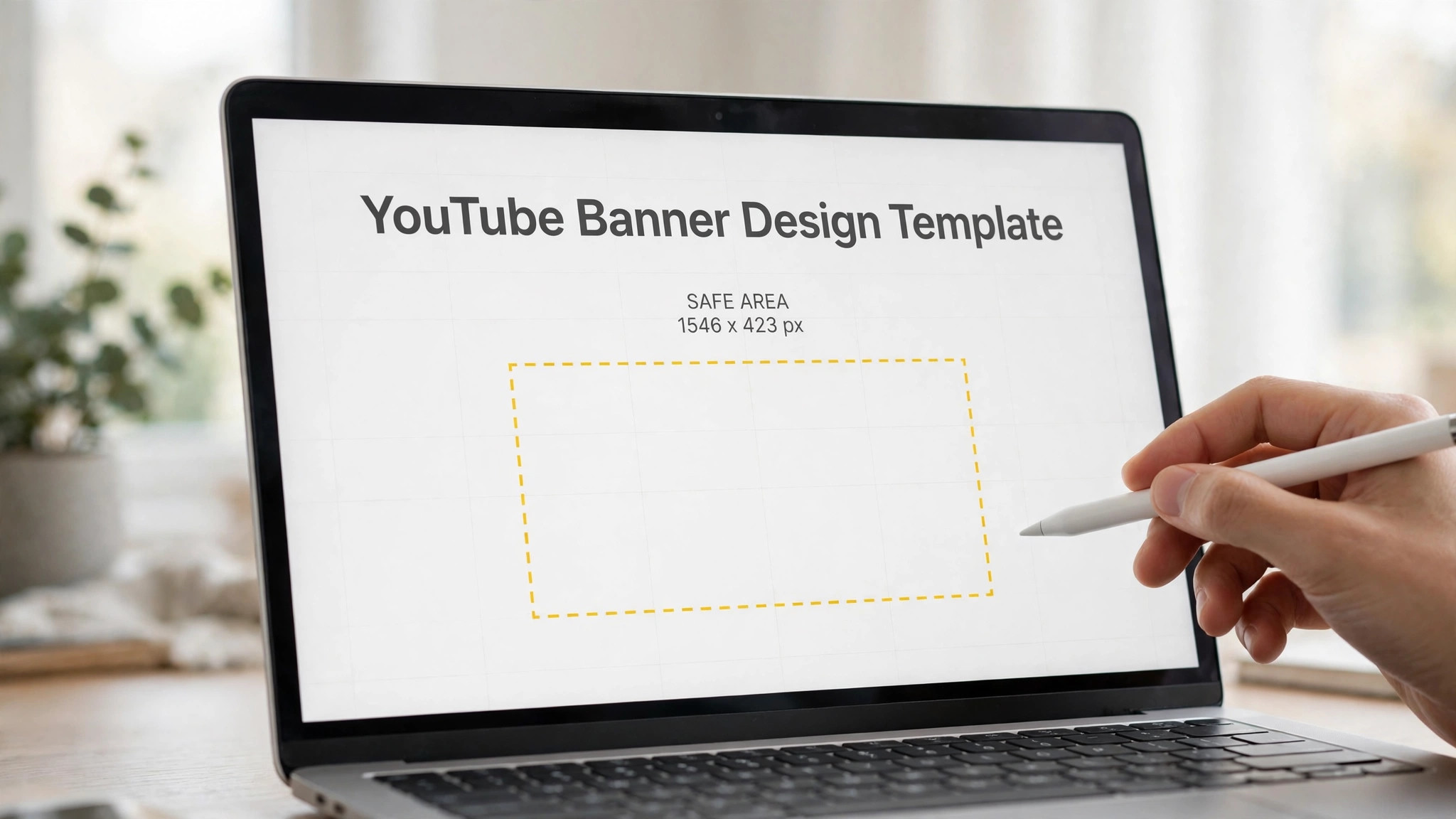
YouTube wants a banner of 2560 by 1440 pixels, with the safe area in the middle at 1546 by 423 pixels. Everything outside that middle strip can vanish on a phone or a TV, which is why so many banners look fine on a laptop and broken everywhere else. Every tool in this guide has a template at the right size and a safe-area guide, so you stop guessing and start with a file that fits.
We compared eight tools on the things that change the result. Template quality, how easy the editor is when you have never designed anything, what you can export without paying, and what the paid plan actually costs. Prices change often, so every price below is the figure we found on the vendor pricing page in November 2026, and you should still check the price on the day you pay.
Quick Answer. The Best Youtube Banner Makers in 30 Seconds
Canva is the best all-round pick. It has the biggest banner template library, a free plan that exports a clean PNG, and Pro at $18 a month or $144 a year if you want the brand kit and background remover. Adobe Express is the best pick if you already use Adobe products, with Premium at $9.99 a month. Fotor is the best pick for a fast free banner, with a solid free tier and a Pro plan from about $8.99 a month.
If you want the shortest path, open Canva, search for a banner template in your niche, swap in your channel name and one line about your videos, and export at 2560 by 1440. Ten minutes, no design skill needed. The rest of this guide shows you the other seven tools, when each one beats Canva, and the sizing mistakes that ruin most banners.
| Tool | Best for | Free export | Paid from | Standout |
|---|---|---|---|---|
| Canva | All-round banner design | Yes, clean PNG | $18/mo or $144/yr | Biggest template library |
| Adobe Express | Adobe users | Yes | $9.99/mo | Adobe Fonts and Firefly |
| Fotor | Fast free banner | Yes, with limits | About $8.99/mo | Quick templates and AI tools |
| VistaCreate | Small business channels | Yes, with limits | About $13/mo | Brand kit on paid plan |
| Snappa | Banners in minutes | Yes, 3 downloads a month | $15/mo | Fastest simple editor |
| Placeit | Gaming and streamer banners | Watermarked on free | About $14.95/mo | Mockups and gaming art |
| BeFunky | Photo-based banners | Yes, with limits | About $9.99/mo | Photo editing built in |
| Kapwing | Video-first creators | Watermarked on free | About $16/mo | Banner plus video tools |
1. Canva
Best for all-round banner design. Price Pro costs $18 a month or $144 a year. Free tier The free plan exports a clean PNG with no watermark on your own design.
You can start from a blank 2560 by 1440 canvas or from a template, and Magic Switch resizes the same design for other social sizes in one click. Pro costs $18 a month or $144 a year. The free plan exports a clean PNG with no watermark on your own design.
The template library is enormous, with banner layouts for gaming, cooking, tech, vlogging and almost every niche you can name, and the safe-area guide is built into the template. Canva has raised its Pro price more than once, so a price you read in an old article may be out of date, and the free plan locks the brand kit and background remover behind Pro. For most channels this is the default choice, and it stays the default unless you have a specific reason to leave.
If all-round banner design is your situation, Canva fits. It keeps the workflow short, the result looks right, and you will not need a tutorial to get there.
The question to ask before you pay for Canva is simple. Will you use it next month, and the month after? A tool you open once is a free tool. A tool you open every week is a subscription, and the right question is whether the work it saves is worth the monthly price.
2. Adobe Express
Best for creators already in the Adobe world. Price Premium costs $9.99 a month. Free tier The free plan includes thousands of templates and exports a clean PNG.
Express is the successor to Adobe Spark, and it shares files and fonts with Photoshop and Illustrator if you already pay for Creative Cloud. Premium costs $9.99 a month. The free plan includes thousands of templates and exports a clean PNG.
Adobe Fonts gives your banner typography that looks a step above the usual free fonts, and the Firefly image tools can fill a background in seconds. The template library is smaller than Canva, and some of the best templates sit behind Premium, so free users hit the paywall sooner. Pick this if you already use Adobe tools. Otherwise Canva gives you more templates for a similar effort.
Adobe Express earns its place here for creators already in the Adobe world. Nothing flashy, just a tool that handles the job and lets you move on to the next thing.
One detail worth checking on Adobe Express is the export. Open the free export before you invest an hour in the design, and make sure the file is clean, sharp and in a format you can actually use. A beautiful design you cannot export is a wasted afternoon.
3. Fotor
Best for a fast free banner with no fuss. Price Pro starts at about $8.99 a month on annual billing. Free tier The free plan exports banners, though some templates and tools are marked Pro.
Fotor began as a photo editor, and that shows in its image tools. Cropping, filters and touch-ups are stronger here than in most banner tools. Pro starts at about $8.99 a month on annual billing. The free plan exports banners, though some templates and tools are marked Pro.
Fotor is quick. Pick a template, change the text, export. There is very little learning curve, and the AI background remover works well on the paid plan. The free tier shows ads for Pro features often, and the template range is narrower than Canva, so two channels in the same niche can end up with similar-looking banners. A good pick when you want a decent banner today and do not want to learn a new editor.
What a fast free banner with no fuss does well for Fotor is keep things simple. Open it, do the work, export the file. That is the whole experience, and for many people it is enough.
Before you commit to Fotor, try it on a real job, not a test. A tool that feels good on a demo can still fight you on a deadline, and ten minutes with a real project tells you more than an hour of reading reviews.
4. VistaCreate
Best for small business channels that want a brand kit. Price Pro costs about $13 a month. Free tier The free plan covers basic banner design with a smaller template set.
The editor handles animated banners too, which suits channels that want a moving banner background on their channel page. Pro costs about $13 a month. The free plan covers basic banner design with a smaller template set.
VistaCreate, formerly Crello, has clean modern templates and a brand kit on the paid plan, so your banner, thumbnails and social posts can share the same colours and fonts. It is owned by Vista, and the upsells toward Vista print products appear regularly, which some users find tiring. Worth a look if you run a business channel and want everything on brand without paying Canva prices.
For small business channels that want a brand kit, VistaCreate is the practical choice when you want small business channels that want a brand kit without a long setup. It does the job, it does it well, and it stays out of your way.
The honest test for VistaCreate is whether you come back to it. A tool you use once and forget was never the right tool, however good the first result looked. The ones in this guide earned their place because people keep using them.
5. Snappa
Best for banners in minutes for busy creators. Price Pro costs $15 a month. Free tier The free plan allows 3 downloads a month, which is enough for one banner and a couple of retries.
Snappa includes a library of stock photos and graphics, so you rarely need to upload your own background image. Pro costs $15 a month. The free plan allows 3 downloads a month, which is enough for one banner and a couple of retries.
Snappa is the fastest editor in this list. Nothing is buried in menus. Pick a size, pick a template, change the text, download. A first banner takes about five minutes. Three free downloads a month is a tight limit if you like to test variations, and the template library is smaller than the big two. The right tool when speed matters more than having a thousand templates to browse.
If banners in minutes for busy creators is your situation, Snappa fits. It keeps the workflow short, the result looks right, and you will not need a tutorial to get there.
If you use Snappa once a month, the free plan is probably enough, and you should not pay for a year of something you open twice. If you use it every week, the paid plan is the honest cost, and it is worth budgeting for, because the time it saves adds up faster than the subscription.
6. Placeit
Best for gaming and streamer channels. Price A subscription costs about $14.95 a month. Free tier The free plan previews designs with a watermark, so you pay to export clean.
Placeit is built for creators who sell merch and stream, and its logo and intro makers sit in the same subscription. A subscription costs about $14.95 a month. The free plan previews designs with a watermark, so you pay to export clean.
Placeit has the best gaming and streamer banner art in this list, with mockups that show your banner on a channel page before you buy. It is a subscription product, so a single banner costs a month of subscription unless you use the other mockups and logos in the same month. Pick this for a gaming or streaming channel. For anything else, the free tools above do the job.
Placeit earns its place here for gaming and streamer channels. Nothing flashy, just a tool that handles the job and lets you move on to the next thing.
The question to ask before you pay for Placeit is simple. Will you use it next month, and the month after? A tool you open once is a free tool. A tool you open every week is a subscription, and the right question is whether the work it saves is worth the monthly price.
7. BeFunky
Best for photo-based banners. Price Plus costs about $9.99 a month. Free tier The free plan exports banners with some tools locked.
Its collage and photo effects are genuinely useful for travel and food channels that lead with photography. Plus costs about $9.99 a month. The free plan exports banners with some tools locked.
BeFunky is a photo editor first, so if your banner starts from a photo of you, your food or your workshop, its editing tools beat the pure template tools. The banner template set is thin, and the interface shows its age next to Canva and Express. A solid pick when your banner is a photo with text on top rather than a designed graphic.
What photo-based banners does well for BeFunky is keep things simple. Open it, do the work, export the file. That is the whole experience, and for many people it is enough.
8. Kapwing
Best for video-first creators. Price Pro costs about $16 a month. Free tier The free plan exports with a watermark, so budget for Pro if the banner is public.
Its background removal and subtitle tools are strong, which matters if your channel art uses stills from your own videos. Pro costs about $16 a month. The free plan exports with a watermark, so budget for Pro if the banner is public.
Kapwing suits creators who already edit video there, because the banner, the clips and the subtitles live in one workspace. The watermark on the free plan rules it out for a public banner, and the design templates are fewer than the dedicated banner tools. Use this if you already pay for Kapwing. Do not buy it just for a banner.
For video-first creators, Kapwing is the practical choice when you want video-first creators without a long setup. It does the job, it does it well, and it stays out of your way.
Before you commit to Kapwing, try it on a real job, not a test. A tool that feels good on a demo can still fight you on a deadline, and ten minutes with a real project tells you more than an hour of reading reviews.
How We Compared These Tools
We started with a long list of more than twenty tools and cut it to the 8 in this guide. A tool made the list only if a beginner could use it without a tutorial, it exports a usable file, and it is still actively maintained. Tools that had not been updated in years, or that locked the basic export behind a paywall, were cut.
Prices were checked on the vendor pricing pages in November 2026, and every price in this guide is the figure we found there. Prices change often, and some tools show different prices by country, so check the price on the day you pay. Where two sources disagreed, we used the vendor page and said so in the text.
We did not rank tools by features alone. A tool with a hundred features you never use loses to a tool with ten features you use every week. The rankings in this guide weigh ease of use, export quality, the free tier and the price, in that order, because those are the things that decide whether you finish the job.
Best Pick by Job
There is no single winner here, because the right tool depends on the job you are doing. The table below gives the pick by job, not by brand loyalty. Read the row that matches your situation and you have your answer.
| Your job | Best pick | Why |
|---|---|---|
| All-round banner design | Canva | For most channels this is the default choice, and it stays the default unless you have a specific reason to leave. |
| Creators already in the Adobe world | Adobe Express | Pick this if you already use Adobe tools. Otherwise Canva gives you more templates for a similar effort. |
| A fast free banner with no fuss | Fotor | A good pick when you want a decent banner today and do not want to learn a new editor. |
| Tightest budget | Canva | Strongest free tier in this list. |
| Fastest result | Adobe Express | Quickest path from idea to finished file. |
Free vs Paid. What You Actually Get
The free plans in this guide are real, but they all have a limit. Usually the limit is the export, the number of designs, or the licence. A free plan that exports a watermarked file is not free for a public project, and a free plan that allows three downloads a month is not free for a business that publishes weekly.
The paid plan is worth it when you use the tool every week, when you need the brand kit, or when the free export carries a watermark you cannot show a client. It is not worth it when you need one file, once. For a single project, use the free plan, finish the job, and cancel nothing, because there is nothing to cancel.
Watch the trial terms. Several tools in this list start with a cheap trial that renews automatically, and the renewal price is the real price. Set a reminder for the day before the trial ends, and decide then, with the finished file in your hand, whether the tool earned the subscription.
How to Choose the Right One for You
Start with the safe area, not the template. Open the template, put your channel name and your one-line promise inside the middle 1546 by 423 pixels, and keep faces and logos there too. Anything outside that strip is decoration, and it will be cut off on a phone. Test the result by opening your channel on a phone before you call it done.
Next, write one line that tells a stranger what your videos do for them. Not your name in big letters and nothing else. A cooking channel that says new recipes every Friday gives a visitor a reason to subscribe. A name alone does not. Keep the line under eight words so it stays readable at small sizes.
Finally, match the banner to your thumbnails. Same colours, same font, same tone. A visitor who clicks a thumbnail and lands on a channel page that looks like a different brand will not subscribe. Canva and VistaCreate make this easy with a brand kit. With a free tool, write down your two colours and one font and reuse them everywhere.
A Simple Workflow That Works
Step 1. Pick your one-line promise for the channel, the thing a new visitor gets from your videos.
Step 2. Choose a template at 2560 by 1440 pixels with a visible safe-area guide.
Step 3. Place your channel name and promise inside the middle 1546 by 423 pixels.
Step 4. Add one strong image, your face or your subject, and keep it inside the safe area.
Step 5. Export as PNG, upload to YouTube Studio, and check it on a phone and a TV.
Step 6. Change the banner when your content changes, at least twice a year.
The Details That Decide the Result
YouTube recommends 2560 by 1440 pixels, and the file must be under 6 MB. JPG and PNG both work, and PNG keeps text sharper. The safe area is 1546 by 423 pixels in the centre, and that is the only part guaranteed visible on every screen. On a desktop the banner shows at 2560 by 423 pixels, which is a wide thin strip, so a design that looks good as a full rectangle will look wrong once it is cropped to that strip.
Text size matters more than most creators expect. A line that fills the safe area on a laptop becomes tiny on a phone, where the banner is only a few centimetres tall. Use one big line for your promise and a smaller line for your schedule, and nothing else. Three lines of text on a banner is two lines too many.
Colour contrast decides whether anyone reads the banner at all. White text on a pale photo disappears. Dark text on a dark photo disappears. Put a solid colour panel or a dark overlay behind your text, and check the contrast by shrinking the image to phone size. If you cannot read it at that size, nobody else can either.
Mistakes to Avoid
The most common mistake is designing for the laptop and forgetting the phone. Most channel visits now come from phones, where only the safe area shows. A banner with the channel name at the edge and the schedule in a corner looks empty on a phone, because both are cropped away. Design inside the safe area first, then decorate the edges.
The second mistake is cramming in social links, a logo, a tagline, a schedule and a quote. A banner is not a business card. One promise, one schedule, one image. Everything else belongs in your channel description and your video descriptions.
The third mistake is using a low-resolution image stretched to fill 2560 pixels. A blurry background tells a visitor the channel is careless before they watch a second of video. Use a photo at least 2560 pixels wide, or a solid colour with a graphic, and export at full quality.
If you want the shortlist again, the best youtube banner makers that matter most are the ones above, and the best pick depends on your budget, your skill and how often you will use the tool.
That is the honest picture of the best youtube banner makers available today, and the differences that matter are the price, the free tier and how the tool handles your real work.
A final note on the best youtube banner makers in this list. None of them is perfect for everyone, and the right choice is the one that fits the job you actually do, not the one with the longest feature list.
Before you decide, remember what the best youtube banner makers are for. They exist to save you time and to make the result look professional, and any tool that does both is worth paying for.
The best youtube banner makers above cover every budget, from free to premium, so there is no reason to settle for a tool that fights you. Pick the one that feels easy, and get on with the work.
When friends ask about the best youtube banner makers, the advice is always the same. Start free, make one real thing, and pay only when the free plan stops you from finishing the job.
That is the full picture of the best youtube banner makers worth your time this year. The market will change, prices will move, and new tools will appear, but the way to choose will stay the same.
Related Guides
Frequently Asked Questions
What size should a YouTube banner be?
2560 by 1440 pixels, under 6 MB, with the important text and faces inside the middle 1546 by 423 pixels. That middle strip is the safe area, and it is the only part that shows on every device. Upload a PNG for the sharpest text.
Can I make a YouTube banner for free?
Yes. Canva, Adobe Express and Fotor all export a clean banner on their free plans. Canva is the strongest free option because its template library is the largest and the export has no watermark on your own design.
Why does my banner look cut off on my phone?
Because the text or image sits outside the safe area. YouTube crops the banner to the middle strip on phones and to a wide strip on desktops. Move everything that matters into the central 1546 by 423 pixels and re-upload.
Should my banner match my thumbnails?
Yes, and this matters more than the template you pick. Same colours, same font, same tone. A channel that looks consistent earns trust faster, and viewers recognise your videos in a crowded feed.
How often should I change my banner?
Change it when your content changes, and at least twice a year. A banner that promises weekly videos on a channel that has not uploaded in six months does more harm than no banner at all.
The Verdict
The best youtube banner makers are the ones that keep you inside the safe area and let you export a clean file without paying. Canva wins for most channels, Adobe Express wins for Adobe users, and Fotor wins when you want the fastest free result. Pick one, write a single clear promise, put it in the middle of the canvas, and upload it today. A good banner will not make a bad channel grow, but a broken one will quietly cost you subscribers you never knew you had.
If you do nothing else, open your channel on your phone right now and look at your current banner. If the text is cropped, tiny or missing, that is the first thing to fix, and it takes ten minutes with any tool in this guide.
A banner that looks sharp on a TV and unreadable on a phone is a failed banner, because most of your visitors arrive on a phone. Check every export at phone size before you publish it, and keep a copy of the finished PNG so you can tweak the text without starting over.
Templates save time, but a template that every channel in your niche uses will make your channel look like everyone else. Change the colours, change the photo, and write your own line. Ten minutes of changes turns a template into a banner that belongs to your channel.
The safe area is not a suggestion. YouTube crops aggressively on phones, and a face cut in half or a promise cut mid-word looks careless. Build inside the safe area, then add decoration around the edges only if you have space left.
File size is a quiet trap. A banner over 6 MB will not upload at all, and a PNG with a huge photo can cross that limit fast. Export, check the file size, and compress the photo or switch to JPG if you are over the limit.
A channel with a clear banner and a clear promise converts visitors into subscribers. A channel with a blurry banner and no promise does not. The banner is the cheapest growth tool on your channel, and it costs nothing but ten minutes.
Prices in this guide were checked on the vendor pricing pages in November 2026. Canva Pro at $18 a month or $144 a year and Adobe Express Premium at $9.99 a month are the two prices most likely to change, so confirm them at checkout.
If your channel is new, do not spend money on a banner yet. Use a free plan, make a clean banner, and spend the money on a better microphone instead. Audio quality changes whether people stay. A banner only changes whether they press subscribe.
The best banner is the one that matches what your videos actually deliver. If your videos are weekly cooking tutorials, say so. If your videos are daily gaming streams, say so. A banner that promises one thing and videos that deliver another will cost you subscribers faster than no banner at all.
1 thought on “Best YouTube Banner Makers: Complete 2026 Guide”